Wavin neo Wavin neo
109
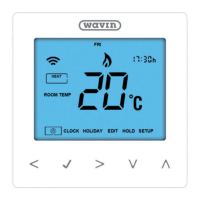
This neoStat can be configured for different sensor options such as built in air sensor,
floor sensor or both. The display will clearly indicate which sensor is being used by
showing either “Room Temp” or “Floor Temp” before the actual temperature value.
When the neoStat is set to use both the air & the floor sensor, the room temperature will
be displayed by default.
To view the current floor temperature, press and hold the Left and Right arrow keys
for 5 seconds, the floor temperature will then be displayed .......................................
Setting the Clock
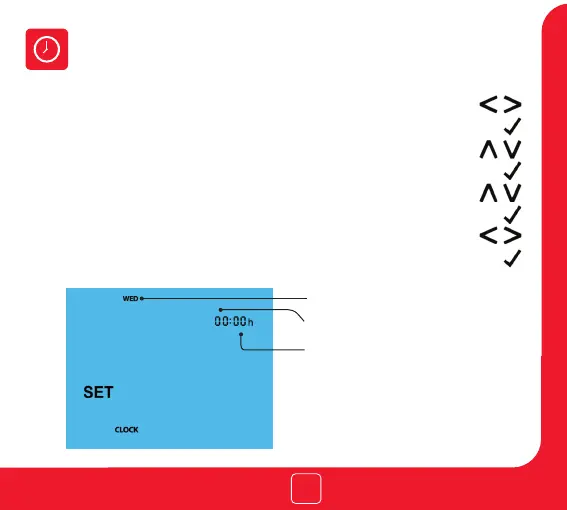
To set the clock, follow these steps.
Use the Left / Right keys to scroll to CLOCK .........................................................•
Press Tick to confirm selection ...........................................................................................•
Use the Up / Down keys to set the hours (24 hour format) ............................•
Press Tick to confirm selection ...........................................................................................•
Use Up / Down keys to set the minutes ................................................................•
Press Tick to confirm selection ...........................................................................................•
Use Left / Right keys to set the the day .................................................................•
Press Tick to confirm selection and return to the main display ............................•
Temperature Display
Room Temperature Floor Temperature
Day
Minutes
Hours
50110_HM-neoStat-2014_Layout 1 31/10/2014 11:33 Page 10


 To Next Page