Simplifying your
journey home.
SUITE 200, 1710 -14TH AVE NW CALGARY, AB T2N 4Y6 SUITE 202, 4307 SAVARYN DRIVE SW EDMONTON, AB T6X 2E8
P 403.253.1433 F 403.253.1687
EXCELHOMES.CA
HOW DO I REPLACE THE
(4) AA BATTERIES?
Complete the following steps:
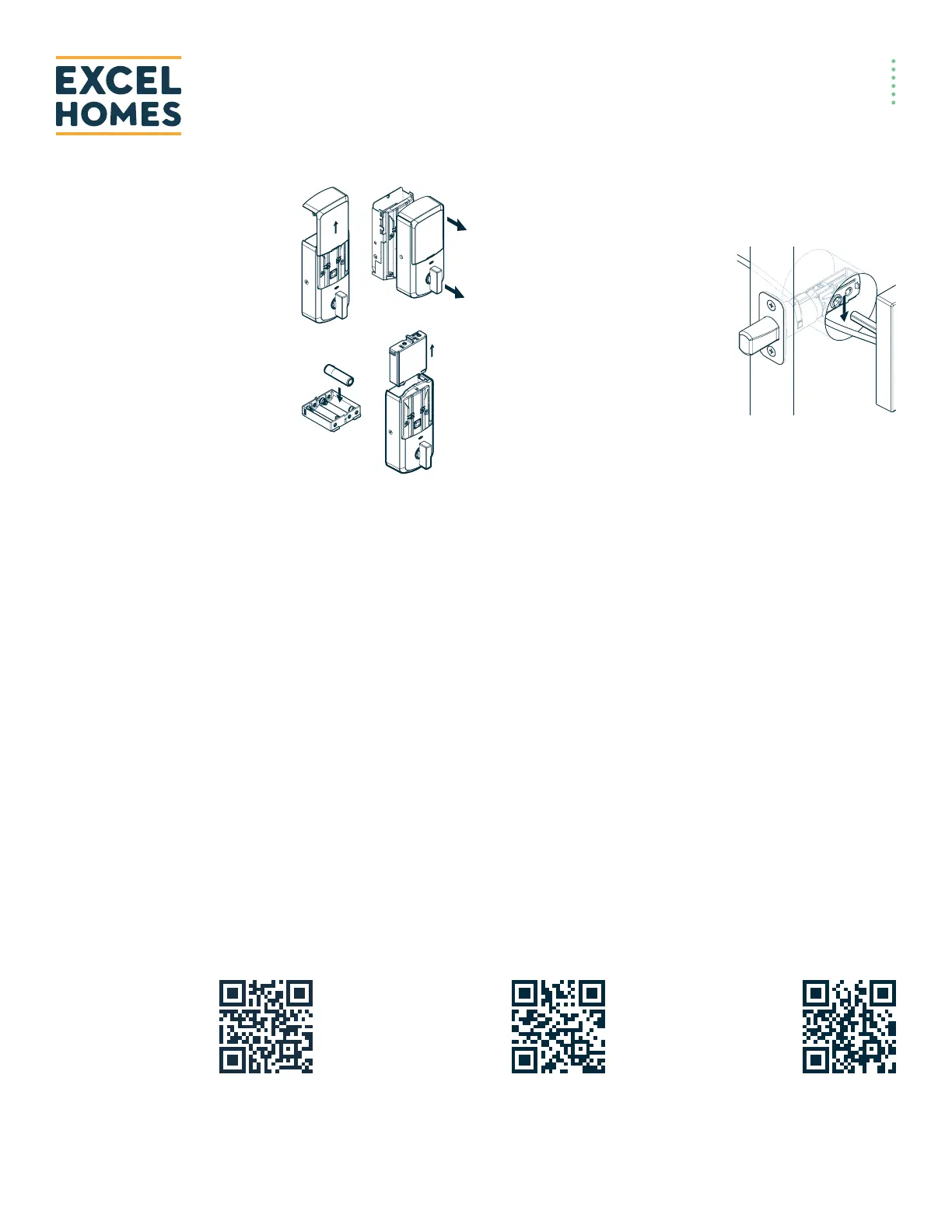
1. If the security screw is not
installed, slide the interior cover
window up (Fig. 7).
2. If the security screw is installed,
remove the entire interior cover
(Fig. 8).
3. Remove the battery pack
(Fig. 9).
4. Replace the batteries (Fig. 10).
HOW CAN I TELL IF THE BATTERIES NEED TO
BE REPLACED?
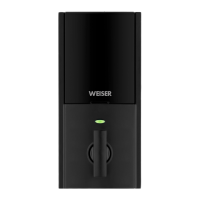
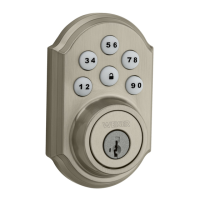
1. a) For Aura and Halo Keypad, the keypad flashes red with
fast beeping sound for three to four seconds after a
motorized operation, such as locking or unlocking with an
access code.
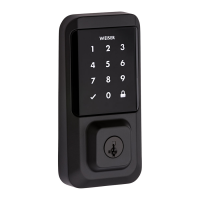
b) For Halo Touchscreen, the checkmark and lock symbols
flash simultaneously five times with five beeps after a
motorized operation, such as locking or unlocking with an
access code.
c) For Halo Touch, the exterior LED flashes red and beeps
after a motorized operation, such as locking or unlocking
with a fingerprint.
2. A battery level indicator is also available in the Weiser app,
along with a notification when the battery level is low. In addi-
tion, the interior status LED will blink red.
WHAT CAN I DO IF I FREQUENTLY NEED TO
REPLACE THE BATTERIES?
1. Check that the Weiser app is
updated to the latest version and
that your lock’s firmware does not
need to be updated.
2. Check that the door is properly
aligned. Resistance to both locking
and unlocking because of door
misalignment will reduce both
motor and battery life.
3. Check that the lock is properly
installed, and the cable is routed and stored correctly (Fig. 11).
4. Perform Manual Door Handing to make sure that the lock knows
the correct direction for locking and unlocking.
5. Make sure that the lock has a strong Wi-Fi connection with the
router; it is recommended to switch the connection of the lock
to a 2.4G network, please reach out to your network supplied
to create the 2.4G network if you do not have the option. For
better Wi-Fi coverage within the home, please investigate using
a mesh Wi-Fi network where several endpoints are deployed to
provide the best Wi-Fi coverage.
6. Call the Weiser support center at 1-800-501-9471 for additional
help and product replacement if needed.
Fig. 7
Fig. 9
Fig. 8
Fig. 10
Fig. 11
SCAN THESE HELPFUL QR CODES FOR MORE INFORMATION
To read this page online
and also translate via
Google Translate, scan
this QR code:
Scan this code to read
the Halo Smart Lock
troubleshooting guide
and much more:
Visit the ocial Halo
Smart Lock Support
website page by
scanning this QR code:


 To Previous Page
 Loading...