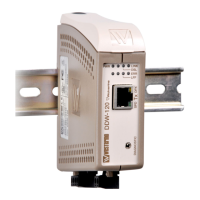
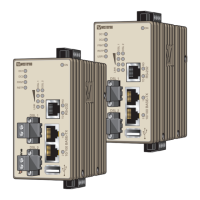
Cable factory reset on DDW-142 and DDW-242
It is possible to set the unit to factory default settings by using a standard Ethernet RJ-45
cable.
1. Power off the unit and disconnect all cables.
2. Connect an Ethernet cable between Ethernet ports 1 and 2. The unit needs to be
connected directly by an Ethernet cable i.e., not via a hub or switch. Use a straight cable –
not a cross-over cable, when connecting the ports.
3. Power on the unit.
4. Wait for the unit to start-up. Control that the ON LED is flashing red. The ON LED
flashing indicates that the unit is now ready to be reset to factory default. You now
have the choice to go ahead with the factory reset, or to skip factory reset and boot
as normal.
• Go ahead with factory reset:
Acknowledge that you wish to conduct the factory reset by unplugging the Ethernet
cable. The ON LED will stop flashing. This initiates the factory reset process*, and
the unit will restart with factory default settings. When the switch has booted up,
the ON LED will show a green light, and is now ready to use.
• Skip the factory reset:
To skip the factory reset process, just wait for approximately 30 seconds (after the
ON LED starts flashing RED) without unplugging the Ethernet cable. The switch will
conduct a normal boot with the existing settings.
* Note Do not power off the unit while the factory reset process is in progress.
Referring documents
Type Description Document number
Management Guide Westermo OS management guide
6101-3201
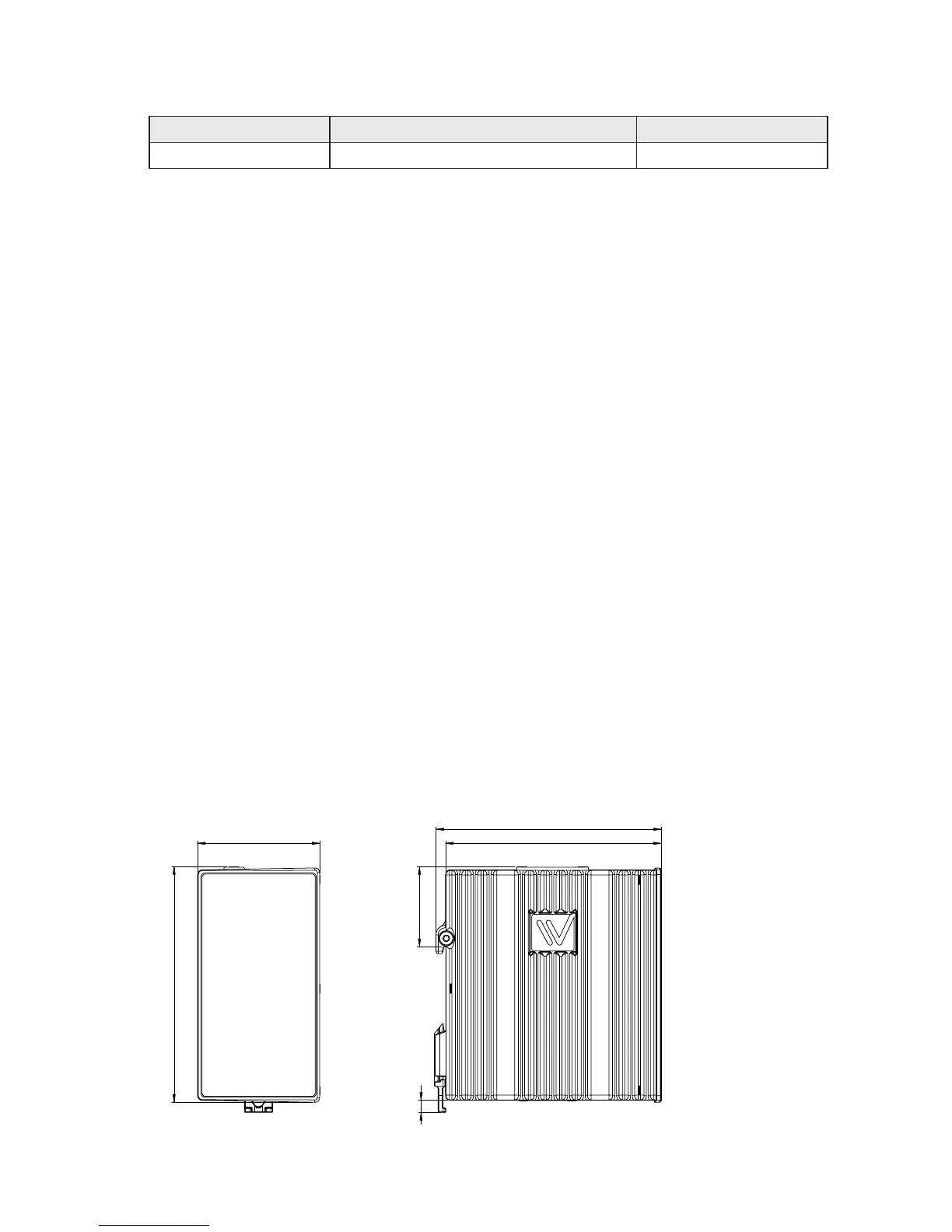
Dimensions
Measurements are stated in millimeters.
92
±1
Min 4mm
Max 7,5mm
34
±1
96
±1
52
±1
100
±1


 To Next Page