EasyManua.ls Logo

Western Digital N900 - User Manual

Western Digital N900
101 pages
Print Icon
To Next Page IconTo Next Page
Loading...
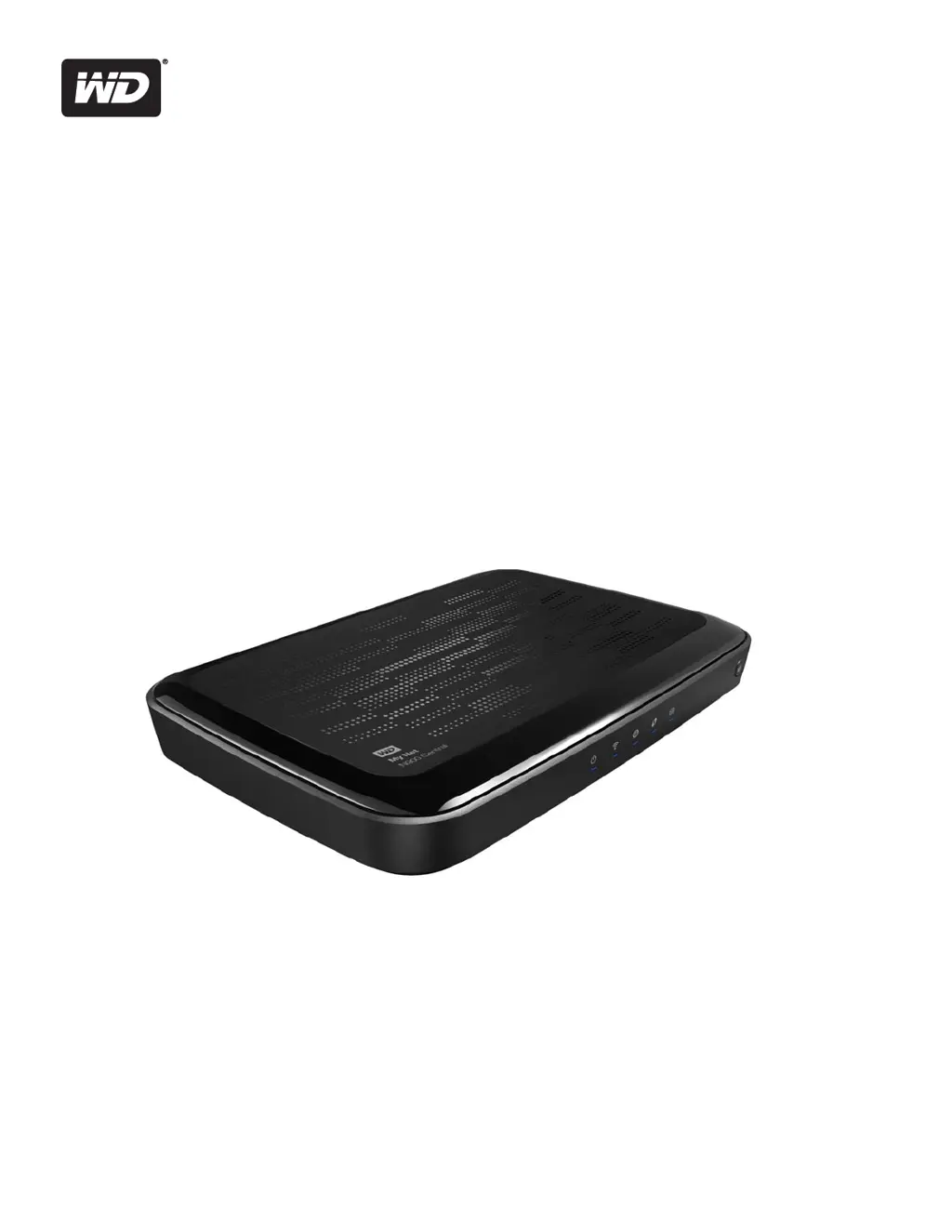
My Net
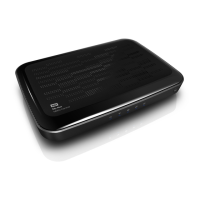
N900 Central Router
User Manual

Table of Contents

Questions and Answers

  • J
    jeffpetersonAug 1, 2025
    What to do if computers are unable to access the Internet using Western Digital Network Router?
    • G
      Garrett ClarkAug 1, 2025
      If computers can't access the internet, ensure that the Western Digital Network Router is powered on and the power LED is solid. Verify the cable connections between the modem, router, and computer, ensuring the Ethernet cable from the modem connects to the internet port on the router, and the computer connects to a LAN port. Power cycle the modem, router, and computer by turning them off and then on again.
  • P
    Penny CookAug 8, 2025
    Why is the power LED not illuminating on my Western Digital N900?
    • M
      matthew45Aug 8, 2025
      If the power LED on your Western Digital Network Router doesn't light up, make sure the power cord is properly connected to the router and that the electrical outlet is working by plugging another device into it. Also, verify that you're using the AC adapter that came with the router.
  • Z
    Zachary TorresAug 15, 2025
    What to do if all front panel LEDs (except the internal storage LED) flash continuously on Western Digital N900?
    • L
      Lindsay TorresAug 15, 2025
      If all the front panel LEDs (except the internal storage LED) on your Western Digital Network Router are flashing continuously, relocate the router to a place with better ventilation. You can also turn off the router and let it cool down for 15 to 20 minutes before turning it back on.
  • S
    Stacey WalkerAug 25, 2025
    What to do if a port number LED does not illuminate on Western Digital N900?
    • N
      Nicole RiveraAug 25, 2025
      If a port number LED isn't lighting up on your Western Digital Network Router, ensure the connected device is powered on and that the Ethernet cables are securely connected to both the device and the router's ports. Try replacing the Ethernet cable to ensure it is working correctly.

Summary

WD Service and Support

Accessing Online Support

Online resources for drivers, software, knowledge base, and community support.

Contacting WD Technical Support

Telephone numbers for technical support by region and language.

Important User Information

Important Safety Instructions

Essential guidelines for safe installation, use, and servicing of the router.

Recording Your WD Product Information

Recording serial and model numbers for technical support and warranty purposes.

Registering Your WD Product

Online product registration for timely updates and customer support notifications.

Product Overview

Features

Highlights the main functionalities of the My Net™ N900 Central router.

Package Contents

List of all items included in the router's product packaging.

Components

Identification and description of the router's physical parts and indicators.

Getting Started

Installing the Router on the Network

Methods to install the router, including using the Setup CD or a web browser.

Using the Setup CD

Step-by-step guide for using the router's setup CD, including Easy Setup for Windows.

Using a Browser for Setup (Windows or Mac)

Instructions for router setup via web browser for Windows and Mac users.

Installing WD Software from the CD (Optional)

Guide for installing additional WD software from the product CD.

Basic Settings and Tasks

Opening My Dashboard After Setup

Steps to access and open the router's main configuration dashboard.

Understanding My Dashboard

Explanation of the dashboard interface, icons, and their functions.

Connecting to the Internet

Procedure to check or troubleshoot the router's internet connection.

Configuring Wireless Settings

Steps to configure wireless network name, security, and other settings.

Setting Up Storage

Guide to setting up internal hard drive or USB storage as a network share.

Adding a Device

Instructions for connecting WPS-enabled and non-WPS wireless devices.

Setting up Remote Access

Enabling access to router files from anywhere using WD 2go and WD Photos apps.

Advanced Settings

Typical Advanced Settings Screen

Overview of the advanced settings interface, categories, and screens.

Advanced WAN (Internet) Category

Configuration options for Internet connection types, IPv6, and Dynamic DNS.

Advanced Wireless Category

Detailed wireless settings like network mode, channel width, and SSID broadcast.

Advanced LAN Category

Settings for host name, IP address, subnet mask, and DHCP server.

Security Settings Category

Firewall, DMZ, MAC filtering, and parental controls configuration.

Additional Features Category

Setup for UPnP, port forwarding, QoS, and Application Level Gateway (ALG).

Admin Category

Managing administrator password, time settings, firmware, system, and device mode.

Performing Advanced Tasks

Enabling Guest Access

Setting up a separate wireless network for visitors with internet-only access.

Setting Up Parental Controls

Configuring website, time, and content restrictions for network devices.

Changing the Administrator Password

Procedure to change the router's administrator password for enhanced security.

Accessing Files on the Router or an Attached USB Drive

Methods for accessing stored files using WD Quick View or a web browser.

Updating the Router’s Firmware

Steps to check for and install the latest router firmware version.

Restoring the Router to Factory Defaults

How to reset the router to its original factory settings via interface or reset button.

Rebooting the Router

Instructions on how to restart the router for troubleshooting or applying changes.

Using the Router as an Access Point

Configuring the router to function as a wireless access point or extender.

Configuring UPnP

Enabling Universal Plug and Play for network device discovery and communication.

Enabling Port Forwarding

Setting up rules to redirect internet traffic to specific devices on the LAN.

Accessing My Net View (Windows)

Using the My Net View application to diagnose and troubleshoot network problems.

Installing and Using WD Print Share

WD Print Share Installation (Windows & Mac)

Installing WD Print Share software for Windows and Mac computers.

Using the WD Print Share Control Center

Operating the Control Center to manage shared printers and scanners.

Troubleshooting

Regulatory and Warranty Information

Regulatory Compliance and Safety

FCC/IC compliance, safety standards, and usage restrictions.

Warranty Information and Service

Details on limited warranty, obtaining service, and consumer rights for various regions.

GNU General Public License (GPL)

Information on the GPL license for included third-party software.

Appendix: Technical Specifications

Index

Alphabetical reference to document topics and their page numbers.

Western Digital N900 Specifications

General IconGeneral
BrandWestern Digital
ModelN900
CategoryNetwork Router
LanguageEnglish

Related product manuals