EasyManua.ls Logo

Western Digital N600 - User Manual

Western Digital N600
93 pages
Print Icon
To Next Page IconTo Next Page
Loading...
My Net
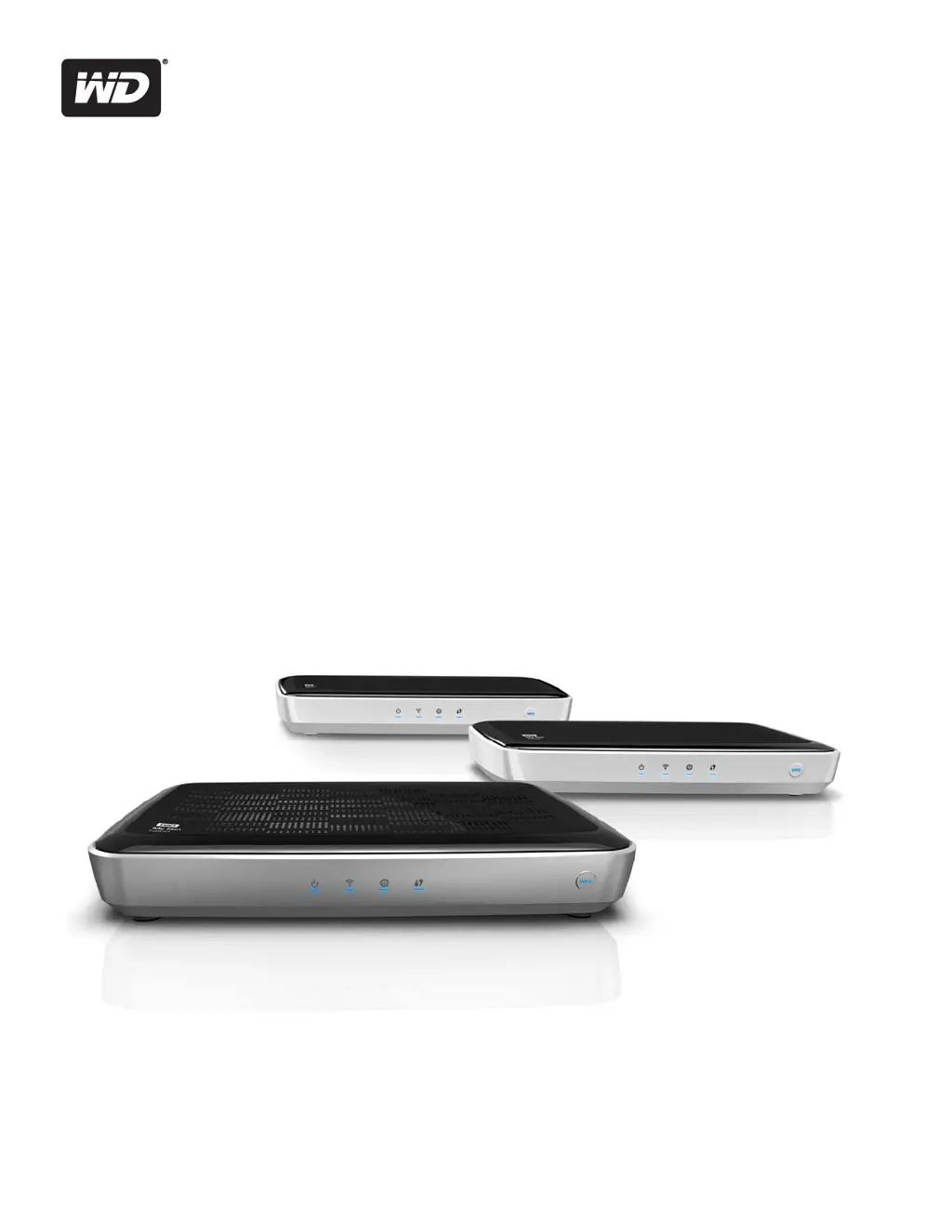
N600, N750, and N900 Routers
User Manual

Table of Contents

Questions and Answers

  • J
    John DuncanJul 26, 2025
    What to do if my computers are unable to access the Internet using Western Digital Network Router?
    • M
      Mary NashJul 26, 2025
      If your computers can't access the internet, first ensure your Western Digital Network Router is powered on with a solid, non-flashing power LED. Then, check the cable connections between your modem, router, and computer, ensuring the Ethernet cable from the modem connects to the router's Internet port, and the computer connects to a LAN port. Power cycling your modem, router, and computer might also resolve the issue.
  • T
    Teresa OlsonAug 3, 2025
    How to fix Western Digital N600 if the power LED does not illuminate?
    • J
      jimenezmaryAug 3, 2025
      If the power LED on your Western Digital Network Router isn't lit, start by ensuring the power cord is correctly connected to the router and that you're using the AC adapter provided with the router. Also, verify the electrical outlet is working by plugging in another device.
  • D
    Debra GonzalezAug 10, 2025
    What to do if a port number LED does not illuminate on Western Digital N600?
    • S
      steven13Aug 10, 2025
      If a port number LED isn't lighting up on your Western Digital Network Router, first check that the connected device is powered on. Next, make sure the Ethernet cables are securely connected to both the device and the router ports. Try replacing the Ethernet cable to ensure it's working correctly.
  • S
    Stephanie FrederickAug 18, 2025
    Why are all front panel LEDs flashing continuously on my Western Digital My Net N900 Network Router?
    • J
      jacksontaraAug 18, 2025
      If all the front panel LEDs on your Western Digital My Net N900 Network Router are flashing continuously, try relocating your router to a place with better ventilation. If that doesn't work, turn off your router and let it cool down for 15 to 20 minutes before turning it back on.

Summary

Important User Information

Important Safety Instructions

Safety guidelines for device installation, use, and servicing to prevent electric shock or fire hazards.

Getting Started

Installing the Router

Provides methods for installing the router on your network using setup CD or browser.

Using the Setup CD

Step-by-step instructions for using the setup CD for initial router installation.

Browser Setup

Guides users on setting up the router using a web browser, for Mac and Windows.

Basic Settings and Tasks

Opening My Dashboard

Steps to access the router's management dashboard after initial setup.

Connecting to the Internet

Guides on checking and troubleshooting the router's internet connection.

Configuring Wireless Settings

How to set up and manage wireless network names (SSID) and security.

Setting Up External Storage

Instructions for configuring network shares for attached USB storage devices.

Adding a Device

Steps to connect wireless devices to the router using WPS or manual methods.

Advanced Settings

Performing Advanced Tasks

Setting Up Parental Controls

How to configure website access, time limits, and content filtering.

Changing Administrator Password

Instructions on securing the router by changing the admin password.

Updating Router Firmware

Procedures for checking and installing firmware updates for improved performance.

Restoring Factory Defaults

How to reset the router to its original factory settings.

Troubleshooting

Western Digital N600 Specifications

General IconGeneral
CategoryNetwork Router
Maximum Wireless Speed600 Mbps
Wireless Speed (2.4 GHz)300 Mbps
Wireless Speed (5 GHz)300 Mbps
Ethernet Ports4
Ethernet Port Speed10/100 Mbps
Parental ControlsYes
Guest NetworkYes
ModelN600
TypeWireless
Frequency BandDual Band (2.4 GHz and 5 GHz)
SecurityWPA

Related product manuals