EasyManua.ls Logo

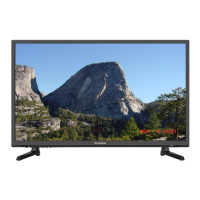
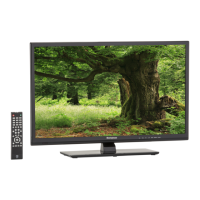
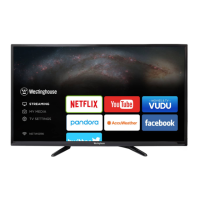
Westinghouse WD32HBB101 - User Manual

Westinghouse WD32HBB101
80 pages
Print Icon
To Next Page IconTo Next Page
Loading...
WD32HBB101

Questions and Answers

  • A
    Ann KochAug 18, 2025
    How to fix Westinghouse TV remote control not working?
    • C
      charles21Aug 18, 2025
      If your Westinghouse TV remote isn't working, first check for obstructions between the remote and the TV, ensuring you're pointing the remote directly at the TV. Next, verify that the batteries are correctly installed, matching the + to + and - to - polarities. If problems persist, install new batteries.
  • D
    Duane WongAug 21, 2025
    Why is my Westinghouse WD32HBB101 WIFI connection failing?
    • J
      Jason HerreraAug 21, 2025
      If your Westinghouse TV's WIFI connection fails, check the WIFI signal strength, ensuring the TV isn't too far from the router. Also, verify the "authentication" setting and ensure the password is entered correctly, paying attention to upper and lower case letters. Confirm that the TV is connected correctly. Try powering off the TV and unplugging it to reset it. As a last resort, try resetting the WIFI router and check for any interference or WIFI channel problems.
  • H
    Heather BlakeAug 23, 2025
    What to do if Westinghouse WD32HBB101 TV power is suddenly turned off?
    • J
      John JacksonAug 23, 2025
      If your Westinghouse TV suddenly turns off, first check the power supply to ensure it hasn't been interrupted. Then, check if the sleep timer is set or if the Auto Standby feature is activated.
  • B
    brooksleslieAug 26, 2025
    How to fix Westinghouse WD32HBB101 TV with picture OK but no sound?
    • J
      jonescharlesAug 26, 2025
      If your Westinghouse TV has a picture but no sound, first press the VOL +/- buttons. Check if the sound is muted by pressing the MUTE button. If neither works, try another channel, as the issue might be with the broadcaster.
  • W
    William TownsendAug 28, 2025
    How to restore lost password on Westinghouse TV?
    • R
      Russell GrahamAug 28, 2025
      If you've lost your password on your Westinghouse TV, select the SET PASSWORD setting in the LOCK menu, then enter the master password “8899”. This will clear your previous password, allowing you to enter a new one.
  • D
    David SchmidtAug 30, 2025
    How to fix no or poor color on Westinghouse WD32HBB101 TV?
    • L
      lthompsonAug 30, 2025
      To address no or poor color or picture quality on your Westinghouse TV, first adjust the settings in the Picture menu. If that doesn't help, try another channel, as the broadcast signal may be the cause. Also, check if the video cables are properly connected.
  • R
    Robert ScottSep 1, 2025
    How to fix Westinghouse TV picture appearing in wrong ratio?
    • M
      Michael AndersonSep 1, 2025
      To fix picture ratio issues on your Westinghouse TV, adjust the Aspect Ratio settings in the SETUP menu or press the ASPECT button on the remote control.
  • R
    Rebecca AllenSep 3, 2025
    What to do if Westinghouse WD32HBB101 does not respond when pressing any buttons?
    • R
      Robert TorresSep 3, 2025
      If your Westinghouse TV isn't responding to any button presses, it may have frozen. Disconnect the power cord from the power socket for a few minutes, then reconnect it and try operating the TV as usual.
  • M
    Melissa TurnerSep 6, 2025
    How to fix poor reception on some channels Westinghouse WD32HBB101?
    • P
      perkinsronaldSep 6, 2025
      If you experience poor reception on some channels with your Westinghouse TV, the station signal may be weak. Try repositioning the antenna for better reception and check for any potential sources of interference.
  • T
    Tina KellySep 8, 2025
    How to fix no output from one of the Westinghouse TV speakers?
    • D
      Donald Mccormick IISep 8, 2025
      If there's no output from one of the speakers on your Westinghouse TV, adjust the Balance settings in the AUDIO menu.

Summary

Important Safety Instructions

Safety Information

Electrical Safety

Safety precautions for power supply, wiring, and electrical components of the TV.

Physical Safety

Safety measures for handling, placement, ventilation, and general physical care of the TV.

Preparation

Whats Included

Lists all the items that come in the TV package, including the set, stand, and accessories.

Front View

Identifies and explains the controls and indicators located on the front panel of the TV.

Rear View

Details the various input and output ports available on the back of the TV.

Installing the Stand

Step-by-step instructions for attaching the TV stand to the unit for stable placement.

Removing the Stand for Wall Mounting

Procedures for detaching the TV stand to prepare for wall mounting.

Remote Control

An overview of the remote control, its buttons, and their functions for operating the TV.

Connecting External Devices

Customizing TV Settings

Initial Setup

Guides the user through the initial configuration process, including language and connection setup.

Streaming

Instructions on accessing and using various internet streaming applications on the TV.

Muse

Explains how to access and navigate the Muse TV interface for content.

My Media

How to view photos, listen to music, and watch videos from connected USB storage devices.

Viewing Photos

Step-by-step guide to select and view photo files from a connected USB drive.

Listening to Music

Instructions for selecting and playing music files from a connected USB drive.

Watching Videos

Detailed steps for selecting and playing video files from a connected USB drive.

TV Settings

Introduces the main menu for accessing detailed picture, audio, network, and channel configurations.

General

Covers fundamental TV settings like menu language, transparency, zoom mode, and closed captions.

Picture

Adjustments for picture quality, including mode, brightness, contrast, color, and sharpness.

Audio

Settings for sound output, including sound mode, bass, treble, balance, and surround sound.

Network

Configuration and management of network connections, including wired and wireless setups.

Channel

Settings for channel selection, auto-scanning, favorites, and information display.

Time

Options for managing sleep timer, OSD timer, daylight saving time, and clock display.

Lock

Features for setting passwords, system lock, and parental control ratings for USA and Canada.

App Settings

Manage streaming app accounts, deactivate apps, and access interactive TV features.

Source

Instructions on selecting the desired input source for the TV display.

Parental Control

MPAA Rating System

Explains the Motion Picture Association of America rating system for movie content.

TV Parental Guideline Rating System

Details the TV rating system for age and content advisories.

Troubleshooting

Video Function Issues

Solutions for common problems related to the TV's video display and picture quality.

Audio Function Issues

Troubleshooting steps for audio problems, including no sound or distorted audio output.

Troubleshooting PC and Network Issues

Addresses issues with PC connection, Wi-Fi, and app connectivity like streaming services.

Maintaining

Specification

OTT App Service

Westinghouse WD32HBB101 Specifications

General IconGeneral
Screen Typeled
Wall Mount200mm x 100mm
Tunerdigital
Screen Size32 inches
Screen Technologystandard led
Resolutionhd (720p)
Refresh Rate60hz
HDRno
Built-In Speakersyes
Speakers Output16 watts
HDMI Ports3
USB Ports1
Ethernetyes
RF Antennayes
Networkbuilt-in wi-fi, ethernet
Headphones Outputyes
Digital Optical Audio Outputs1
Component Video Inputs1
Composite Video Inputs1
DVI0
VGA Ports1
SmartTVmuse
Streaming Servicesnetflix, pandora, youtube
Voice Assistantno
Remote Controlstandard
3Dno
Power Consumption71 kilowatt hours
Depth with Stand8.5 inches
Height with Stand18.7 inches
Width with Stand28.7 inches
Net Weight with Stand8.7 pounds
Depth without Stand3 inches
Height without Stand17.2 inches
Net Weight without Stand8.5 pounds

Related product manuals