
 To Next Page
A
adamstanyaSep 23, 2025
Why can't I use Vudu and Pandora on my Westinghouse WD42FB2680 TV?
- JJulie GonzalezSep 23, 2025
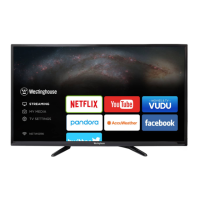
Vudu is only available in the US, and Pandora is only available in limited countries on Westinghouse TV.

Why can't I use Vudu and Pandora on my Westinghouse WD42FB2680 TV?
Vudu is only available in the US, and Pandora is only available in limited countries on Westinghouse TV.
What to do if my Westinghouse WD42FB2680 TV cannot be switched on?
If your Westinghouse TV cannot be switched on, verify that the TV is properly connected to the power supply. Also, ensure that all connected AV devices are switched off before attempting to switch on the TV.
Why does my Westinghouse TV have no picture and no sound?
If your Westinghouse TV has no picture and no sound, first check that the TV is switched on. If it is, try changing to another channel, as the problem may be with the broadcaster.
Westinghouse TV picture is OK but there is no sound: what to do?
If your Westinghouse TV has a picture but no sound, try pressing the VOL +/- buttons to adjust the volume. Also, check if the sound is muted by pressing the MUTE button. If neither works, try another channel as the issue may be with the broadcaster.
How to troubleshoot Westinghouse TV WIFI connection fails?
If your Westinghouse TV WIFI connection fails, consider the following: - Check the WIFI signal strength; the TV might be too far from the router. - Review the authentication settings. - Ensure the WIFI password is entered with the correct case. - Verify the TV is connected correctly. - Try powering off and unplugging the TV to reset it. - Reset the WIFI router and check for interference or channel problems.
Why does picture appear slowly after switching on Westinghouse WD42FB2680?
This is normal; the image is muted during the Westinghouse TV startup process. Please contact your service centre if the picture has not appeared after 5 minutes.
How to fix unstable screen color on Westinghouse WD42FB2680?
If the screen color on your Westinghouse TV is unstable or shows a single color, check the signal cable. If the issue persists, try reinstalling the PC video card.
How do I fix no output from one of the speakers on my Westinghouse WD42FB2680?
If there is no output from one of the speakers on your Westinghouse TV, adjust the Balance settings in the AUDIO menu.
How to restore sound when connecting HDMI to Westinghouse TV?
If there is no sound when connecting HDMI to your Westinghouse TV, check if the input source is HDMI1/HDMI2/HDMI3.
What to do if Westinghouse WD42FB2680 does not respond when pressing any buttons?
If your Westinghouse TV freezes up and does not respond when pressing any buttons, disconnect the power cord from the power socket for a few minutes. Then, reconnect the power cord and try to operate it again as usual.
Provides essential guidelines for safe operation and handling of the TV.
Lists all the components provided in the TV package.
Identifies and explains the controls and indicators on the front of the TV.
Details the various input and output ports on the back of the TV.
Step-by-step instructions for attaching the TV stand.
Guide on how to detach the stand for wall installation.
Information regarding screws needed for wall mounting.
Explains the function of each button on the remote control.
Guides through the first-time setup wizard for language, time, and channels.
Details how to access and use streaming applications like Netflix and YouTube.
Instructions for accessing and using the Muse TV service.
How to view photos, music, and videos from a USB drive.
Step-by-step process for displaying photo files from a USB drive.
Instructions for playing music files from a USB drive.
Guide on how to play video files from a USB drive.
Configuration options for menu language, zoom, and closed captions.
Adjustments for picture modes, brightness, contrast, color, and sharpness.
Settings for sound mode, volume, bass, treble, and audio language.
Configuration for connecting to wired or wireless networks.
Options for scanning channels, setting favorites, and managing channel information.
How to configure sleep timer, OSD timer, time zone, and clock.
Features for changing passwords and setting parental controls/locks.
Manage and deactivate installed applications on the TV.
How to choose the input source for the TV.
 General
| Screen Size | 42 inches |
|---|---|
| Resolution | 1920 x 1080 |
| Display Type | LED |
| Refresh Rate | 60 Hz |
| HDMI Ports | 3 |
| USB Ports | 1 |
| Smart TV | Yes |
| Built-in Wi-Fi | Yes |