
 Need help?
Do you have a question about the Wiener Netze AM550-TD0 and is the answer not in the manual?
Explains the breaker button and its LED status indicator for operating the electricity meter.
Details the function of the display button used to scroll through different meter display views.
Describes the light emitting diodes (LEDs) and pulse output indicating meter status and consumption.
Provides an overview of the smart meter's display, including symbols and their meanings.
Defines OBIS codes as standardized identifiers for energy market data and provides examples.
Explains the physical units displayed on the meter, such as kilowatt hours (kWh).
Describes the meaning of illuminated multifunction triangles indicating meter modes and status.
Details how to access billing-relevant data and the opt-out view on the smart meter display.
Explains how to navigate through different OBIS codes and display values using the display button.
Explains the symbols indicating active tariffs (T1, T2) for customers with varying energy rates.
Describes how the meter displays energy form and flow, including active and reactive energy.
Explains the condition when power consumption is below the meter's start-up current detection limit.
Details connecting devices to the meter via the customer interface and its activation.
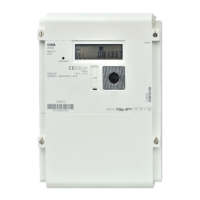
The document describes the Iskraemeco AM550-TD0 (three-phase) and AM550-ED0 (single-phase) Smart Meters, which are electronic electricity meters provided by Wiener Netze. These smart meters are designed to help users save electricity and offer various helpful applications.
The smart meter features several key components:
Switching on the Electricity Meter: To switch on the meter, ensure it is connected to the mains, and the breaker LED (1) is flashing. When "ConnEct" appears on the display, press and hold the breaker button (1) for at least 5 seconds. Release the button when "Enter" appears, indicating the meter is active.
Meter Status Indicators:
Display Navigation: Pressing the display button once illuminates the display, showing all elements. Brief presses (< 1 second) cycle through different OBIS codes and values. Pressing and holding the button (> 5 seconds) takes the user to the second last level (OBIS code 1.5.0.2.8). The display automatically reverts to the standard or opt-out view after ten minutes of inactivity.
Display Information: The display provides detailed information, including:
Display Views (e): The meter offers several display views:
Standard view (scrolling display): Automatically switches between values every five seconds:
Billing view: To access billing-relevant values, users must activate this function via Wiener Netze's Smart Meter web portal or business portal. After selecting the meter under "Anlagendaten" (System data), click on "Abrechnung" (Billing) under "Zähler-Displayanzeige" (Display). The meter will then display required OBIS codes based on the tariff:
Opt-out view: If the opt-out option is selected, the display shows "oPt-out," and the multifunction triangles DS and OU are illuminated. This view also scrolls between values every five seconds:
Firmware and Checksum Information: The display also provides access to firmware and checksum details:
The document does not explicitly detail maintenance features for the end-user beyond the activation of the customer interface and the ability to view error codes (OBIS code F.F.0). The "Firmware (must be calibrated)" and "Checksum (must be calibrated)" entries suggest that calibration and software updates are part of the device's lifecycle, likely managed by Wiener Netze. The FD/FM symbol, used for analysis by the network operator, also indicates remote diagnostic capabilities.
 General
| Brand | Wiener Netze |
|---|---|
| Model | AM550-TD0 |
| Category | Measuring Instruments |
| Language | English |

 To Next Page
