Swift 2 X User Manual | English
17
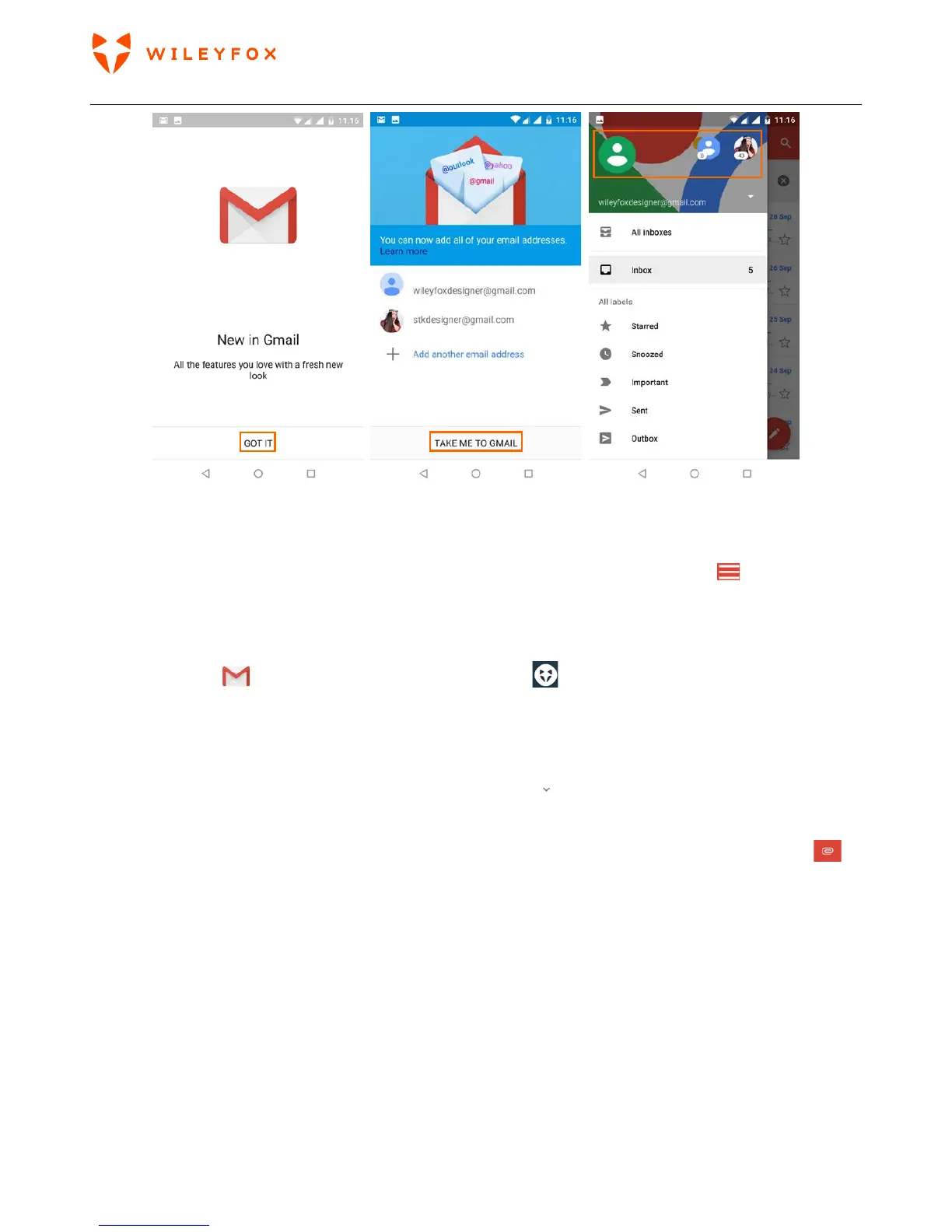
Use the Gmail app to read and write email from your Gmail account or other email addresses. When you
open Gmail first there will be a welcome message then you will have the opportunity to add more email
addresses. When you have more then one email address you can tap on the menu icon
and you will
see your profile icons (if you have set an image on your Google account you will see your image there).
When you scroll down the menu you will have direct access to your email-labels, Inboxes, Outbox, Drafts,
Bin; also, Google Calendar, Contacts, Settings (for Gmail) and Help and Feedback (see images above)
1. Touch Gmail
on a Home screen or ‘Apps Tray Icon’ screen.
2. If you already signed into a Gmail account during setup, your email will be synced to your Wileyfox
device.
3. To create new email please see the images below. In the section ‘To’ you can type a new email or select
one from your address book. When you tap on the little arrow
in section ‘To’ it will expand and open
options like Cc (send copy to) and Bcc (Blind carbon copy). Choose your subject Then Compose your email
and if you need to attach a file, Document, Image, Small video please tap on the little Paper Clip Icon
and choose where you want to get files from.


 To Next Page