EasyManua.ls Logo

Wimius P60 - Connect to the DVD Player

Wimius P60
26 pages
Print Icon
To Next Page IconTo Next Page
To Previous Page IconTo Previous Page
Loading...
3
Support01@wimius.com
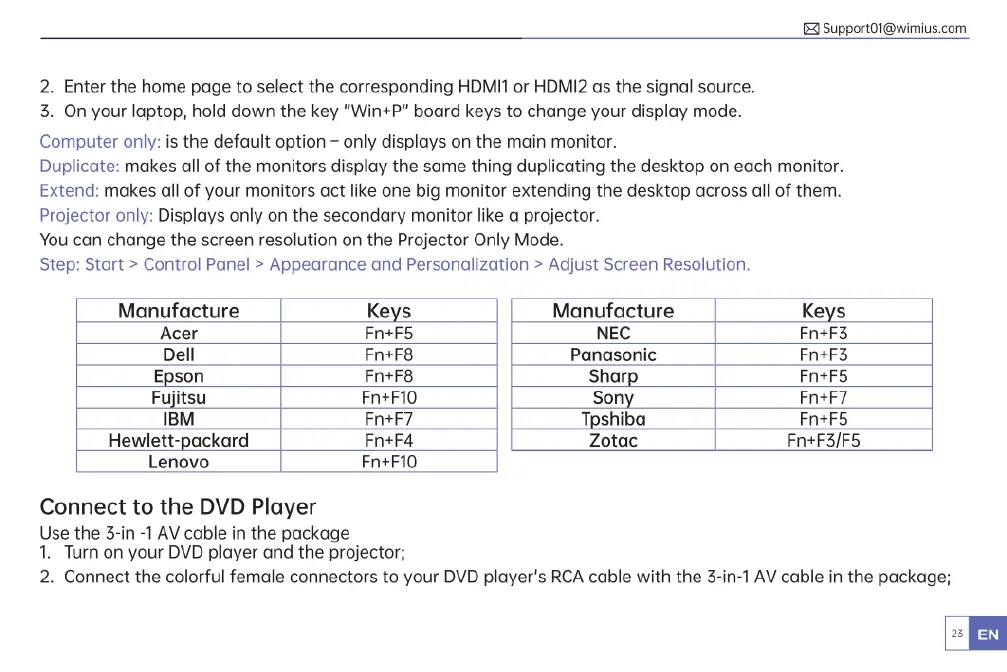
2.
Enter
the
home
page
to
select
the
corresponding
HDMI1
or
HDMI2
as
the
signal
source.
3.
On
your
laptop,
hold
down
the
key
"Win+P"
board
keys
to
change
your
display
mode.
Computer
only:
is
the
default
option
-
only
displays
on
the
main
monitor.
Duplicate:
makes
all
of
the
monitors
display
the
same
thing
duplicating
the
desktop
on
each
monitor.
Extend:
makes
all
of
your
monitors
act
like
one
big
monitor
extending
the
desktop
across
all
of
them.
Projector
only:
Displays
only
on
the
secondary
monitor
like
a
projector.
You
can
change
the
screen
resolution
on
the
Projector Only
Mode.
Step:
Start
>
Control
Panel
>
Appearance
and
Personalization
>
Adjust
Screen
Resolution.
Manufacture
Keys
Manufacture
Keys
Acer
Fn+F5
NEC
Fn+F3
Dell
Fn+F8
Panasonic
Fn+F3
Epson
Fn+F8
Sharp
Fn+F5
Fujitsu
Fn+F10
Sony
Fn+F7
IBM
Fn+F7
Tpshiba
Fn+F5
Hewlett-packard
Fn+F4 Zotac
Fn+F3/F5
Lenovo
Fn+F10
Connect
to
the
DVD
Player
Use
the
3-in
-1
AV
cable
in
the
package
1.
Turn
on
your
DVD
player
and
the
projector;
2.
Connect
the
colorful
female
connectors
to
your
DVD
player's
RCA
cable
with
the
3-in-1
AV
cable
in
the
package;

Related product manuals