EasyManua.ls Logo

Wimius P64 - Android Device Connection (Miracast)

Wimius P64
31 pages
Print Icon
To Next Page IconTo Next Page
To Previous Page IconTo Previous Page
Loading...
[
supportol@wimius.com
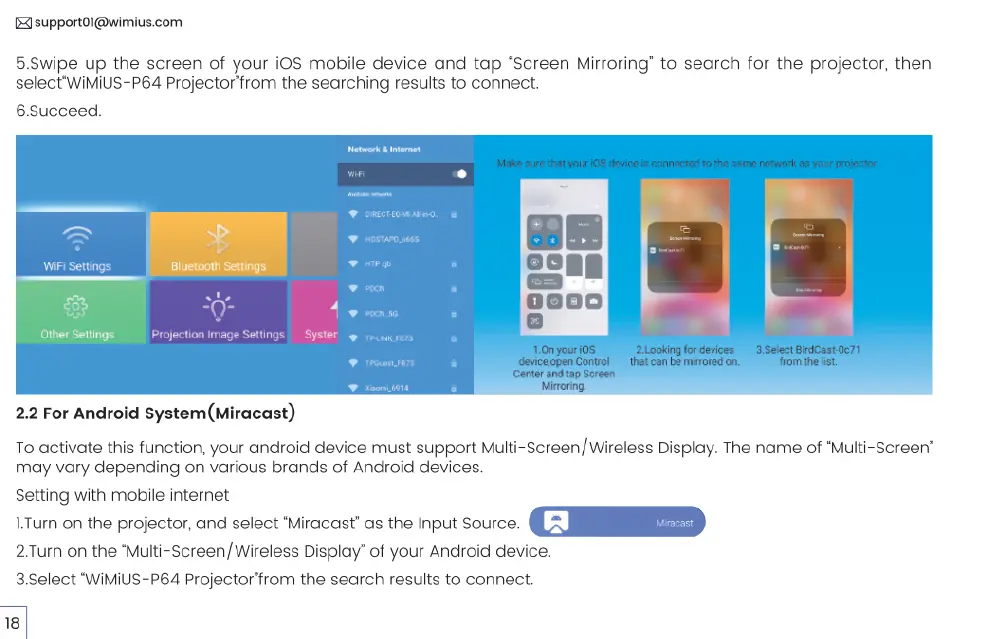
5.5wipe
up
the
screen
of
your
iOS
mobile
device and
tap
“Screen
Mirroring”
to
search
for
the
projector,
then
select'
WiMiUS-P64
Projector
from
the
searching
results
to
connect.
6.5ucceed.
S
Make
sure
that
you
S
deios
s
connactod
fo
the
ssme
notwork
as
yorr
projecor,
S
Bluetooth
Settings
OtherSetings
|
Projecion
mage
Setings
Lonouri0S
2lookngfodeiss
3SelctBidKast
07t
s
T
e
o
e
vt
2.2
For
Android
System(Miracast)
To
activate
this
function,
your
android
device
must
support
Multi-Screen/Wireless
Display.
The
name
of
“Multi-Screen”
may
vary
depending
on
various
brands
of
Android
devices.
Setting
with
mobile
internet
1.Turn
on
the
projector,
and
select
*Miracast”
as
the
Input
Source.
2.Turn
on
the
"Multi-Screen/Wireless
Display”
of
your
Android
device.
3.Select
"WiMiUS-P64
Projector’from
the
search
results
to
connect.
18

Related product manuals