EasyManua.ls Logo

Wimius P64 - Smartphone;iPad Connection (Airplay)

Wimius P64
31 pages
Print Icon
To Next Page IconTo Next Page
To Previous Page IconTo Previous Page
Loading...
[
supportol@wimius.com
2.Connecting
with
Smartphones
and
iPad
Warming
Tips:
1.
The
fluency
of
screen
mirroring
with
a
wireless
connection
will
be
affected
by
the
network
environment.
A
bandwidth
of
100Mbit
or
more
is
recommended
when
using
screen
mirroring
2.
Make
sure
your
mobile
device
is
close
to
the
projector
when
using
@
wireless
connection.
A
distance
of
1
meter
is
recommended.
3.
Some
Android
devices
may
not
support
screen
mirroring
due
to
the
compatibility:
4.
Any
questions,
please
feel
free
to
email
WiMIUS
via
support01@wimius.com.
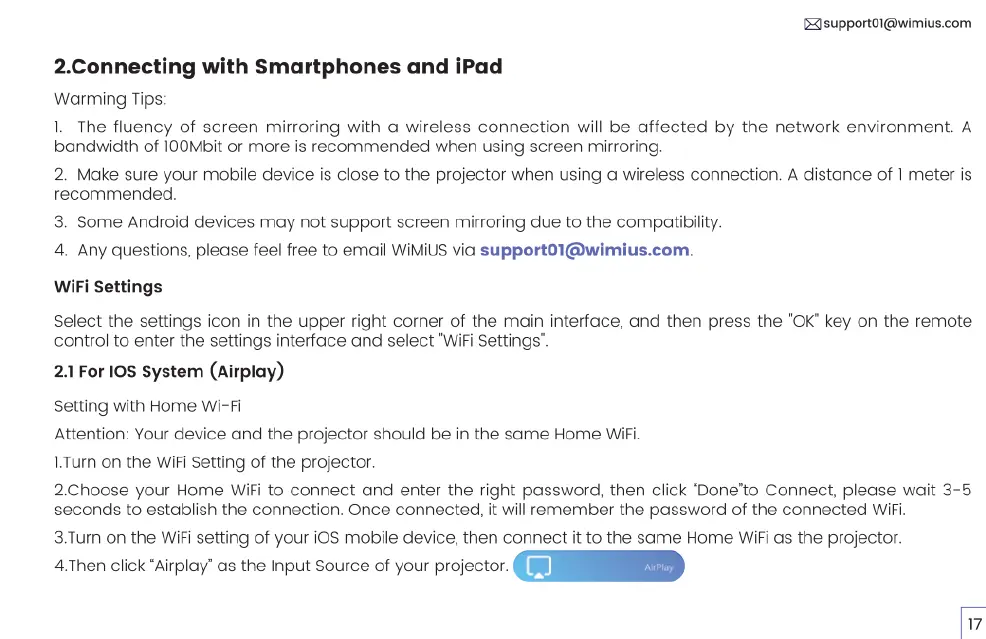
WiFi
Settings
Select
the
settings
icon
in
the
upper
right
corner
of
the
main
interface,
and
then
press
the
"OK”
key
on
the
remote
control
to
enter
the
settings
interface
and
select
"WiFi
Settings’.
2.1
For
10S
System
(Airplay)
Setting
with
Home
Wi-Fi
Attention: Your
device
and
the
projector
should
be
in
the
same
Home
WiFi.
1.Turn
on
the
WiFi
Setting
of
the
projector.
2.Choose
your
Home
WiFi
to
connect
and
enter
the
right
password,
then
click
"Done’to
Connect,
please
wait
3-5
seconds
to
establish
the
connection.
Once
connected,
it
will
remember
the
password
of
the
connected
WiFi.
3.Turn
on
the
WiFi
setting
of
your
i0S
mobile
device,
then
connect
it
to
the
same
Home
WiFi
as
the
projector.
4.Then
click
"Airplay”
as
the
Input
Source
of
your
projector.

Related product manuals