DOS without using a video driver, but you must have a video driver for Windows installed in
order for Windows to run.
You can use the preinstalled Windows video driver with an external monitor. Refer to the “Video
Drivers & Utilities” section at the end of Chapter Six for more information about video drivers
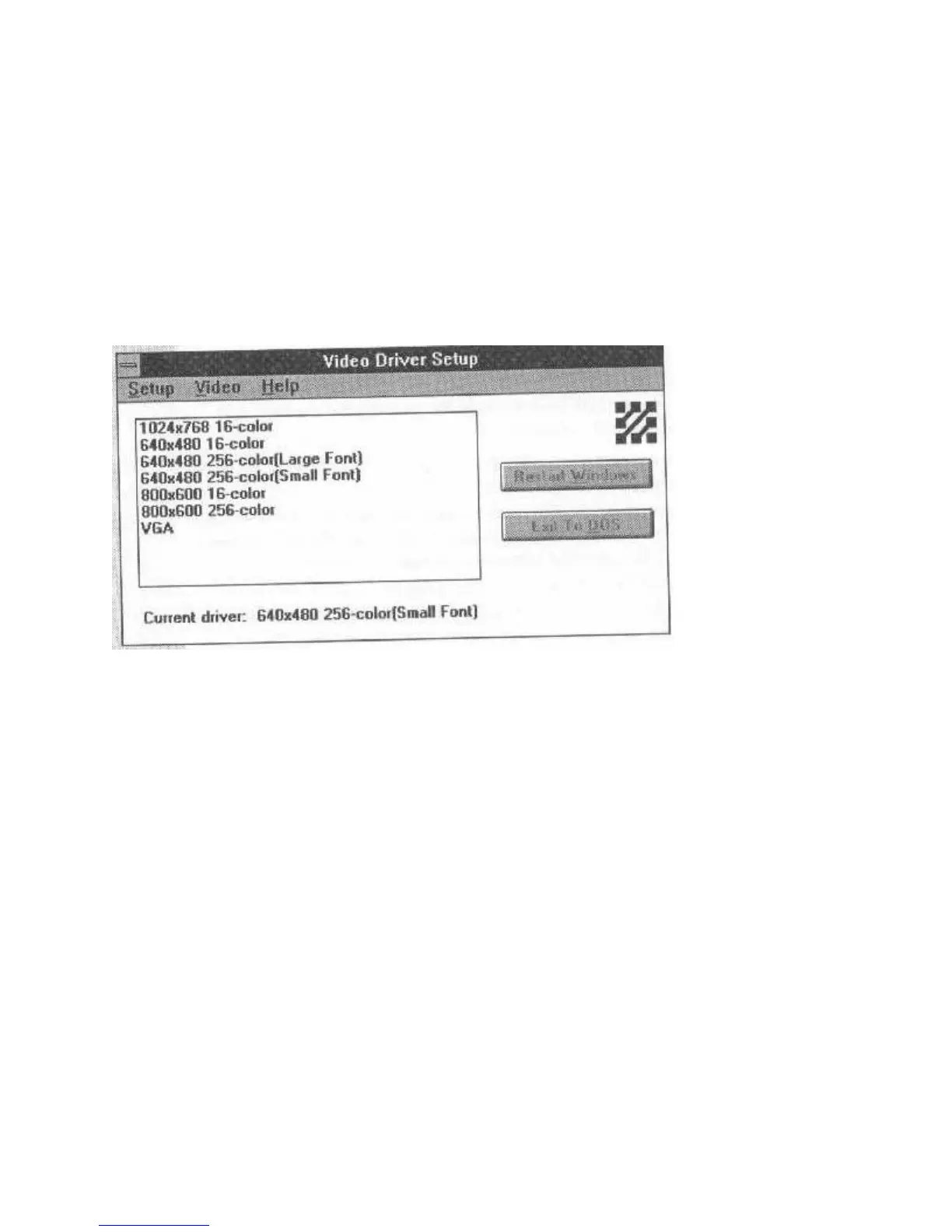
and installing them in your system. The installed video driver supports the colors and resolutions
shown below. The default Windows driver
for the WinBook is the Western Digital 640 x 480 x 256 color mode with the Small Front option.
Figure 16: Windows Video Drivers
Connecting An External Keyboard
You can connect a full-size keyboard to the PS/2 mini-DIN port. Just plug it in and it will work.
If your desktop keyboard uses the larger type of connector, get a DIN to mini-DIN PS/2 adapter
for the mini-DIN port.
You can also plug an external keyboard and mouse into the PS/2 port at the same time by using
the PS/2 port duplex adapter explained in the mouse section below.
Connecting a PS/2 Keypad
Embedded keypads on notebook computers provide a modified keypad, which although fully
functional, is not identical to the IBM 101-keyboard layout because the keys rows are on a slant.
For this reason, several suppliers make a special PS/2 keypad you can use with your notebook.
These keypads are ideal for people who must to numeric data entry, as they reproduce the
familiar layout of the IBM 101 keyboard. You can use this kind of keypad with the WinBookXP
by connecting it to the PS/2 mini-DIN port, as you would an external keyboard. You can use a
keypad with or without the duplex adapter.
Connecting A Mouse
You can use either a Serial or PS/2-type Microsoft-compatible mouse with your WinBookXP.



 To Next Page