THE OPTIONAL DOCKING STATION
The optional docking station gives you a number of expansion capabilities. There is space for
one half-height 5 ¼” device in the front. It is also possible to install four ISA expansion cards in
the docking station. The back panel has two power ports, one parallel port, one serial port, and
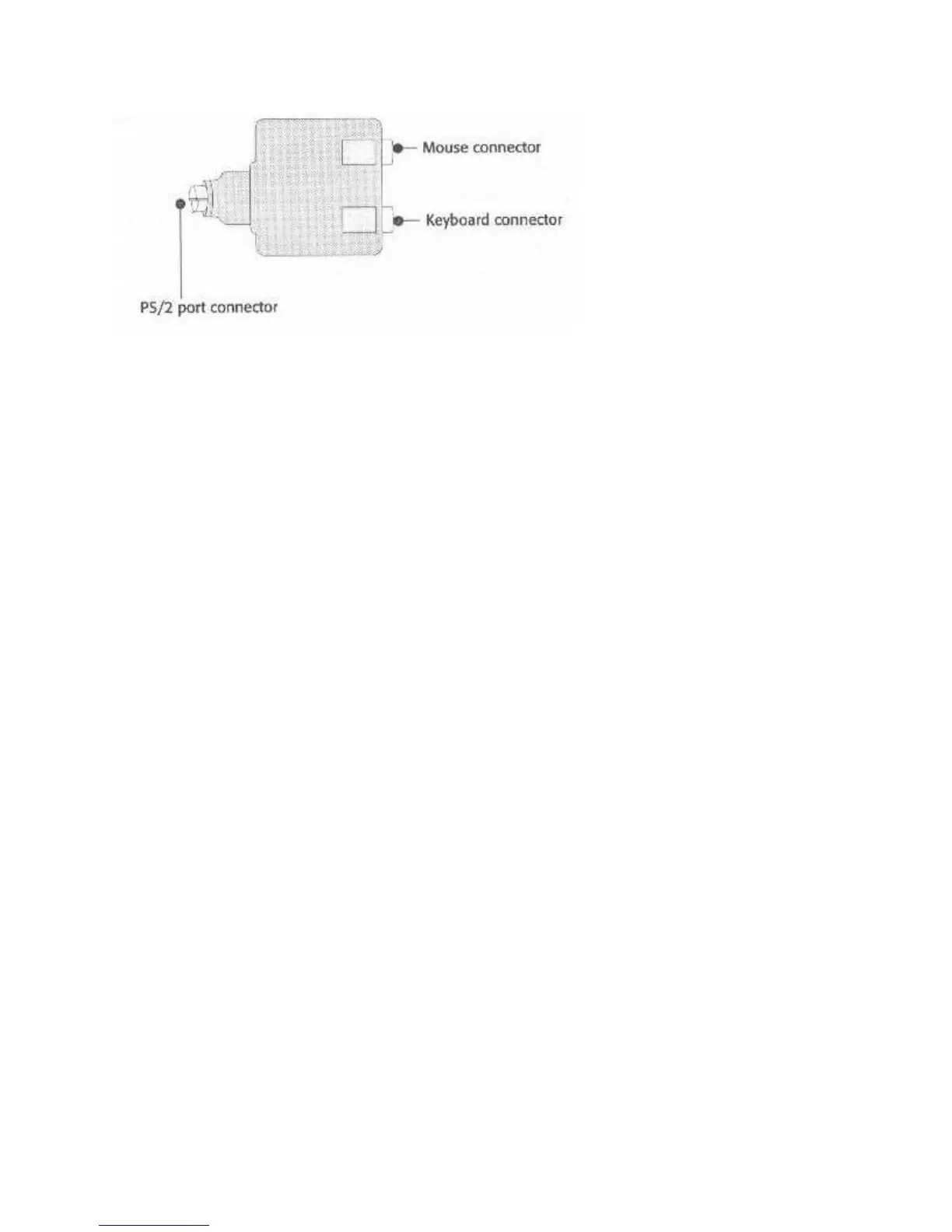
one external monitor port. There are also connectors for a PS/2-type keyboard and mouse, as
well as audio jacks for the optional sound card.
The manual that comes with the docking station explains how to dock and undock the notebook.
You will also find information about how to use the hardware together to good effect in that
manual.
CONNECTING SOUND EQUIPMENT
The WinBookXP includes Line In and Speaker Out mini phone jacks on the left-hand side of the
case. You can connect any external audio source that uses a standard mini phone plug to the
computer’s Line in port. However, you cannot plug a non-amplified external microphone into the
Line In port, as the mic must meet the minimum input amplitude requirements. Some
microphones on the market have a high output level, and can be plugged into the Line In input.
You can plug either self-amplified speakers, non-amplified speakers or headphones into the
Speaker Out jack.
The system automatically configures itself for stereo/mono configuration depending on the audio
option board installed. When you use the internal speaker, both channels will play through that
speaker. External speakers or headphones will receive either stereo or mono input, depending on
the option you have installed. The internal microphone records in mono only – even if you have
a stereo audio board installed.
Be Careful With Headphones
You should always be careful about excess volume when using headphones. Adjust the Volume
control for the Speaker Out jack to a lower volume before you plug headphones into it.
Otherwise, as with personal audio devices, you risk hurting your ears and damaging your
hearing.
Connecting Other Hardware
To connect any other devices that use a standard port, follow the directions that come with the



 To Next Page