to use it if you do. You can also acc4ess the Video Changer utility by using the “Change Video’
command in the Video menu. You must restart Windows in order for any changes you make to
take effect.
The “Small Font” and “Large Font” notations refer to the basic display font that Windows uses
in the Program Manager, Windows utilities and application programs. The “Small Font” is the
‘standard’ size for a given resolution. Generally speaking, to get closest to a WYSIWYG (What
You See Is What You Get) display, 14- and 15 –inch monitors should use the 640 x 480
resolution, while 16- or 17-inch monitors should use 800 x 600. The 1024 x 768 resolution are
for 19- or 20-inch monitors.
Sometimes, however, you might like to display a higher resolution on a smaller monitor so that
you get more displayed in the same screen dimensions. In this case, you might want to use the
“Large Fonts” option so that menus etc. are easier to see on the smaller –looking image that
results from this arrangement.
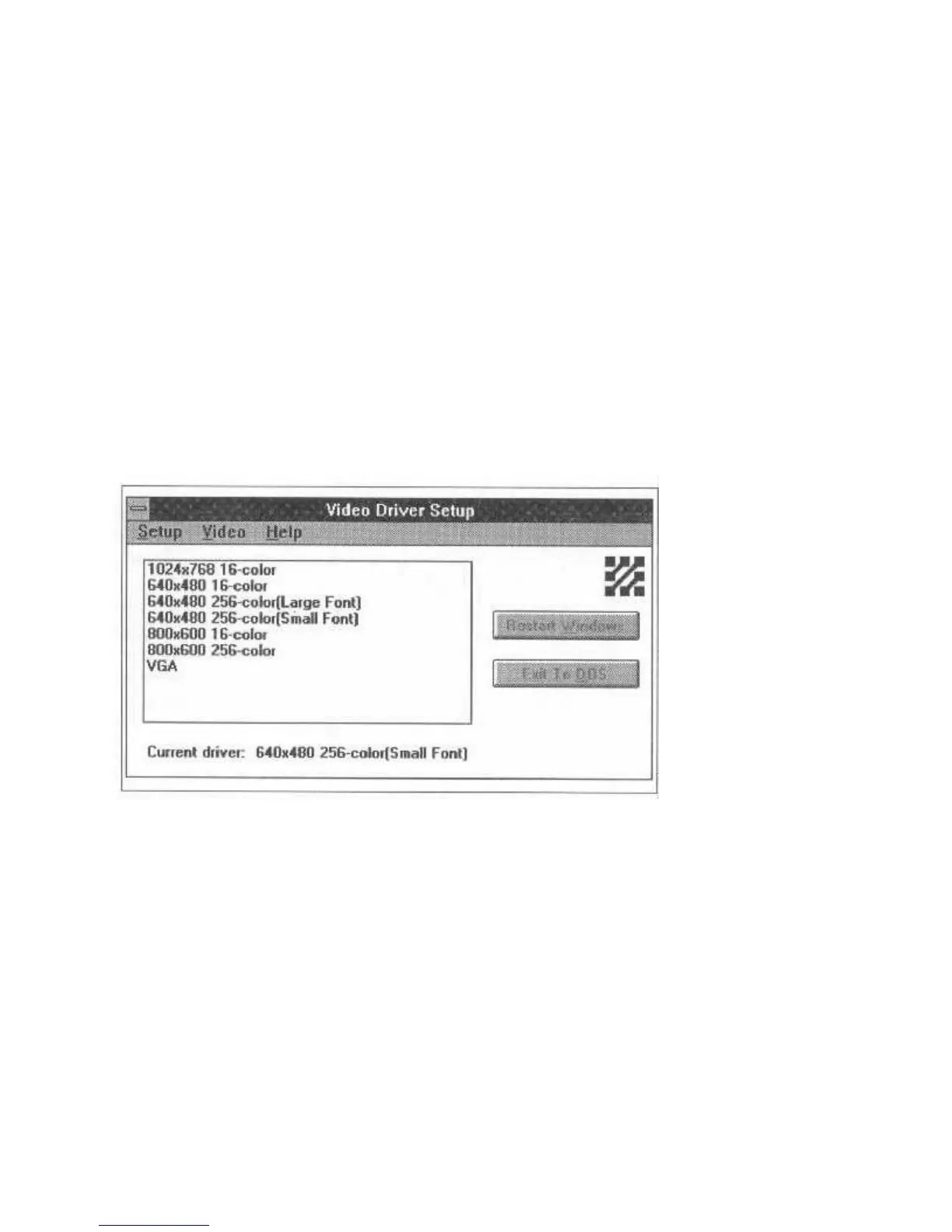
Figure 24: WD Video Driver Setup
WD Video Driver Setup Program
This program allows you to conveniently change the current display drivers to meet your needs.
The maximum LCD resolution is 640x480x256 colors, but if you’re using a CRT, you can select
from resolutions up to 1024x768x256 colors. The program will automatically restart Windows
when you select a new display driver.
Video Changer
You should use the Video Changer utility to change between currently installed resolutions and
numbers of colors. You can also change between the Small and Large Font options. The Figure
on the next page shows the Video Changer window.
To make changes, you click on the item you want to change and then select an option from the
items presented. Not all items on the screen are usable for the LCD screen. The ‘32K or 64K



 To Next Page