13
Play on APP (About WIFI and APP)
The WIFI feature has been designed so you can pair your dash
camera wirelessly with your smartphone and access your recording
instantly from the dash cam. Here you can view, download and
share your videos easily with your friends and family.
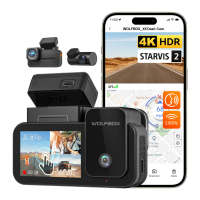
The app “Wolfbox” is a free app that allows you to operate this
WLAN built-in drive recorder from your smartphone.
• How to connect WIFI?
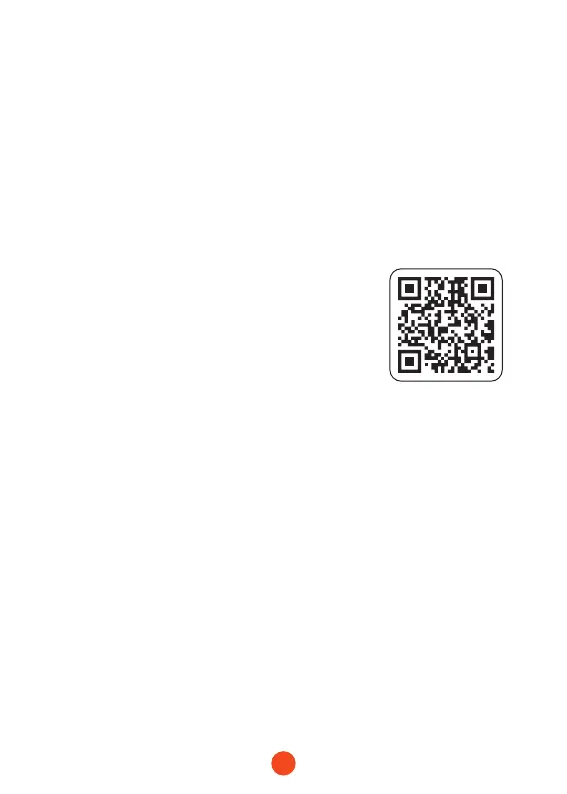
1. Download the “Wolfbox ” app
Please go to the following address to
download the “ Wolfbox” app: https://
wolfbox.com/app/ Or you can use your
smart phone to scan the QR code to go
to the download page.
2. WIFI Function on
Turn on the WiFi function. Go to Settings to turn on the WiFi.
Then, the device screen will display the WiFi name and
password.
3. Connect WIFI
Now simply join the G840H WIFI by going into your iPhone or
Android phone’s Settings > WiFi > G840H WiFi. Then enter
the default password: 12345678 to join the network.
4. Open the “Wolfbox” app
Once your mobile phone has been successfully connected to
the G840H WiFi, you should open the "Wolfbox" app, and the
camera will sync automatically.
You should be able to see the live video album on your mobile
phone using the camera app. Then keep exploring the app
from here on.


 To Next Page