Need help?
Do you have a question about the Worx VISION and is the answer not in the manual?
Connect all pieces of the charging base as pictured.
Choose a flat, level area and ensure Vision can push onto terminals.
Position for counterclockwise entry and plug into a 120V outlet.
Attach the headlight to Vision using provided screws.
Insert battery, place Vision on station, and press Power On.
Download the Worx Landroid App and create an account.
Follow App instructions to pair Vision with your phone via Wi-Fi.
Press Start on Vision's panel and confirm mowing zone.
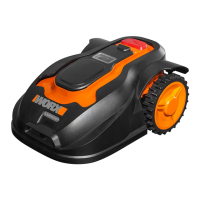
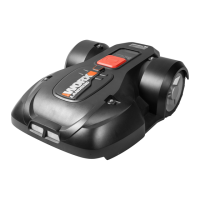
This document serves as an installation and setup guide for the Worx Landroid Vision robotic lawnmower, designed to simplify lawn care through automated mowing. The Vision is a sophisticated device capable of navigating and maintaining lawns, with features for both single and multi-zone operation.
The Worx Landroid Vision is an autonomous lawnmower that cuts grass within a defined area. It operates by following a programmed schedule and can detect its boundaries using various methods, including a charging station, magnetic strips, and RFID tags. The device is designed to return to its charging station automatically to recharge its battery. Its core function is to provide hands-free lawn maintenance, reducing the need for manual mowing. The Vision is equipped with a battery for cordless operation and connects to a mobile app for setup, control, and receiving over-the-air updates, ensuring its software remains current with the latest features and improvements. It also includes an optional headlight accessory for enhanced visibility, particularly useful for operation in low-light conditions.
The setup process begins with assembling the charging station, which serves as the Vision's home base and power source. The charging station needs to be placed on a flat, level surface, allowing the Vision to easily dock without obstruction. Proper positioning of the charging station is crucial, ensuring the Vision can enter it from a counterclockwise path and that the right side of the station is near the lawn's edge. Once the charging station is in place and plugged into a 120V outlet, the Vision's battery is inserted into its compartment on top of the mower. The device is then placed onto the charging terminals to begin its initial charge, activated by pushing the Power On button. The initial default code for the mower is "0000."
For remote control and advanced settings, users download the "Worx Landroid" mobile app. The app guides users through pairing the Vision with their smartphone, typically via Wi-Fi, by selecting the home Wi-Fi network and entering the password. This connectivity is vital for receiving over-the-air updates, which enhance the Vision's functionality and performance. A strong Wi-Fi signal in the charging station's area is recommended for optimal update delivery.
After initial setup and charging, the Vision is ready to start mowing. Users press the "Start" button on the control panel and then turn the control dial to initiate mowing. The Vision will exit the charging station and, upon displaying "Is it the identified mowing zone?" on its LCD screen, users confirm by pressing the dial for "Yes." The device then commences mowing. It's important that the Vision successfully returns to its charging station after its first run; if not, adjustments to the charging station's position may be necessary.
For more complex yards, the Vision supports advanced boundary definition methods. Magnetic strips can be installed to create no-mow zones or boundaries between connected lawn areas, preventing the Vision from crossing into undesirable areas like steep drop-offs, neighboring lawns, or ditches. These strips should be placed with at least 13 inches of clearance and secured with stakes. They can also form closed loops around obstacles like pits. The Vision automatically recognizes these new barriers once in place.
For multi-zone yards, RFID tags are used to establish separate mowing zones. Tags are placed on both sides of dividers between lawn sections, such as pathways or driveways, ensuring the non-grassy area has no obstacles and is not raised more than 3 cm above the lawn. The center of the RFID tag should be 20-24 inches from the edge of the divider. Nails are provided to secure the tags into the ground. Once RFID tags are installed, multi-zone mowing is configured through the "My-Landroid > Multi-Zone" section of the app.
The document highlights the importance of over-the-air updates for the Vision, implying that software maintenance and feature enhancements are delivered wirelessly. This ensures the device's capabilities are continuously improved without manual intervention. Users are advised to ensure the Vision is located in a strong Wi-Fi coverage area to facilitate these updates. While not explicitly detailed as "maintenance," the troubleshooting section provides contact information for phone and email support, indicating that assistance is available for any operational issues. The availability of replacement magnetic strips or RFID tags on worx.com suggests that these boundary components are considered consumables or replaceable parts, allowing users to maintain or modify their lawn's layout over time. The guide also implicitly suggests that proper placement of the charging station is key to the Vision's long-term operational success, as incorrect positioning can lead to docking failures.
 General
| Type | Robotic Lawn Mower |
|---|---|
| Battery Type | Lithium-ion |
| App Control | Yes |
| Power Source | Battery |
| Voltage | 20V |
| Battery Capacity | 4.0 Ah |
| Mulching Capability | Yes |
| Side Discharge | No |
| Connectivity | Wi-Fi |
| Drive System | 4-wheel drive |
| Grass Collection Capacity | No grass collection |
| Wheel Size | 6 inches |
| Foldable Handle | No |

 To Next Page