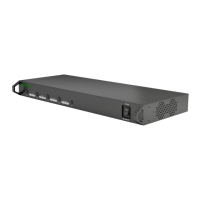
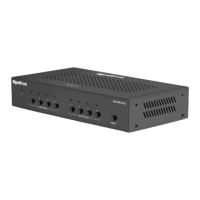
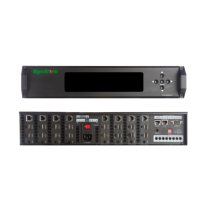
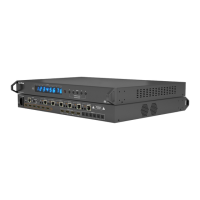
Connect HDMI sources (such as HD-DVD, Blu-ray,
games console, AppleTV, satellite/cable etc.) to HDMI
inputs 1 – 4 of the MATRIX.
Attention Do Not Hotplug! - Please insert and
extract cables carefully with the power SWITCHED
OFF. Connecting and disconnecting while the unit is
powered can result in damage to circuitry.
Attach the IR emitter directly over the infrared
receiving sensor of the input source using the adhesive
backing. You may need to adjust the position of the
emitter after installation to achieve the best results.
Sometimes moving the sensor to different areas of the
source can improve IR performance.
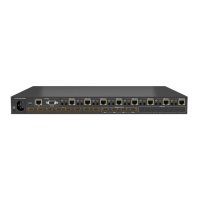
Plug the 3.5mm jack of the IR emitter into your
chosen number IR TX port on the rear panel of the
MATRIX.
For two-way IR control of the display from the matrix or
connection to a control system, connect an IR Link cable
to the control system or plug an IR RX receiver cable into
the corresponding IR RX port on the rear panel of the
MATRIX, ensuring the receiver is placed in clear view to
receive an IR signal.
NOTE Make sure the IR jacks are in the same number
ports.
HINT Locate the infrared sensor on devices by
shining a flashlight onto the display panel of sources
and look for a small sensor.
Connect a good quality, well terminated Cat5e/6
cable with an RJ45 connector wired to 568B standard
at both ends from the UTP Output port of the MATRIX to
the UTP In of the display receiver. If cascading an output,
connect the UTP to the UTP IN of the transmission
device.
Ensure both RJ45 connectors are pushed securely into
each port and supported by the connector strain relief
clip to prevent them from becoming loose. The quality
of termination for your RJ45 is essential. Poor quality
terminations lead to intermittent performance and longer
install times.
HINT Although all WyreStorm products are tested
using Cat5e as standard, we suggest using Cat6 as
the preferred cable due to its improved distribution
capabilities.
Attention We strongly recommend using the
supplied mounting brackets to secure the MATRIX
and the accompanying DISPLAY RECEIVER. Any
sudden movement of these devices could lead to
loss of picture and sound if connections become
loose or strained, resulting in unnecessary service
call backs.
Connect the HDMI OUT of the DISPLAY RECEIVER
to the HDMI IN of the display.
Connect an IR RX cable to IR RX port of the display
receiver. Place the IR RX receiver discretely on the front or
near of the display with care taken to achieve a clear line
of sight with the remote control to be used.
For two-way IR control of the display from the matrix end,
connect an IR TX emitter from corresponding IR TX port
on the display receiver directly onto the display, ensuring
the emitter is placed directly over the infrared receiving
sensor of the display using the adhesive backing.
Again, you may need to adjust the position of both
receiver and emitter to achieve the best IR signal
distribution.
After ensuring the display receiver balun is fixed
firmly in place behind the display, insert the 12v mains
power adaptor (included).
Switch on the power to your input sources, displays,
and any display receivers connected. Finally, power up
the MATRIX. Your MX-0404-PP-KIT should now be fully
connected and ready for use.
Attention Remember, always switch off the matrix
before unplugging any inputs or outputs – follow last
on, first off protocol.
If your IR emitters and receivers are correctly placed you
should now be able control both sources and displays
discretely from either location.
If you do not have IR control:
• Check your cables are straight with jacks firmly
connected to ports.
• Check your IR sensors are unobstructed and able to
receive infrared signals.
• Check direct sunlight on the emitters/receivers is not
affecting the infrared signal.
1
2
3
4
5
6
7
8
CONNECTION


 To Next Page