2 Connecting with Xiaomi Home App
This product works with Xiaomi Home app. Control your device with
Xiaomi Home app.
Scan the QR code to download and install the app. You will be
directed to the connection setup page if the app is installed already.
Or search "Xiaomi Home" in the app store to download and install it.
Open Xiaomi Home app, tap "+" on the upper right, and then follow
prompts to add your device.
Aention: The Xiaomi Home app is the only way to configure the network seings
for the printer. Make sure the network connection is configured before using PC
for wireless printing. The latest version of the app is suggested for a successful
connection to the printer. The Dual-band steering function needs to be disabled
for the router. When the printer is not connected to the network or the network
connection is disconnected, it will automatically turn off aer ten minutes. Please
restart it and carry out corresponding operations.
5
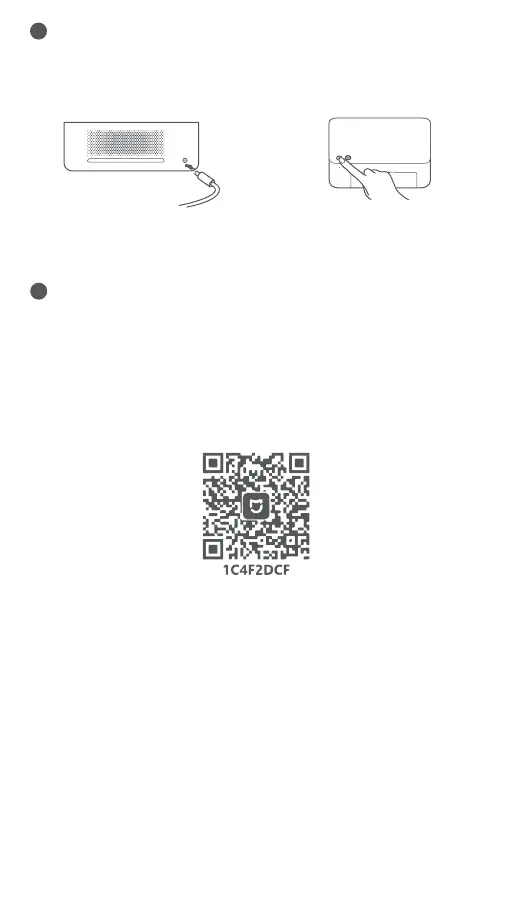
1 Turning On
Plug the power cord into the power port, and press the power buon.
When the power indicator is on and the Wi-Fi indicator blinks orange,
the printer is turned on and the Wi-Fi is waiting to be connected.
Notes:
●If you fail to scan the printer's QR code, search for its name to add it.
●The version of the app might have been updated, please follow the instructions
based on the current app version.


 To Next Page