In the camera's plugin of the Mi Home/Xiaomi Home app, you can
camera with others. The person the camera is shared with needs to
download the Mi Home/Xiaomi Home app and sign in with a Xiaomi
Account.
Video Sharing
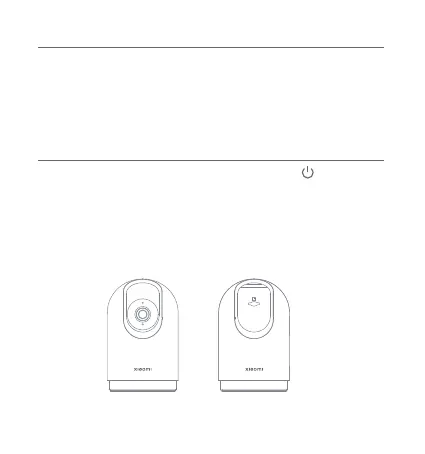
When you don't need to use the camera, you can tap " " on the
real-time footage screen of the camera's plugin in the Mi Home/Xiaomi
Home app to enter the physical lens blocking status. You can also go to
the physical lens blocking feature or set scheduled automatic physical
lens blocking. The camera will automatically adjust the lens so that it is
covered by the casing of the camera itself to protect the user's privacy.
Physical Lens Blocking
8
select the device sharing option in the settings menu to share the
Settings > Camera settings > Physical lens blocking settings to enable






 To Next Page