COMPASS CALIBRATION
• One of the most important facets of drone ight is to ensure
that the drone is properly calibrated. Doing so will greatly
increase the enjoyment and satisfaction of the ights and
the drone’s performance. This frequently overlooked task
reduces drift and makes sure that there aren’t any compass
issues during ight. We strongly suggest doing so prior to
each ight, but at the very least doing so before each ight
when changing ying sites/locations.
• When doing so, avoid areas of potential magnetic
interference or large metal objects or structures. It is highly
recommended that all propellers be removed prior to
calibration to prevent accidental engagement.
Step 1: Place the Xplorer on a horizontal surface and press the
drone’s ON button.
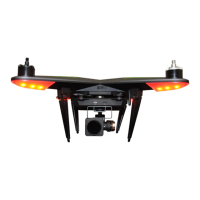
Step 2: Wait until the Rear Flight Indicator blinks green for GPS
Mode, or yellow for Attitude Mode.
Step 3: Pull down on the Throttle stick all the way to the
bottom and hold it there while pressing the IOC button in three
cycles ON/OFF, then release the throttle stick. The Rear Flight
Indicator will turn solid green to show that you can now start to
calibrate.
Step 4: Rotate the Xplorer horizontally 720 degrees until the
Rear Flight Indicators are rapidly blinking yellow. (The Rear
Flight Indicators will be solid green while rotating.)
Step 5: Next, rotate the Xplorer vertically 720 degrees (nose
down) until the Rear Flight Indicators slowly blink green or
yellow. (The Rear Flight Indicators will be solid yellow while
rotating.)
**Note** If the calibration failed the Indicators will ash red and
yellow, and you will need to repeat the process.
• Recalibrate when the compass data is abnormal or the Rear
Flight Indicators blink red and yellow.
• If the compass is not calibrated you will notice severe drifting
during ight and while hovering.
• Be aware that ying in wet (or even cloudy) conditions can
lead to a temporary failure of the gimbal. After drying out it
will again function normally.
**Note** If a gimbal motor error is detected or the gimbal
protector is not removed after powering up the Xplorer a
warning message will appear on the Xiro App camera page.
AERIAL RECORDINGS
• Aerial recording can be performed in any ight mode.
• It goes without saying that images will be much sharper and
more vivid in clear, dry weather conditions. Lighting also
has a signicant impact on the images and videos as well.
As such, we suggest always ying in dry and clear weather
conditions.
• Adjust the camera settings to get the best picture by using
the app.
FINAL CHECK BEFORE FLIGHT
• Are the ight battery and transmitter battery fully charged?
• Is the smart battery mounted securely to the bottom of the
Xplorer with the lock in place?
• Ensure that the lens cover has been removed from the
camera, if applicable.
• Be sure to remove the gimbal protector and make sure that
the gimbal is fully functional, if applicable.
• Ensure that an appropriate micro SD memory card has been
installed in the camera, if applicable.
• Prior to take-off, make sure that the Xiro App is connected to
the camera.
GPS Flight Mode: with more than 6 GPS satellites available,
the Xplorer is ready to y with all location-based functions
enabled.
Attitude Flight Mode: with less than 6 GPS satellites available,
the Xplorer is ready to y in Flight Level 2 or 3 with NO GPS.
No location-based functions are enabled.
Home Point: the GPS position that the Xplorer receives after
achieving 6 or more GPS satellites. Once 6 or more satellites
are achieved the Xplorer will automatically be in GPS Flight
Mode.
Return Home: the Xplorer will automatically return to the
HOME point.
Return Route: when the horizontal distance between the
Xplorer and the HOME point is less than 25 meters, or its
height is more than 20 meters, the Xplorer will y back at its
current altitude. When the distance between the HOME point
and the Xplorer’s position is less than 20 meters the Xplorer
will rst climb to 20 meters and then return to the HOME point.
**Note** Inexperienced users should always start in Flight Level
1. It is suggested that an inexperience user be sure they are in
an area that will allow the Xplorer to enter GPS Flight Mode.
COMPLIANCE VERSION CONFIGURATION
• In order to adhere to the local rules and regulations, the
Xplorer’s transmitter’s transmission power levels are
adjustable to meet both Federal Communication Commission
(FCC) and European Community (EC) regulations. Be sure to
congure the transmitter’s power output to follow the rules
and regulations as they pertain to the region in which the
Xplorer is being own.
• When the transmitter is rst turned ON, the GPS and
Aircraft Connection LEDs will ash to indicate the current
conguration. If these LEDs are ashing green, the
Step 3
2
1
Step 4 Step 5
Front Down
12


 To Next Page
 Loading...