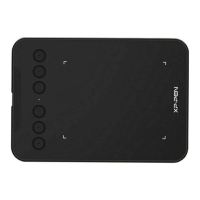
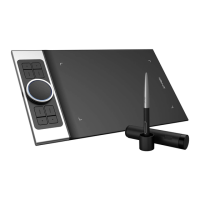
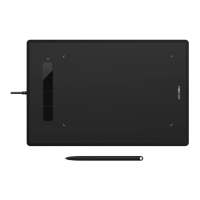
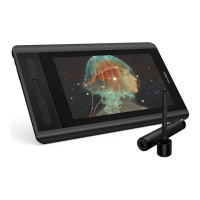
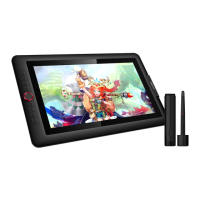
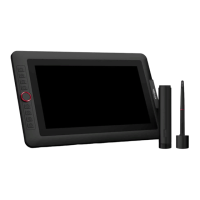
Image 3-17 Pen
Note:
Pen/Eraser Toggle
With the stylus in range working area, press the assigned barrel button to toggle between pen and eraser
modes in compatible drawing software. The current mode will briefly be displayed on your monitor.
1.2.Configuration Setting:
Disable pen pressure: When the “Disable pen pressure” function is enabled, you can disable the pen
pressure function.
Disable Key Function: When you enable it, all of the express keys function will be disabled.
Disable Display Message: When you enable it and press any express key, the message will not popup on
the bottom of your screen.
Image 3-18: Configuration Setting
1.3. Work Area Orientation:
0, 90, 180 & 270:
The Deco 01 V2 can also be configured for 0, 90, 180 & 270 angles.
Be sure to rotate the actual physical tablet as well.


 To Next Page
 Loading...