{ VI. FAQ }
1. I can’t use the stylus to control the cursor.
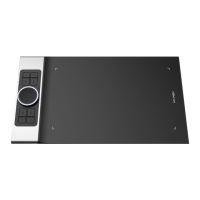
Uninstall the Deco Pro Small & Medium driver. If its uninstaller will not run, run the driver’s installer again,
then allow it to uninstall the driver. Reboot, then connect the tablet to your computer and test your stylus.
If the cursor responds to your pen input, the tablet’s hardware is functional. Reinstall the Deco Pro Small &
Medium’s driver according to these steps (Windows):
Download the tablet’s latest driver from www.xp-pen.com, then extract the “.zip” contents onto the
desktop and installation.
2. How do I know that the Deco Pro Small & Medium’s driver installed successfully?
After installing the driver, the Deco Pro Small & Medium’s driver icon should be visible in your system
tray on the bottom-right of your screen (Windows OS). Pen input will control the cursor and pressure
sensitivity will be functional in the driver UI’s “Pressure Test” tab.
3. How do I determine if a Problem is software or hardware related?
Connect and install the Deco Pro Small & Medium on a different computer. If the tablet functions
properly on the new computer, you are experiencing a software issue—confirm that ALL tablet drivers
(including the Deco Pro Small & Medium) are uninstalled and removed from your computer, then
reinstall the Deco Pro Small & Medium.
If you have any questions, please contact us at:
Web: www.xp-pen.com
Email: service@xp-pen.com



 To Previous Page