EasyManua.ls Logo

Xplore iX101B1 - User Manual

Xplore iX101B1
44 pages
Print Icon
To Next Page IconTo Next Page
Loading...
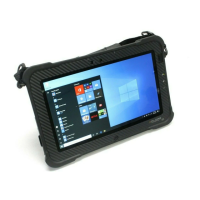
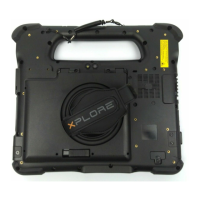
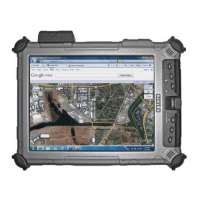
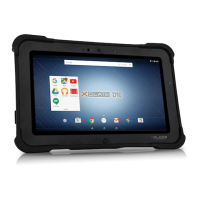
XSLATE™ D10
Model iX101B1
User Guide

Table of Contents

Questions and Answers

  • K
    Kimberly CoxAug 7, 2025
    How to fix Xplore Tablet that will not start?
    • H
      howardkarenAug 7, 2025
      If your Xplore Tablet won't start, it could be due to a defective or critically low battery. Try connecting it to an external power supply like the AC adapter, or install a charged battery. Alternatively, internal components might be outside the acceptable operating temperature range. Once the temperature returns to a safe range, the tablet should start.
  • S
    Stephen JohnstonAug 11, 2025
    What to do if the display screen is blank or difficult to read on Xplore iX101B1 Tablet?
    • B
      Brandy Baker DDSAug 11, 2025
      If the display screen of your Xplore Tablet is blank or hard to read, first, ensure the tablet is powered on by checking for the Power icon in the Status area. If it's on, the brightness might be too low. To adjust it, tap the Settings icon, then navigate to Display > Brightness level, or tap Display > Adaptive Brightness. Also, the video time-out might have expired; tap the display screen to reactivate it.
  • L
    Leslie CarterAug 16, 2025
    What to do if Xplore Tablet will not resume operation?
    • O
      oromanAug 17, 2025
      If your Xplore Tablet won't resume operation, the battery might be defective or critically low. Connect an external power supply (like the AC adapter) or install a charged battery. Also, the tablet might be at its critical thermal limit, so move it to a cooler location after it has been suspended.
  • C
    Casey KhanAug 21, 2025
    Why is the status LED red and blinking on my Xplore Tablet?
    • T
      Terry PetersAug 21, 2025
      If the status LED on your Xplore Tablet is red and blinking, it means the tablet is on, running on battery power, and the battery charge is at a minimum warning level. You should plug the tablet into an AC/DC power source or install a charged battery.
  • R
    Richard DavisAug 27, 2025
    What to do if the status LED is red continuously on Xplore iX101B1 Tablet?
    • M
      Mitchell WebsterAug 27, 2025
      If the status LED on your Xplore Tablet is continuously red, it could mean the tablet is running on battery power, and the battery charge has reached a critical level. Plug the tablet into an AC/DC power source or install a charged battery. If this doesn't resolve the issue, the system may have encountered a fault. In this case, contact your local help desk.
  • J
    James CarrilloSep 1, 2025
    How to increase the headphone or speaker volume on Xplore iX101B1 Tablet?
    • D
      David RodriguezSep 1, 2025
      If the headphone or speaker volume on your Xplore Tablet is too low, the volume might be muted or set too low. Adjust the headphone or speaker volume accordingly. Also, ensure that the volume control in your audio software is set to an audible level.

Summary

Introduction to Your Tablet

Rugged Features

Lists features that make the tablet rugged, meeting Military Standards (MIL STD 810G).

Contacting Xplore: Service and Questions

Provides contact methods for technical support, including website, email, and phone.

Tablet Specifications

Safety and Conformity

Important Safety Information

Provides crucial safety instructions for using the tablet, including warnings about radio devices and aircraft.

WARNING: BATTERIES

Details warnings about battery usage, handling, charging, and potential explosion hazards.

Getting Started

Troubleshooting

Problems and Solutions

Provides common problems and their potential solutions for the tablet.

Maintaining the Tablet

Agency Notices

Health and Safety Information

Covers exposure limits to radio frequency signals and safety standards.

Xplore iX101B1 Specifications

General IconGeneral
BrandXplore
ModeliX101B1
CategoryTablet
LanguageEnglish

Related product manuals