EasyManua.ls Logo

Xplore Xslate D10 - User Manual

Xplore Xslate D10
44 pages
Print Icon
To Next Page IconTo Next Page
Loading...
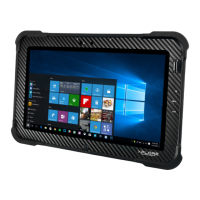
XSLATE™ D10
Model iX101B1
User Guide

Table of Contents

Questions and Answers

  • D
    Dustin KellyAug 8, 2025
    How to fix Xplore Tablet that will not start?
    • D
      Desiree JacksonAug 9, 2025
      If your Xplore Tablet won't start, it could be due to a defective or critically low battery. Try connecting it to an external power supply like the AC adapter, or install a charged battery. Alternatively, internal components might be outside the acceptable operating temperature range. Once the temperature returns to a safe range, the tablet should start.
  • J
    Justin AlvarezAug 13, 2025
    What to do if the display screen is blank or difficult to read on Xplore Tablet?
    • H
      Holly RobertsAug 13, 2025
      If the display screen of your Xplore Tablet is blank or hard to read, first, ensure the tablet is powered on by checking for the Power icon in the Status area. If it's on, the brightness might be too low. To adjust it, tap the Settings icon, then navigate to Display > Brightness level, or tap Display > Adaptive Brightness. Also, the video time-out might have expired; tap the display screen to reactivate it.
  • J
    Julia MartinezAug 18, 2025
    What to do if Xplore Tablet will not resume operation?
    • A
      ashleysuttonAug 18, 2025
      If your Xplore Tablet won't resume operation, the battery might be defective or critically low. Connect an external power supply (like the AC adapter) or install a charged battery. Also, the tablet might be at its critical thermal limit, so move it to a cooler location after it has been suspended.
  • A
    Angela CollinsAug 25, 2025
    Why is the status LED red and blinking on my Xplore Xslate D10 Tablet?
    • N
      Nicole AndersonAug 25, 2025
      If the status LED on your Xplore Tablet is red and blinking, it means the tablet is on, running on battery power, and the battery charge is at a minimum warning level. You should plug the tablet into an AC/DC power source or install a charged battery.
  • J
    James BrooksAug 28, 2025
    What to do if the status LED is red continuously on Xplore Xslate D10 Tablet?
    • G
      Gerald RothAug 28, 2025
      If the status LED on your Xplore Tablet is continuously red, it could mean the tablet is running on battery power, and the battery charge has reached a critical level. Plug the tablet into an AC/DC power source or install a charged battery. If this doesn't resolve the issue, the system may have encountered a fault. In this case, contact your local help desk.
  • N
    Nicholas ShawSep 2, 2025
    How to increase the headphone or speaker volume on Xplore Xslate D10 Tablet?
    • C
      cobbabigailSep 2, 2025
      If the headphone or speaker volume on your Xplore Tablet is too low, the volume might be muted or set too low. Adjust the headphone or speaker volume accordingly. Also, ensure that the volume control in your audio software is set to an audible level.

Summary

Introduction to Your Tablet

Tablet Specifications

Major Features

Lists key specifications like dimensions, processor, RAM, storage, display, and graphics.

GPS, Security, and Connectivity

Details discrete GPS, security features like TPM, and wireless/wired connectivity.

Safety and Conformity

Important Safety Information

Provides critical safety instructions for operating the tablet, including warnings.

Getting Started

Overview of External Features

Illustrates and describes the physical buttons, ports, and indicators on the tablet.

Quick Start for Your Tablet

Guides users through turning on the tablet, suspending, and resuming operation.

Troubleshooting

Problems and Solutions

Provides a table of common issues and their potential solutions for the tablet.

Agency Notices

Xplore Xslate D10 Specifications

General IconGeneral
Operating SystemWindows 10 Pro
Display Size10.1 inches
RAM8 GB
Storage256 GB SSD
Battery LifeUp to 10 hours
Display Resolution1920 x 1200
PortsUSB 3.0, HDMI
Wireless ConnectivityWi-Fi 802.11ac, Bluetooth
CameraFront: 2MP, Rear:
DurabilityMIL-STD-810G
Pen SupportYes

Related product manuals