Xtralis VESDA LCD Programmer Product Guide Xtralis VESDA
®
8 www.xtralis.com
Navigating the LCD Programmer
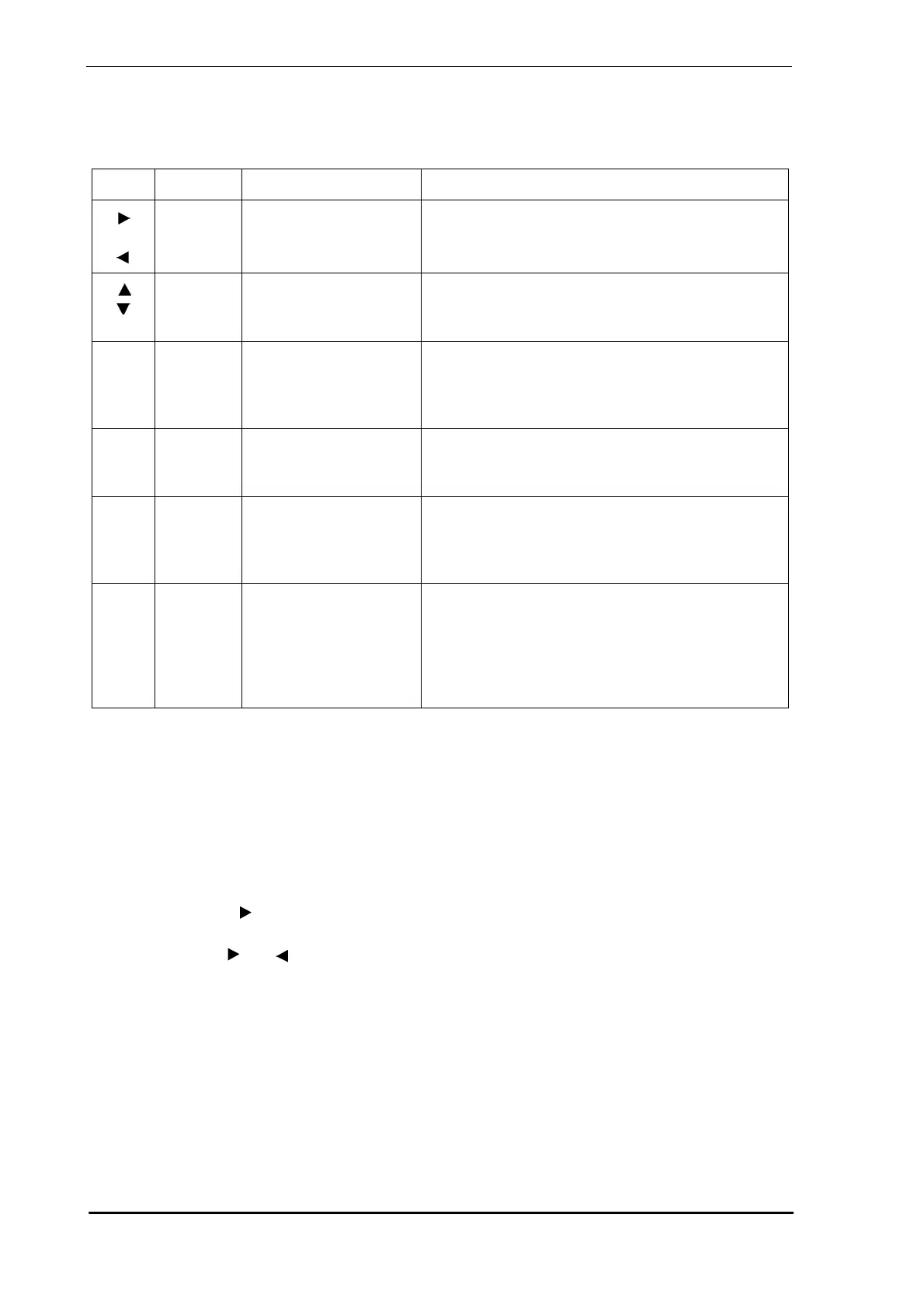
To navigate the menu tree of the LCD Programmer, to change or view parameters, and to
execute system functions, use the eight keys described in the table below.
Table 3 - Description of LCD Programmer keys and functions
Logging On/Off the System
It is not necessary to logon to view the data.
When the LCD Programmer is in a standby mode, pressing any key will display the logon screen.
To logon:
1. Against User enter the appropriate USER ID using the +/- keys to enter the letters
2. Press the key to move cursor to the PIN field
3. Enter PIN using the +/- keys
4. Use the and keys to move from one field to the next (letter or digit)
5. Press key after entering the PIN
Automatic Log Off
For security reasons, if you do not use the LCD Programmer for ten minutes it will automatically
log you off. Sixty and fifteen seconds before the programmer automatically logs you off it will
display a warning message and beep. Press any key on the programmer to stop the detector
from automatically logging you off.
Key Key Type Description Used For
Soft Directional Key/ Soft
Key Function
• Moves Cursor to the left or right of the screen
• Scrolls highlighted item left/right
• Actions a soft key question
Soft Directional Key/ Soft
Key Functions
• Moves the cursor up or down on the screen
• Scrolls the Menu up or down
• Actions a soft key question
+
Hard Value Increasing
Action Key/Page Up
• Increases the value of the displayed number
• Adds a selected letter from the displayed
alphabet list.
• Page up on some screens
-
Hard Value Decreasing
Action Key/Page Down
• Decreases the value of the displayed number
• Deletes a selected letter
• Page down on some screens
ESC
Hard Backward Action Key • Moves back up the Menu tree
• Any changes to parameters are actioned after
acknowledging the check message “Do you
want to save the changes?”
Hard Forward Action Key • Moves down the Menu tree by selecting the
highlighted option
• Adds selected letter
• Toggles between values
• Can be used to run Normalize, Autolearn, and
System/Address control commands
↵
↵



 To Next Page