8
7. demo mode
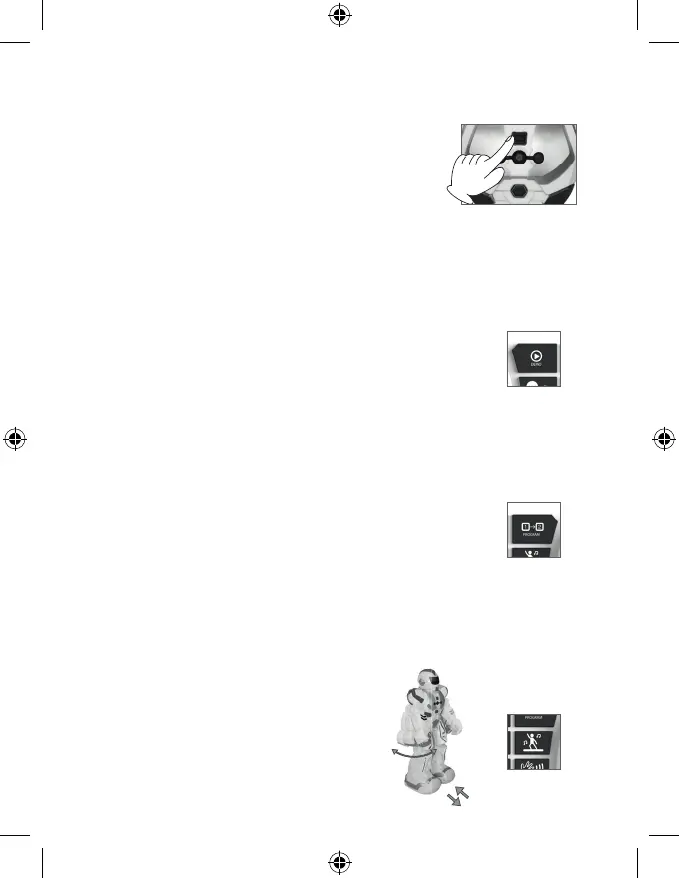
6. StandBy button
8. programming
Press the “Demo Mode” bu on on the transmi er. Smart Bot will
show some dance, sounds and movements func ons.
By pressing the bu on the Smart Bot goes on StandBy Mode and
stays
sleep un l this bu on would be pressed again. By pressing it again
the robot will wake up and will perform the “intro” again.
A er 2 minutes of inac vity, the robot enters standby mode
automa cally.
Before the robot go into StandBy mode, it will emit some sounds
in advice.
1. Press the “Programming” bu on un l hear a `beep’ sound.
2. Up to 50 func ons can be programmed. You can glide forward, glide back,
walk forward, walk backward, turn le , turn right or make preset sounds.
3. Press “Programming” bu on to perform programmed func ons again.
4. When it is not in use atoma cally exit.
9. dance mode
Press the “Robot Dance” bu on on the transmi er.
The Smart Bot will perform a dance.


 To Next Page