EasyManua.ls Logo

Yale Sync Alarm - User Manual

Yale Sync Alarm
4 pages
Print Icon
To Next Page IconTo Next Page
Loading...
FAQs
How do I Install my Yale Sync Alarm?
Please follow the quick start guide provided in your kit. All accessories in the kit are pre-linked and
wire free, making installation quick and simple. You will need to download the Yale Home App to
create an account and configure your alarm settings.
Does my Smart Hub have to be mounted on the wall or free standing on a flat surface?
Either. For directions on wall mounting please see the manual for instructions
How many accessories can I add to my alarm?
The Sync Smart Hub can support up to 40 accessories, and the 200m range means you can protect
your shed and garage too. If you are ordering additional accessories for your system, please make
sure you order accessories with AC- at the start of the product code for compatible products. Link to
accessories.
How do I set up Geo-notifications?
Open Settings->Users->Notification Settings->Geo-notifications to configure your geo-notifications
alerts.
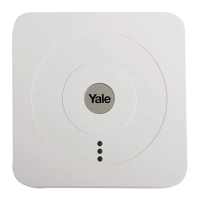
What do the LED lights mean on my Smart Hub?
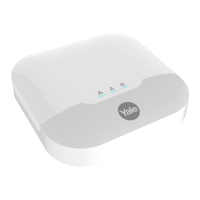
1.Network LED (Green)
LED ON: Connected to Yale Home server
LED OFF: Disconnected from Yale Home server
2. Fault Status LED (Amber)
LED ON: System Fault. Check the App History Log to know more about the fault reported
LED Flash: AC failure. Check the Smart Hub is correctly connected to the main power
LED OFF: System normal
3. Panel Mode LED (Red)
LED ON System in Full Armed Mode
LED FLASHES System in Part Armed Mode
LED OFF System in Disarm Mode"
How will the system notify me of low batteries?
The hub will give an amber warning light, whilst the app will tell you which device has a low battery.
You will also hear an intermittent beep from the hub to indicate that action is required. If you do not
have batteries to hand and want to stop the hub beeping, you can set the low battery accessory in to
bypass mode in the app to silence this whilst you obtain the batteries you need. Please note this
device will not detect any activity whilst in bypass mode, so this should be a short term solution.
Once the batteries have been changed, the device can be made active again (and bypass mode
turned off).
Question and Answer IconNeed help?

Do you have a question about the Yale Sync Alarm and is the answer not in the manual?

Summary

System Installation and Setup

Install Yale Sync Alarm

Quick start guide for Yale Sync Alarm installation, including pre-linked accessories and app setup.

Smart Hub Status Indicators

Smart Hub LED Lights

Explains the meaning of Network, Fault Status, and Panel Mode LED lights on the Smart Hub.

System Alerts and Maintenance

Low Battery Notifications

Details how the system alerts users to low batteries via hub indicators and app notifications.

Alarm Control and Connectivity

Arming and Disarming Alarm

How to arm and disarm the alarm using the Yale Home app, keypad, or key fob.

Chime;Ping Settings and Voice Control

Voice Assistant Integration

Information on using Amazon Alexa and Google Assistant for system status checks and control.

Summary

System Installation and Setup

Install Yale Sync Alarm

Quick start guide for Yale Sync Alarm installation, including pre-linked accessories and app setup.

Smart Hub Status Indicators

Smart Hub LED Lights

Explains the meaning of Network, Fault Status, and Panel Mode LED lights on the Smart Hub.

System Alerts and Maintenance

Low Battery Notifications

Details how the system alerts users to low batteries via hub indicators and app notifications.

Alarm Control and Connectivity

Arming and Disarming Alarm

How to arm and disarm the alarm using the Yale Home app, keypad, or key fob.

Chime;Ping Settings and Voice Control

Voice Assistant Integration

Information on using Amazon Alexa and Google Assistant for system status checks and control.

Overview

This document provides a comprehensive FAQ for the Yale Sync Alarm system, covering installation, operation, maintenance, and troubleshooting.

Function Description

The Yale Sync Alarm is a smart home security system designed to protect your property. It features a central Smart Hub that communicates wirelessly with various accessories. The system can be armed and disarmed using a keypad, key fob, or through the Yale Home App. It offers geo-notifications, alerting you when you leave home without arming or arrive home with the alarm armed. The system also integrates with voice assistants like Amazon Alexa and Google Assistant for convenient control and status checks.

Usage Features

Installation and Setup:

  • Quick Start Guide: The system comes with a quick start guide for easy installation. All accessories are pre-linked and wire-free, simplifying the setup process.
  • Yale Home App: You need to download the Yale Home App to create an account and configure your alarm settings.
  • Hub Mounting: The Smart Hub can be mounted on a wall or placed free-standing on a flat surface. Instructions for wall mounting are provided in the manual.
  • Geo-notifications: To set up geo-notifications, navigate to Settings > Users > Notification Settings > Geo-notifications in the app.
  • App Setup Window: If you miss the 1-hour app setup window, disconnect the power supply from the hub, switch off the backup battery, wait 5 minutes, and then reboot.

System Operation:

  • Arming and Disarming: You can arm and disarm the alarm using a keypad, key fob, or the controls within the Yale Home App. In the app, tap on "My Yale page," then on the house icon to access alarm controls.
  • Accessory Support: The Sync Smart Hub supports up to 40 accessories, with a 200m range, allowing you to protect areas like sheds and garages. When ordering additional accessories, ensure they have "AC-" at the start of their product code for compatibility.
  • Keypad PIN Code: PIN codes for the keypad can be changed within the Yale Home App.
  • User Management: New users can be added, and existing users can be removed, through the Yale Home App.
  • Chime/Ping Noise: The hub can be configured to chime or ping when a door or window opens. This feature, called "Panel Chime," can be enabled or disabled in the sensor settings (Settings > Alarm Settings > Devices).
  • Voice Assistant Integration: The system is compatible with Amazon Alexa and Google Assistant.
    • Alexa Commands: "Alexa, arm my security panel," "Alexa, arm my security panel in away mode," "Alexa, arm my security panel in home mode," "Alexa, is my security panel armed?," "Alexa, is back door open?," "Alexa, is front door locked?," "Alexa, turn on desk lamp."
    • Google Assistant Commands: "Ok Google, set the security panel to fully arm," "Ok Google, set the security panel to part arm," "Ok Google, is the security panel armed?," "Ok Google, lock the front door," "Ok Google, is the front door locked?," "Ok Google, is the front door closed?," "Ok Google, is the front window closed?," "Ok Google, turn off the Kitchen lights," "Ok Google, are the Kitchen lights on?"

Troubleshooting and Status Indicators:

  • Smart Hub LED Lights:
    • Network LED (Green): ON indicates connection to the Yale Home server; OFF indicates disconnection.
    • Fault Status LED (Amber): ON indicates a system fault (check App History Log for details); FLASHING indicates AC failure (check hub power connection); OFF indicates system normal.
    • Panel Mode LED (Red): ON indicates Full Armed Mode; FLASHING indicates Part Armed Mode; OFF indicates Disarm Mode.
  • Internet Outage: If the internet goes down, the alarm will remain in its current state. Communication between the hub and devices uses a wireless frequency independent of the internet, so the system will continue to operate normally. However, you will need to arm or disarm the system using a physical accessory (keypad or key fob) until the internet connection is restored. The alarm cannot be operated via the App without an internet connection.
  • Window Sensor Vented Position: The vented position means the window is locked with a slight gap to allow air to circulate.

Maintenance Features

Battery Management:

  • Low Battery Notification: The hub will display an amber warning light, the app will indicate a low battery, and the hub will emit an intermittent beep.
  • Bypassing Low Battery Accessories: To silence the hub beep when batteries are low, you can set the low battery accessory to bypass mode in the app. Note that the device will not detect activity in bypass mode, so this is a temporary solution.
  • Backup Battery: If the app shows "battery missing / dead," it means the backup battery is switched off. Turn on the backup battery located under the white rubber grommet.
  • Window Sensor Battery Change: To change window sensor batteries, turn each compartment lid anti-clockwise, remove the battery, insert the new battery with the "+" facing upwards, and replace the lid by turning it clockwise to lock it. A firm object may be needed to turn the lid, being careful not to damage the water seal.

Sensor Management:

  • Window Sensor Calibration: To recalibrate a window sensor, go to Settings > Alarm Settings > Devices in the app, tap on the window sensor, and then tap the button to restart calibration.
  • Stuck/Failed Calibration: If window sensor calibration fails or gets stuck, you can cancel and restart the process by navigating to Settings > Alarm Settings > Devices, tapping the window sensor, and then tapping the button to restart calibration.
  • Finding the Learn Button (Window Sensor): Remove the battery cover under the Yale logo, then remove the battery. A printed label will point to the button on the side of the battery compartment.
  • Pressing the Learn Button (Window Sensor): Use a firm object with a small point, such as a paperclip, sharp pencil, or similar item.
  • Deleting a Sensor: In the Yale Home app, go to Settings > Alarm Settings > Devices, slide right to left on the sensor, and then tap the Trash icon to delete it.

Yale Sync Alarm Specifications

General IconGeneral
Control via AppYes
Battery BackupYes
ExpandableYes
TypeSmart Home Alarm System
Maximum Number of AccessoriesUp to 40
Tamper AlertYes
Mobile AppYale Home App
Remote ControlYes
Warranty2 years
CompatibilityAmazon Alexa, Google Assistant
ConnectivityWi-Fi
Mobile App SupportYes
Siren Volume104 dB
Power SourceMains Powered
Alarm SirenInternal siren in hub, optional external sirens available
SensorsDoor/Window, Motion
InstallationDIY
Wireless Range200m

Related product manuals