44
Step Sequencer Edit
Creating your own Step Sequencer patterns is a simple
and straightforward process. When the [EDIT ROTARY]
switch is set to the SEQ EDIT/SETUP menu, each
CONTROL knob is used to edit Note, Velocity, Gate Time
and Control Change values for a single step.
First decide the Base Unit and Length for the sequence
pattern. Then, editing each step is simple.
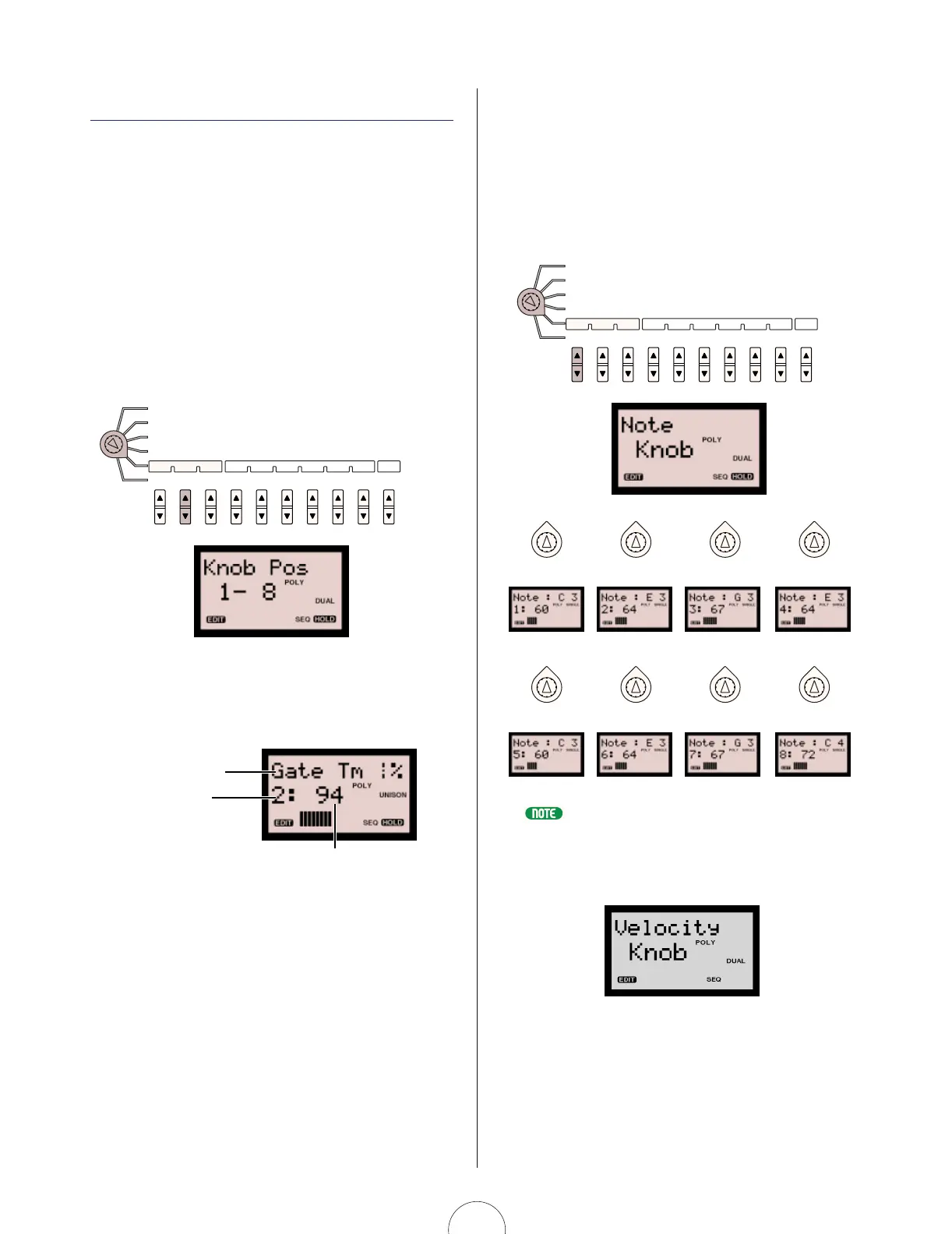
Each knob as positioned on the panel (1-8) relates to the
corresponding sequence step (either 1-8 or 9-16,
respectively). Press 1-8/9-16 [UP/DOWN] to toggle back
and forth between which series of steps are available for
data entry using the eight CONTROL knobs.
Simply pressing a CONTROL knob will display the
currently selected step and Knob Event parameter name,
as well as the current parameter value setting, in the LCD.
Turning a knob will edit the value.
Event parameter name:
Select with (Knob) Event
parameter
Step number:
Depends on selected
knob and (Knob)
1-8/9-16 setting
Event parameter value:
Turn the knob to edit
Knob
Event
1-8/9-16
SEQ
EDIT/SETUPStep Hold
Pattern
Bank
No
BaseUnit
Length LoopType Ctrl No
SEQ
Store
Knob Event Parameters
To designate which type of event to edit by the
CONTROL knobs, set the [EDIT ROTARY] switch to the
SEQ EDIT/SETUP menu and press Event [UP/DOWN].
There are four types of events to choose from.
Note (C-2 ~ G8):
Lets you select the note for the step.
You can choose a note to assign to each step by turning the knobs during Step
Sequencer playback.
Velocity (0 ~ 127): Lets you set the velocity level
for the step.
Step 1 or 9 Step 2 or 10 Step 3 or 11 Step 4 or 12
Step 5 or 13 Step 6 or 14 Step 7 or 15 Step 8 or 16
Knob
Event
1-8/9-16
SEQ
EDIT/SETUPStep Hold
Pattern
Bank
No
BaseUnit
Length LoopType Ctrl No
SEQ
Store


 To Next Page