
 Need help?
Do you have a question about the Yamaha EOS B500 and is the answer not in the manual?
Explains synthesizers as instruments for creating sounds freely, used widely in pop and rock music.
Details the AWM and FM sound sources, highlighting their characteristics and applications.
Covers the instrument's ability to play realistic sounds, FM sounds, and quick editing.
Covers essential care, installation, power, connection, handling, and maintenance guidelines for safe operation.
Provides advice on considerate music playing practices to avoid disturbing others.
Explains the layout of keys and controls on the top panel for easy reference during operations.
Explains screen display elements and the meaning of various key notations used in the manual.
Explains the meaning of [解説], [注意], and [ヒント] notations for understanding content.
Provides a flowchart to help users decide the best starting point based on their interests and experience.
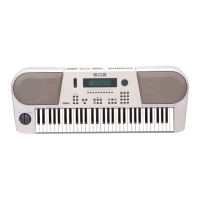
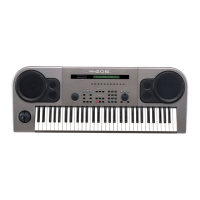
Introduces the EOS B500 as a versatile entertainment keyboard with synthesizer and sequencer functions.
Identifies and explains the purpose of each control and connector on the EOS B500's top and back panels.
Guides users on how to play and enjoy the built-in demonstration songs to experience the instrument's capabilities.
Explains how to select and play different instrument sounds (voices) using the Voice Play Mode.
Covers velocity, aftertouch, pitch bend, and modulation wheel functions for expressive playing.
Introduces the concept of voice editing, explaining that it involves adjusting parameters to alter sounds.
Guides users through editing voices, including effects, voice structure, and element customization.
Explains how to save the modified voice data to memory to preserve the custom sound settings.
Details essential voice parameters like names, quick edits, wave selection, pan, volume, EG, and scaling.
Explains drum voices as special sounds assigned to keys, enabling rhythm pattern performance on the keyboard.
Covers editing drum voices, including wave table selection, volume/pan/pitch adjustments, and effect settings.
Explains how to apply effects to drum voices and save the customized drum kits.
Introduces voice jobs for initializing or recalling voice data, essential for sound creation workflows.
Allows global settings for voices, including note shift, master tuning, and MIDI channel configuration.
Explains sequencers as devices that record and play back performance data, enabling automated musical arrangements.
Guides users on navigating and controlling song playback using the sequencer functions.
 General
| Type | Digital Synthesizer |
|---|---|
| Synthesis Type | AWM (Advanced Wave Memory) |
| Keyboard | 61 keys |
| Display | LCD |
| Effects | Reverb, Chorus |
| MIDI | In, Out, Thru |
| Power Supply | AC adapter (included) |


 To Next Page