EasyManua.ls Logo

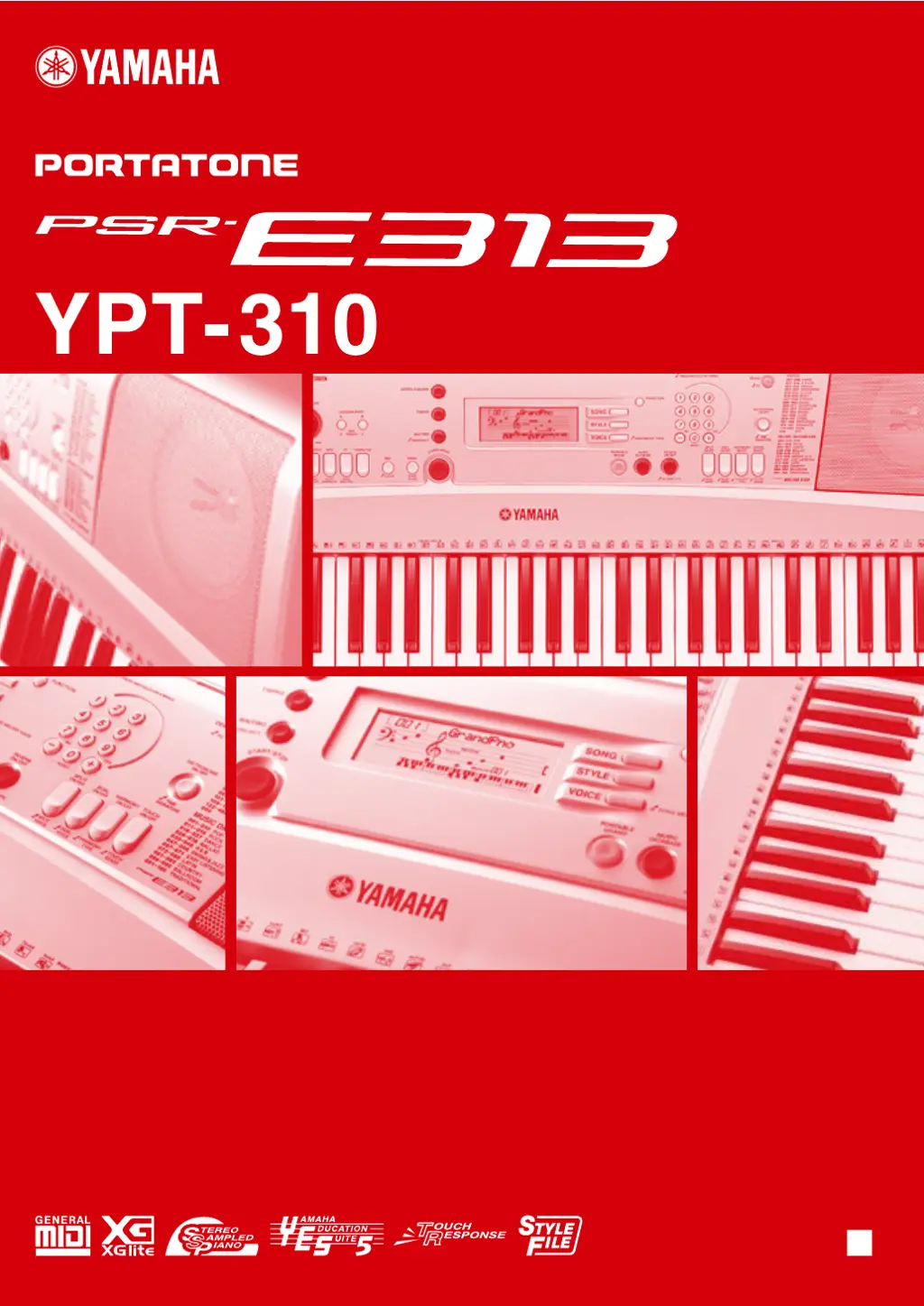
Yamaha Portatone PSR-E313 YPT-310 - User Manual

Yamaha Portatone PSR-E313 YPT-310
90 pages
Print Icon
To Next Page IconTo Next Page
Loading...
Owner’s Manual
EN

Table of Contents

Questions and Answers

  • P
    payneaaronAug 19, 2025
    What to do if my Yamaha Synthesizer has no sound?
    • M
      Michele RiveraAug 19, 2025
      If there is no sound from your Yamaha Synthesizer, first check that nothing is connected to the PHONES/OUTPUT jack on the rear panel, as headphones plugged in there will prevent sound output. You can also check the Local Control on/off.
  • S
    Shannon ClarkAug 21, 2025
    What to do if my Yamaha Portatone PSR-E313 YPT-310 Synthesizer volume is too soft?
    • E
      Elizabeth BruceAug 21, 2025
      If the volume of your Yamaha Synthesizer is too soft, the sound quality is poor, the rhythm stops unexpectedly, recorded data doesn't play correctly, or the LCD display goes dark and resets, it likely indicates that the batteries are low or dead. Replace all six batteries with completely new ones, or use the optional AC adapter.
  • M
    Mr. Timothy Koch MDAug 23, 2025
    Why does my Yamaha Portatone PSR-E313 YPT-310 make noise when my phone is nearby?
    • H
      harringtonkatherineAug 23, 2025
      If your Yamaha Synthesizer produces noise when using a mobile phone nearby, it's likely due to interference. To prevent this, either turn off the mobile phone or use it further away from the instrument.
  • D
    Dalton DoughertyAug 26, 2025
    How to fix a Yamaha Synthesizer Style that doesn't sound right?
    • B
      bakercarrieAug 26, 2025
      If the Style on your Yamaha Synthesizer doesn't sound properly, ensure that the Style Volume is set to an appropriate level. Also, verify that the Split Point is set at an appropriate key for the chords you are playing. You can set the Split Point at an appropriate key. Check if the “ACMP ON” indicator is showing in the display; if not, press the [ACMP ON/OFF] button.
  • E
    Elizabeth BradleyAug 28, 2025
    Why won't my Yamaha Portatone PSR-E313 YPT-310 play Style or Song?
    • S
      Sarah SandersAug 28, 2025
      If the Style or Song on your Yamaha Synthesizer does not play back when the [START/STOP] button is pressed, make sure External Clock is set to OFF.
  • D
    Daniel CarrilloAug 30, 2025
    Why is my Yamaha Portatone PSR-E313 YPT-310 footswitch reversed?
    • M
      morrisstephenAug 30, 2025
      If the footswitch on your Yamaha Synthesizer seems to produce the opposite effect, the polarity of the footswitch might be reversed. Make sure that the footswitch plug is properly connected to the SUSTAIN jack before turning on the power.
  • A
    andersonjosephSep 1, 2025
    Why does my Yamaha Synthesizer not play sound in the right hand area?
    • K
      kathleenwilliamsSep 2, 2025
      If playing keys in the right hand area of the keyboard on your Yamaha Synthesizer does not produce any sound, it may be because you are using the Dictionary function. When using this function, the keys in the right hand area are used only for entering the chord root and type.
  • C
    Cynthia GonzalesSep 4, 2025
    Why doesn't the harmony sound on my Yamaha Portatone PSR-E313 YPT-310?
    • L
      Lawrence PerrySep 4, 2025
      If the harmony on your Yamaha Synthesizer doesn’t sound, it may be because the method of sounding the harmony effect differs depending on the selected type. For Types 01–05, turn the Auto Accompaniment on and play it by pressing a chord in the auto accompaniment section of the keyboard, then play some keys in the right-hand side to get the harmony effect. For Types 06–26, turning the Auto Accompaniment on or off has no effect. However, it is necessary to play two notes simultaneously for Types 06–12.
  • J
    jared87Sep 6, 2025
    Why does my Yamaha Synthesizer cut off voices?
    • C
      Charles ColemanSep 6, 2025
      If not all of the voices seem to sound on your Yamaha Synthesizer, or the sound seems to be cut off, it may be because the instrument is polyphonic up to a maximum of 32 notes. If the Dual voice or Split voice is being used and a style or Song is playing back at the same time, some notes/sounds may be omitted (or “stolen”) from the accompaniment or Song.
  • B
    Brittney HodgesSep 8, 2025
    Why doesn't the ACMP ON indicator appear on my Yamaha Portatone PSR-E313 YPT-310 Synthesizer?
    • S
      Sean MartinezSep 8, 2025
      If the ACMP ON indicator does not appear when the [ACMP ON/OFF] button is pressed on your Yamaha Synthesizer, always press the [STYLE] button first when you are going to use any style-related function.

Summary

SPECIAL MESSAGE SECTION

SPECIFICATIONS SUBJECT TO CHANGE

Yamaha reserves the right to change specifications without notice.

NOTICE & CAUTIONS

User responsibility for service charges and battery safety.

Battery Notice

Information on battery types, installation, and disposal.

NAME PLATE LOCATION

Details on finding the product's name plate for model and serial numbers.

FCC INFORMATION (U.S.A.)

Modification Warning

Modifications not approved by Yamaha may void FCC authorization.

Cable and Installation Guidelines

Use high-quality shielded cables and follow installation instructions.

PRECAUTIONS

General Warnings

Follow basic precautions to avoid injury or death from electrical shock, fire, etc.

General Cautions

Follow basic precautions to avoid physical injury or damage to property.

Additional Precautions and Notices

Handling Caution

Precautions for safe operation, insertion, weight, and volume.

Saving Data

Information on automatic saving and backing up data.

COPYRIGHT NOTICE

Legal notice regarding unauthorized use of copyrighted materials.

Formats and Functions Overview

Key Formats (GM System Level 1, XGlite)

Explains GM System Level 1 and XGlite formats.

Instrument Features

Details on Stereo Sampled Piano, Education Suite, Touch Response, Style File.

Supplied Accessories

Lists included accessories like the Music Rest.

Setting Up the Instrument

Power Requirements & Connection

Using AC adaptor or batteries, and connecting the adaptor.

Connecting Peripherals

Headphones, MIDI terminals, and footswitch connections.

Panel Controls and Terminals Overview

Front Panel Controls

Identifies and explains front panel buttons, knobs, and displays.

Rear Panel Connections

Identifies and explains rear panel ports and jacks.

Quick Guide: Changing Voices

Selecting Instrument Voices

Guide to selecting and playing different instrument voices on the keyboard.

Layering Voices (Dual)

How to layer two voices for a richer sound using the Dual function.

Split Keyboard Voices

How to assign different voices to the left and right sides of the keyboard.

Drum Kits and Sound Effects

Explanation of drum kits and sound effects and how to select them.

Quick Guide: Playing Songs & Styles

Playing Built-in Songs

Instructions for selecting and playing songs, including the Song List.

Playing Styles (Accompaniment)

How to select and play musical styles for accompaniment.

Music Database

Using the database to automatically set up voices and styles for songs.

Quick Guide: Performance Features

Metronome Function

How to start, set, and adjust the metronome.

Recording Performances

Guide to recording user performances and specifying tracks.

Backup and Initialization

Data Backup and Initialization

Procedures for saving data and resetting the instrument to factory defaults.

Basic Operation and Displays

Turning the power on

How to power the instrument on and off.

Display Overview

Overview of the main display elements and indicators.

Song Lesson Feature

Lesson Modes Overview

Introduction to the three lesson modes: Listen & Learn, Timing, Waiting.

Lesson 1: Listen & Learn

Guide to the first lesson mode for listening and learning melodies.

Song Settings & Effects

Song Settings

Changing melody voices and adjusting song volume.

Play With a Variety of Effects

How to use Harmony, Reverb, and Chorus effects.

Handy Performance Features

Touch Response & Sensitivity

Adjusting keyboard dynamics for expressive playing.

Pitch Adjustment (Split Point, Transpose, Tuning)

Setting the Split Point, Transpose, and Tuning.

Style (Auto Accompaniment) Functions

Starting and Stopping Styles

Methods for initiating and concluding style playback.

Playing Auto Accompaniment Chords

Chord Input Methods

Using Easy Chords and Standard Chords for accompaniment.

Chord Dictionary Usage

How to look up and learn chords using the built-in dictionary.

Function Settings & MIDI Operations

Function Settings List

Overview and list of instrument settings and their functions.

About MIDI

Explanation of MIDI technology and its capabilities.

Transferring Data with Computer

How to transfer files and use Musicsoft Downloader.

Troubleshooting & Reference Lists

Troubleshooting Common Issues

Guide to diagnosing and solving common problems with the instrument.

Voice, Drum Kit, Style, and Database Lists

Comprehensive lists for reference.

Specifications & Warranty

Instrument Specifications

Summary of technical features and dimensions.

Limited Warranty Information

Details on warranty coverage, consumer responsibilities, and exclusions.

Yamaha Portatone PSR-E313 YPT-310 Specifications

General IconGeneral
DisplayLCD
Speakers12 cm x 2
Amplifiers2.5W + 2.5W
Polyphony32
EffectsReverb (9 types), Chorus (4 types), Harmony (26 types)
Songs102
Keyboard61 keys
Styles106
Power SupplyPA-130 power adapter or batteries
ConnectivityDC IN
Voices482 (116 Panel Voices + 361 XGlite Voices + 5 Drum Kits)

Related product manuals