EasyManua.ls Logo

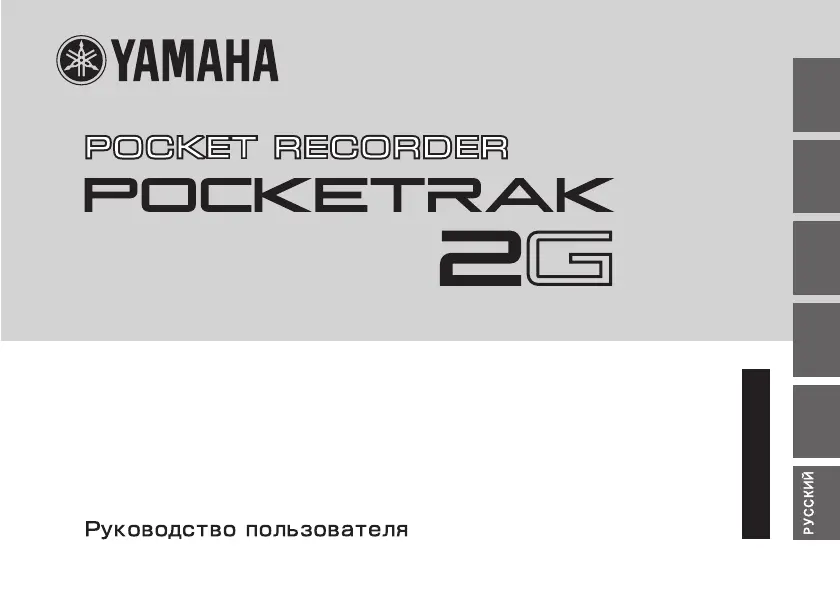
Yamaha Pocketrak 2G - User Manual

Yamaha Pocketrak 2G
40 pages
Print Icon
To Next Page IconTo Next Page
Loading...
Owner’s Manual
Bedienungsanleitung
Mode d’emploi
Manual de instrucciones
Manuale di istruzioni
RU
IT
ES
FR
DE
EN
ITALIANO ESPAÑOL
FRANÇAIS
DEUTSCH ENGLISH

Other manuals for Yamaha Pocketrak 2G

Questions and Answers

  • B
    Brian WalkerAug 20, 2025
    What to do if the Removable Disk is not displayed when Yamaha Recording Equipment is connected to the PC?
    • J
      Jeff MurphyAug 20, 2025
      If the removable disk is not displayed when the Yamaha Recording Equipment is connected to the PC, ensure the connection is correct by disconnecting and reconnecting the unit. If you're using a USB hub, connect the unit directly to the PC's USB terminal. If your PC has multiple USB terminals, try another one. Also, if a network drive has been assigned, reassign the network drives. Finally, if playback is locked with the security setting on, cancel the playback lock and connect the unit with the power on.
  • S
    Scott McdonaldAug 22, 2025
    Why can't I play files in the M (music) folder on my Yamaha Recording Equipment?
    • S
      Stacy MorrisAug 22, 2025
      If files in the M (music) folder cannot be played on your Yamaha Recording Equipment, ensure that the files are in MP3 or WMA format. Transfer the files to the MUSIC folder on the Removable Disk. If the issue persists, create the file using different encoder (MP3/WMA conversion) software.
  • S
    Stephen GardnerAug 25, 2025
    What to do if my Yamaha Recording Equipment does not operate?
    • J
      Joy LaneAug 25, 2025
      If your Yamaha Recording Equipment does not operate, reinsert the battery correctly or replace it with a new alkaline battery or recharge the eneloop. If the problem persists, format (initialize) the internal memory and then try recording again.
  • S
    Sandra AveryAug 26, 2025
    How to recharge the eneloop in Yamaha Recording Equipment?
    • C
      Crystal CisnerosAug 27, 2025
      If your Yamaha Recording Equipment is not recharging the eneloop, check that the BATTERY SETTING is set to “eneloop”. If it still doesn’t recharge by connecting the unit to the PC, press the button for at least two seconds.
  • T
    Troy JacobsAug 27, 2025
    What to do if the buttons on my Yamaha Recording Equipment do not work?
    • T
      tayloroscarAug 28, 2025
      If the buttons on your Yamaha Recording Equipment do not work, turn off the Hold function. Also, disconnect the unit from the computer if the USB terminal is still connected.
  • M
    Mr. Scott BlakeAug 30, 2025
    Why do my Yamaha Recording Equipment recordings include unwanted noise?
    • C
      Charles GrantAug 30, 2025
      If you are experiencing unwanted noise in your recordings with the Yamaha Recording Equipment, try changing the recording mode or microphone sensitivity and try recording again to determine the optimum setting for your recording environment. You may also format (initialize) the internal memory.
  • J
    Jacqueline PerrySep 1, 2025
    How to fix a file that can’t be erased on Yamaha Recording Equipment?
    • C
      Cynthia WrightSep 1, 2025
      If you can't erase a file on your Yamaha Recording Equipment, connect the unit to the PC and change the file attribute or erase the file from the PC. Alternatively, format (initialize) the built-in memory.
  • S
    suzannevangSep 3, 2025
    How to fix no sound on Yamaha Recording Equipment?
    • A
      amy10Sep 3, 2025
      If there is no sound from your Yamaha Recording Equipment, adjust the volume.
  • M
    Maurice FullerSep 5, 2025
    Why is the file transfer speed slow on my Yamaha Recording Equipment?
    • S
      susan50Sep 5, 2025
      If the file transfer speed from PC to your Yamaha Recording Equipment is slow, connect the unit to a USB2.0 High Speed terminal.
  • N
    nthompsonSep 7, 2025
    Why cannot I divide a file on my Yamaha Recording Equipment?
    • C
      Cynthia ColemanSep 7, 2025
      If you cannot divide a file on your Yamaha Recording Equipment, erase unnecessary files to free up memory. Note that you can only divide files that exceed a specific minimum recording time.

Summary

FCC Information and Compliance

Do Not Modify Unit Warning

Warning against modifying the unit, which may void FCC authorization.

Cable Usage Requirements

Emphasizes using only high-quality shielded cables for accessories and other products.

FCC Compliance Note

Explains compliance with FCC Part 15 for Class B digital devices and potential interference.

Compliance Information Statements

Canada Compliance Statement

Confirms the device's compliance with Canadian ICES-003 regulations.

Included Accessories

List of Included Accessories

Lists the items included with the POCKETRAK 2G recorder.

Key Product Features

General Safety Precautions

Warnings and Cautions Overview

Covers essential warnings for electrical shock, damage, and injury.

Handling, Location, and Volume Precautions

Advises on proper placement, environmental conditions, and hearing safety.

Battery Safety Dangers

General Battery Handling Dangers

Details extreme dangers associated with battery leakage, fire, and explosion.

Specific Dangers for eneloop Batteries

Highlights dangers of using non-eneloop or counterfeit rechargeable batteries.

Warnings for Alkaline Batteries

Warns against modifying, short-circuiting, or exposing alkaline batteries to heat.

Battery Usage Cautions

Battery Removal, Storage, and Capacity Checks

Warns against removing battery during use and advises on storage and capacity checks.

eneloop Charging and Fluid Leakage

Provides cautions for eneloop charging and handling battery fluid leaks.

Getting Started: Device Controls

Controls Overview and Identification

Identifies and explains all the buttons, switches, and terminals on the unit.

Getting Started: LCD and Microphones

Getting Started: Battery Installation

Inserting the Battery Correctly

Step-by-step instructions on how to properly insert the battery into the device.

Basic Operations: Core Functions

Basic Operations: Hold and Volume

Quick Guide: Recording Setup

Quick Guide: Microphone Sensitivity

Quick Guide: Recording Controls

Quick Guide: Playback Operations

Quick Guide: File Management

Connecting to a Computer: Initial Steps

System Requirements and USB Connection

Details computer requirements and how to physically connect the recorder via USB.

Connecting to a Computer: USB Precautions

USB Terminal Precautions and Behavior

Outlines important precautions for safe USB terminal usage and power behavior.

Connecting to a Computer: Disconnection

Safely Disconnecting from Computer

Provides instructions for safely removing the device from a connected computer.

Connecting to a Computer: Folder Structure

Cubase Al 4 Installation Guide

Step 1: Installing Cubase Al 4

Provides step-by-step instructions for installing the bundled Cubase Al 4 DAW software.

Cubase Al 4 Usage: Setup and Import

Cubase Al 4 Project Setup

Cubase Al 4 Importing Audio Files

Cubase Al 4 File Handling

Accessory Disk and Software Information

Software License Agreement

License Agreement Terms and Conditions

Presents the comprehensive legal terms and conditions for using the bundled software.

Recharging the eneloop Battery

Yamaha Pocketrak 2G Specifications

Memory IconMemory
memory capacity2 GB
Battery IconBattery
available batteryAAA alkali battery x 1/AAA eneloop rechargeable battery x 1
eneloop recharge time90 minutes
battery life with AAA alkali (MP3)25 h
battery life with AAA alkali (PCM)9 h
battery life with AAA Ni-MH (MP3)19 h
battery life with AAA Ni-MH (PCM)8 h 30 m
Recording IconRecording
recording formatLinear PCM, MP3
pcm stereo recording time3 h 10 m
frequency response XHQ stereo40 – 15 kHz
sampling frequency HQ stereo22.05 kHz
bit rate SP stereo32 kbps
Playback IconPlayback
playback formatMP3, WMA, WAVE, DRM10-WMA
playback speedSlow PB (75%), Normal (100%), Fast PB (120%)
clear voice functionyes
Computer Connection IconComputer Connection
connection typeUSB direct (slide connector)
transfer speedUSB 2.0 High Speed, 1500 kbps
mass storage classyes
Weight and Dimensions IconWeight and Dimensions
dimensions34.2 mm x 119.7 mm x 13 mm
weight49 g

Related product manuals