EasyManua.ls Logo

Yamaha WX-030 - User Manual

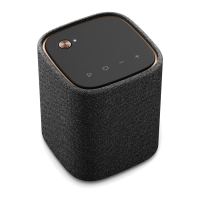
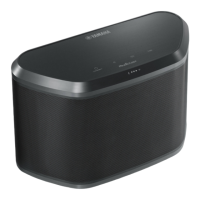
Yamaha WX-030
64 pages
Print Icon
To Next Page IconTo Next Page
Loading...
U
En Fr Es
OWNER'S MANUAL
MODE D'EMPLOI
MANUAL DE INSTRUCCIONES

Table of Contents

Other manuals for Yamaha WX-030

Questions and Answers

  • O
    ocampbellAug 20, 2025
    What to do if Yamaha Speakers are not detected by the MusicCast CONTROLLER app?
    • J
      jonathantownsendAug 20, 2025
      If your Yamaha Speakers aren't detected by the MusicCast CONTROLLER app, ensure that both the unit and your mobile device are connected to the same network. Also, if your router supports multiple SSIDs, verify that your mobile device is connected to the primary SSID. If multiple routers are connected, temporarily disconnect the Internet, check the local network, and connect the devices to the same router.
  • N
    Nancy ClarkAug 22, 2025
    Why can't I establish a Bluetooth connection with my Yamaha WX-030?
    • A
      avelasquezAug 22, 2025
      If you can't establish a Bluetooth connection with your Yamaha Speakers, try the following: * Ensure the speakers are registered on your device's Bluetooth list by performing the pairing operation again. * If the unit is in Eco Standby mode, turn it on and then try connecting via Bluetooth. * If another Bluetooth device is already connected, terminate that connection first. * Confirm that Bluetooth is enabled on your connecting device. * If the pairing information has been deleted, perform pairing again. Note that the unit can be paired with up to 20 devices; pairing a 21st device will delete the oldest pairing information. * For iPhone/iPad/iPod touch, delete any pairing history of WX-030 and then pair again.
  • R
    Robin RodriguezAug 25, 2025
    Why can't I pair my Yamaha WX-030 Speakers with the connecting device?
    • J
      jeffrey40Aug 25, 2025
      If the Yamaha Speakers unit cannot be paired with the connecting device, it may be due to several reasons. First, ensure that the connecting device supports A2DP. If it does, verify that the passkey of the connecting device is “0000.” Also, check the distance between the unit and the connecting device; if they are too far apart, move them closer. Move the unit away from any devices emitting radio-frequency signals, such as microwave ovens or wireless LAN devices. Ensure that the unit is turned on and not in standby mode, and terminate any other active Bluetooth connections before attempting to pair.
  • M
    Makayla MasseyAug 26, 2025
    How to fix Yamaha WX-030 Speakers when it cannot connect to the Internet via a wireless router?
    • M
      Michael JohnsonAug 26, 2025
      If your Yamaha Speakers are not connecting to the internet via a wireless router, first ensure that the wireless router is turned on. If it is on, check the distance between the unit and the router; if they are too far apart, move them closer. Also, make sure there are no obstacles between the unit and the wireless router.
  • M
    marissaadamsAug 27, 2025
    What to do if there is no sound or the sound is interrupted during playback on my Yamaha Speakers?
    • A
      Alex HerreraAug 27, 2025
      If you are experiencing no sound or interrupted sound during playback with your Yamaha Speakers, first, ensure that the Bluetooth connection between the unit and your device is active by performing the Bluetooth connection again. If the devices are too far apart, move them closer. Also, move the unit away from any devices emitting radio-frequency signals, such as microwave ovens or wireless LAN devices. Ensure the connecting device's Bluetooth function is turned on and set to send audio to the unit. Verify that the pairing setting of the connecting device is set to this unit and that the volume is not set to the minimum. If the connecting device is connected to multiple Bluetooth devices, select this unit as the playback device.
  • T
    Travis RamosAug 29, 2025
    What to do if I cannot make the connection settings on the MusicCast CONTROLLER app for Yamaha WX-030 Speakers?
    • S
      scottscottAug 29, 2025
      If you cannot make connection settings on the MusicCast CONTROLLER app for your Yamaha Speakers, verify that your mobile device is connected to your home's wireless router. After confirming the connection, launch the MusicCast CONTROLLER app. Also, disable cellular data transmission.
  • J
    James JonesAug 31, 2025
    Why is my Yamaha WX-030 Speakers unit not turning on, or why are the touch sensors not reacting?
    • J
      Jorge MasonAug 31, 2025
      If the Yamaha Speakers unit is not turned on, or the touch sensors do not react, it may be because your finger was touching the touch sensor on the top while the unit was starting up. The unit adjusts the touch sensor sensitivity during the first 10 seconds after being plugged in. Wait and avoid touching the sensors until the unit has completely started up. Then, tap (power)/CONNECT.
  • T
    Timothy JohnsonSep 2, 2025
    Why is there no sound coming from my Yamaha WX-030?
    • C
      contrerasjeanetteSep 2, 2025
      If there is no sound from your Yamaha Speakers, ensure that an appropriate source has been selected using the MusicCast CONTROLLER app. Also, check that the volume is not set to minimum or muted, and increase the volume if necessary.
  • K
    Kellie ReynoldsSep 4, 2025
    What to do if a wireless network is not detected with MusicCast CONTROLLER app on my mobile device for Yamaha WX-030?
    • D
      Dr. Linda BaxterSep 4, 2025
      If a wireless network is not detected with the MusicCast CONTROLLER app on your mobile device for your Yamaha Speakers, try turning off microwave ovens or other wireless devices that might be interfering with the wireless communication in your area. Also, check the firewall settings of your wireless router.
  • W
    wileytimothySep 6, 2025
    Why is the network feature not functioning on my Yamaha WX-030?
    • W
      William RodriguezSep 6, 2025
      If the network feature on your Yamaha Speakers does not function, ensure that the DHCP server function is enabled on your router. If the unit is starting up, wait until it has completely started before using the network function. The unit becomes operative about 10 seconds after plugging the power cable into the wall outlet.

Summary

Important Safety Instructions

Electrical Shock and Servicing Precautions

Instructions to reduce the risk of electric shock and guidance on when to refer servicing to qualified personnel.

Operating Cautions and Precautions

Safe Installation and Placement Guidelines

Instructions on ventilation, temperature, humidity, object placement, and cable management for safe operation.

Product Features and Capabilities

Smart Device Integration and Control

Details on using iPhone/Android devices with the MusicCast CONTROLLER app for playback and remote control.

Unit Installation Guide

Placement Recommendations

Guidance on placement near TVs and for optimal Bluetooth device connectivity.

Wall Mounting Instructions

Steps and specifications for mounting the unit using a compatible wall mount hanger.

Powering the Unit On and Off

Network Connectivity Setup

MusicCast Network Configuration

Connecting Unit via MusicCast Controller

Step-by-step guide to setting up the network connection using the MusicCast CONTROLLER app.

MusicCast Network Operation Modes

PC and NAS Music Streaming

Bluetooth Audio Playback

Troubleshooting Common Issues

General Unit Operation Problems

Solutions for issues like unit not turning on, no sound, or improper operation.

MusicCast Connection Issues

Troubleshooting steps for problems connecting with the MusicCast CONTROLLER app.

Network Troubleshooting

Network Functionality Problems

Solutions for issues with network features, playback stopping, and PC detection.

Internet Radio and Wireless Connectivity

Troubleshooting for Internet radio playback failures and wireless network detection issues.

Bluetooth Connectivity Troubleshooting

Bluetooth Pairing and Connection Issues

Solutions for problems pairing devices, establishing Bluetooth connections, and connectivity range.

Bluetooth Audio Playback Problems

Troubleshooting for no sound, interrupted playback, and incorrect device selection for Bluetooth audio.

Technical Specifications

Yamaha WX-030 Specifications

General IconGeneral
TweeterYes
Speaker type-
Woofer diameter90 mm
Tweeter diameter30 mm
Number of drivers2
Number of speakers1
Audio output channels- channels
Power source typeAC
Power consumption (standby)0.5 W
Power consumption (typical)10 W
Impedance6 Ω
RMS rated power30 W
Total Harmonic Distortion (THD)10 %
Bluetooth range10 m
Bluetooth version2.1+EDR
Bluetooth profilesA2DP, AVRCP
Connectivity technologyWired & Wireless
Product colorBlack
Recommended usageUniversal
Weight and Dimensions IconWeight and Dimensions
Depth113 mm
Width243 mm
Height157 mm
Weight2200 g

Related product manuals