28
Activating/ deactivating Bluetooth
The Bluetooth on the inverter will be automatically off/decativate in any of the below 3
situation:
1. The inverter is disconnect to the solar module.
2. App is successfully connected.
3. The app connection operation is not completed within 3 minutes.
To activate Bluetooth, just re-connect the inverter to the solar module.
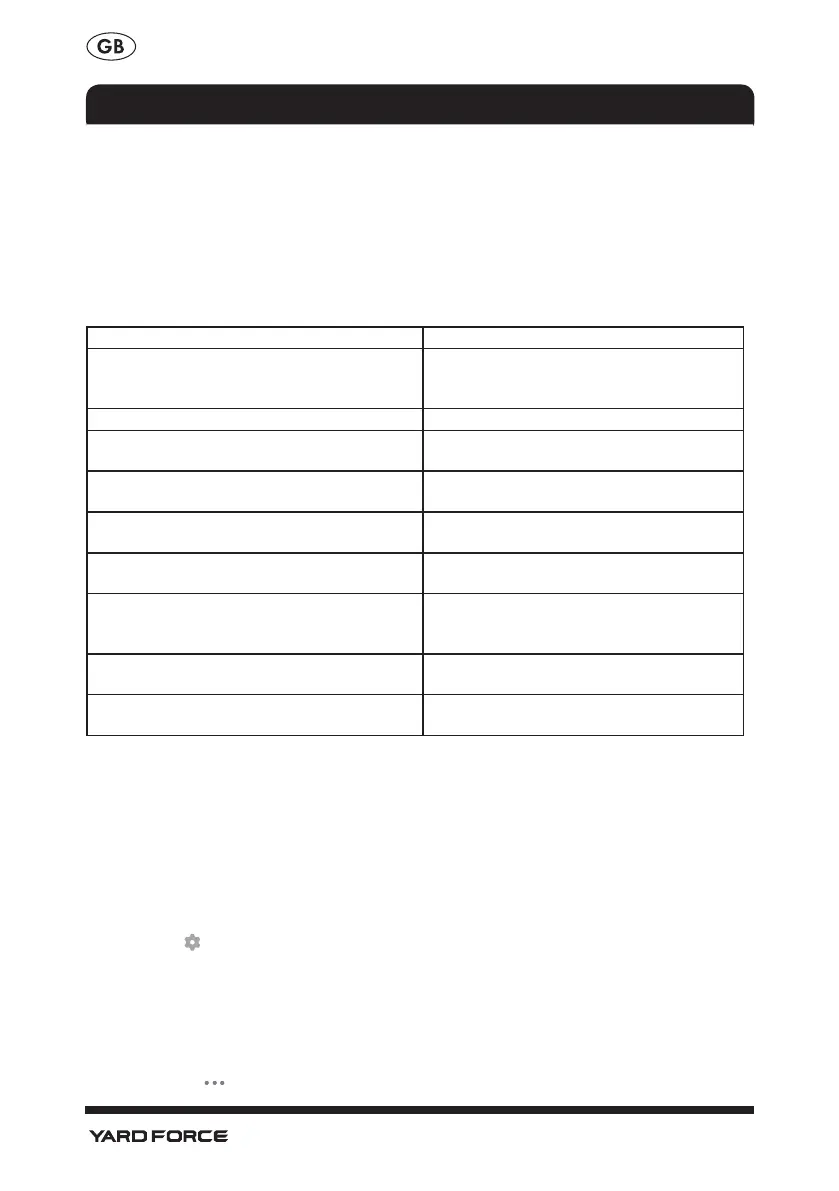
Below are the LED display rules :
LED light status Status explanation
Solid red:
Fault in the ground fault circuit breaker
(GFDI) is detected, and hardware error is
detected
Solid green light No WIFI connection
Red light blinking (0.2s on + 0.8s off, each
cycle = 1s)
DC ports errors are detected
Red light blinking (0.2s on + 1.8s off, each
cycle = 2s)
Lack of power grid
Red light blinking (0.2s on + 3.8s off, each
cycle = 4s)
Power grid abnormality
Red light + green light blinking
(1s red light + 1s green light, each cycle = 2s)
Firmware upgrade
Green light quick blinking twice (each time
0.2s on + 0.8s off) + Green light slow blinking
(1s on + 1s off) each cycle = 4s
In the process of APP network configuration
Green light blinking (0.2s on + 1.8s off, each
cycle = 2s)
Some dc ports errors are detected
Green light blinking (0.2s on + 0.8s off, each
cycle = 1s)
System standby & normal working status
Features of the app
If you select a inverter, this will take you to the overview page.
• Brief overview (above)
Here, in the window above, a brief overview of the inverter is provided with a picture. The
current temperature,status, power generate/ income/ consume are shown.
• Statistics
Here you will find the DAY/MONTH/YEAR power generate data.
• Settings
You will find " " button at the bottom right after you have selected the inverter. And you can
make the "Price setting",enter the market electricity unit price, the income caused by power
generation will be shown at the Home page. You can also access„Device ID“ „Device
model“ from this menu. You can set your desired output power by „Remote setting" option.
To ensure it is vour own operation, a second verifcation/password is required now. The
Password is your device ID which is unique.
Important !
You will find the at the top right after you have selected the inverter.
CONNECTING TO THE SMART LIFE APP



 To Next Page