Need support? Connect with us at www.northland.net/support or
Dial 4357 (HELP) or 315-671-6262 to speak to a Northland Training Representative
3
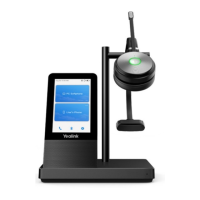
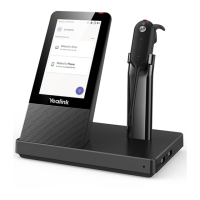
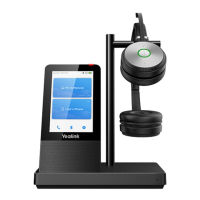
BASE AND HEADSET CONTROLS
1 Status Indicator Panel
2 PC Button
4 Phone Button
3 Voice Assistant
Button
No. Name Description
1 Status Indicator Panel
Indicates the mute status, audio status, and headset battery status.
+ Solid White: Unmuted
+ Solid Red: Muted
+ Solid Green: Audio connection between base and headset is normal
+ Flashing Orange: headset is disconnected with base (power off/out of range)
2 PC Button
+ Press to connect the headset to MaX UC to place a call.
+ Press to answer or end a MaX UC call.
3 Voice Assistant Button Hold for two seconds to activate the voice assistant.
4 Phone Button
+ Press to connect the headset to the desk phone to place a call.
+ Press to answer or end a call on the desk phone.
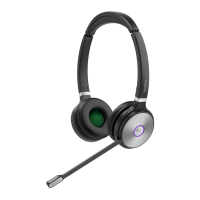
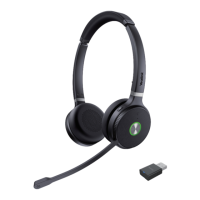
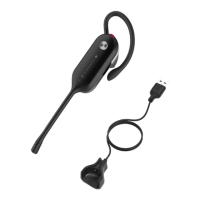
5 Status and Busylight Indicates, charging or call status. (Busy Light coming soon)
6 Volume Control Panel Adjusts the volume of your headset
8 Mute Button8 Mute Button
7 Call Button7 Call Button
6 Volume Control Panel6 Volume Control Panel
5 Status LED (Busy Light LED Coming Soon)5 Status LED (Busy Light LED Coming Soon)
7 Call Control Button
+ Hold for three seconds to power the headset on/off
+ Press once to answer an incoming call
+ Double-press to reject an incoming call
+ Press once to end an active call
+ Hold for two seconds to answer an incoming call and put the active call on hold
+ Hold for two seconds to switch between held call and active call
+ Press once to end the active call and answer the incoming call
+ Double-press to stay on the active call and reject the incoming call
8 Mute Button Press to toggle the microphone on/off



 To Next Page
 Loading...