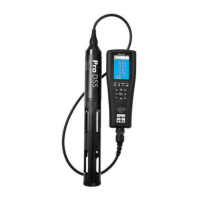
YSI ProDSS Meter Calibration and Routine Maintenance
K:\Streamkeepers\Communication\Website\To load onto Web\ProDSS calibration.docx
General Rules about ProDSS Calibration
• Buffer solutions must not exceed expiration or “use by after opening” dates. Solutions are
good until the last day of the month listed. Use expired buffers for rinses.
• For best results, rinses should generally consist of three water and then three buffer rinses.
• Anytime you’re having a problem with calibration, it’s a good idea to reset the handheld unit
to Factory Defaults and start all over again.
• One case of the above is if you get a message saying, “Results questionable—the calibration
may produce inaccurate readings. Accept anyway?” Do NOT accept the calibration. That
message indicates an issue with the probe or sensor cap, or an out of range calibration that
was accepted previously. First, reset the probe’s calibration back to factory default to delete
the out-of-range calibrations. Then, check the probe in its calibration reference solution—the
reading should be pretty close to the reference value. Recalibrate, and hopefully you won’t
see a “Results Questionable” message.
• The “Post Cal Value” at the bottom of the screen should be the same as the top calibration
value that you choose, and the yellow line on the graph should reflect this value, remaining
straight throughout the calibration.
• After you’ve hit the “Calibrate” button and the calibration is accepted, check to see that the
value then showing up on the meter is very close to the “Calibration Value” that you’d set. If
not, you may have to redo the calibration.
• When you’re done calibrating everything, plug the handheld into a computer with KorDSS
software loaded, and Kor should be set to automatically download all the data. If it doesn’t:
o Check the settings to make sure that automatic GLP download has been selected.
o Otherwise, the GLP files may have become corrupted in the handheld. You may have to
delete all the GLP files from the handheld and re-calibrate to get the GLP data to
download successfully.
• Once the data have been downloaded, a green bar should appear across the bottom indicating
that all components of the most recent calibrations were good. If not:
o Orange is a warning that, although calibrations were successful, one or more of the
sensors might be getting close to the edge of acceptable electronic-response range. Click
on the “QC Score” button in the lower-right corner to see which sensors have warnings. It


 To Next Page
 Loading...