YSI ProDSS supplement 8 July 2015
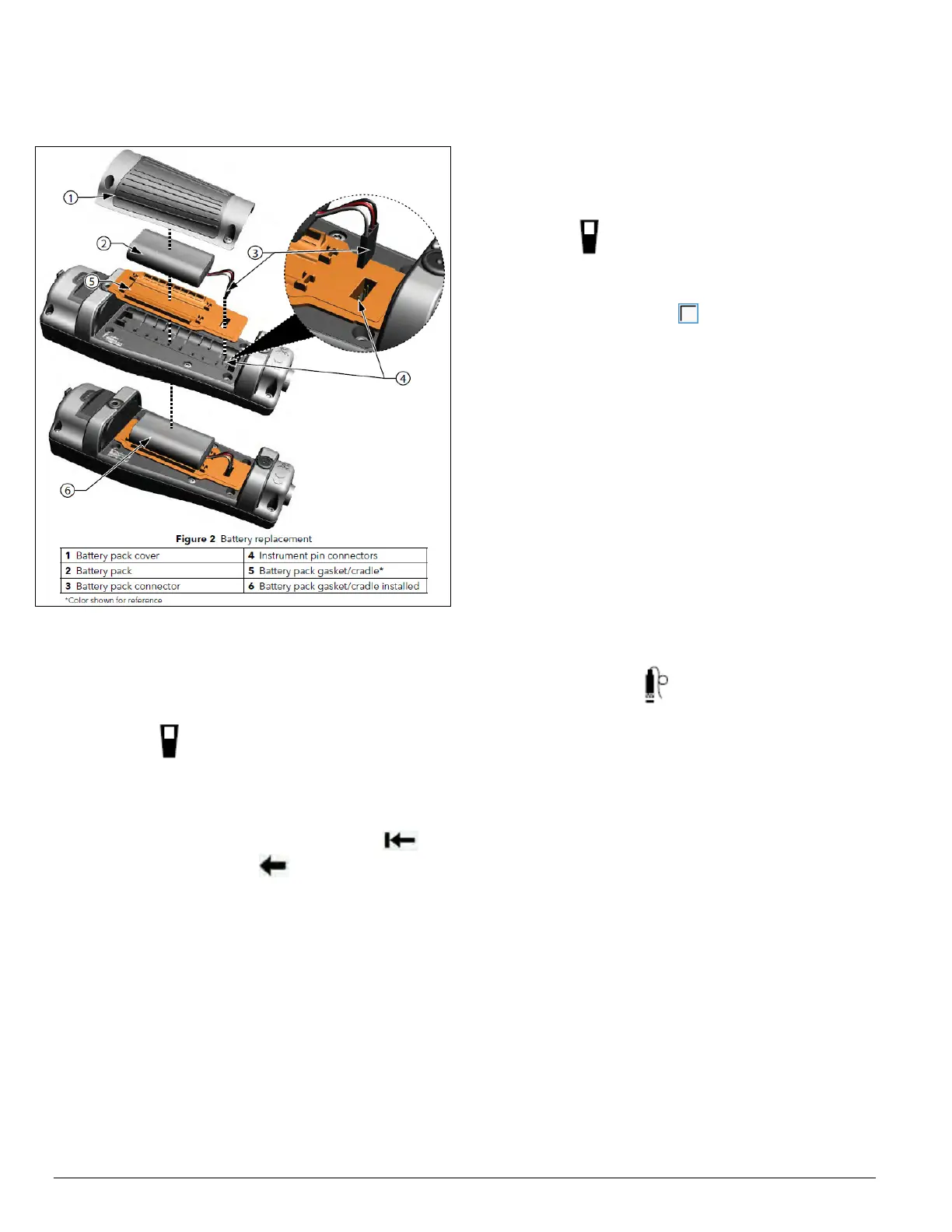
Refer to the figure on the next page for
a reference.
3. SYSTEM SETTINGS
Date/Time
If the date and time are inaccurate, press the
system button
, go to the Date/Time
submenu option, scroll down to Date and hit
enter. In the numeric entry screen use the arrow
keys to maneuver around. If entire date needs
corrected click the
delete entire entry
key
, if
not use the
backspace key
to partially correct
the date. After correcting the date, hit enter.
Scroll down to Time and hit enter, follow similar
instructions for date correction to correct the time.
When finished hit the Esc. or left arrow button
until you are back to the Run screen.
Logging Data
If the logging settings are inaccurate, press the
system button
, scroll down to the logging
submenu option, go to the Continuous Mode
and uncheck the box by pressing enter. The box
should become unchecked . Press the Esc
button to return the Run Screen. In the green bar
at the top of the screen it should now read “Log
One Sample”.
Sensor Display Details
If there is a parameter not displayed on the
Run Screen, inform the team leader. If
parameter not present, either the sensor is not
installed correctly, or it is not working properly.
To check if the sensor is installed properly, refer
to the above section Sensor, Port Plug,
Guard Installation and carefully examine the
sensors.
If the units do not match on the Run Screen, go
to the
probe button
and scroll down to
Display submenu and hit enter. Scroll down
and select the desired parameter. A submenu
will appear with multiple parameter unit
options, select the proper unit and return to the
Run Screen.


 To Previous Page
 Loading...