9
Change the Web Interface into your preferred language
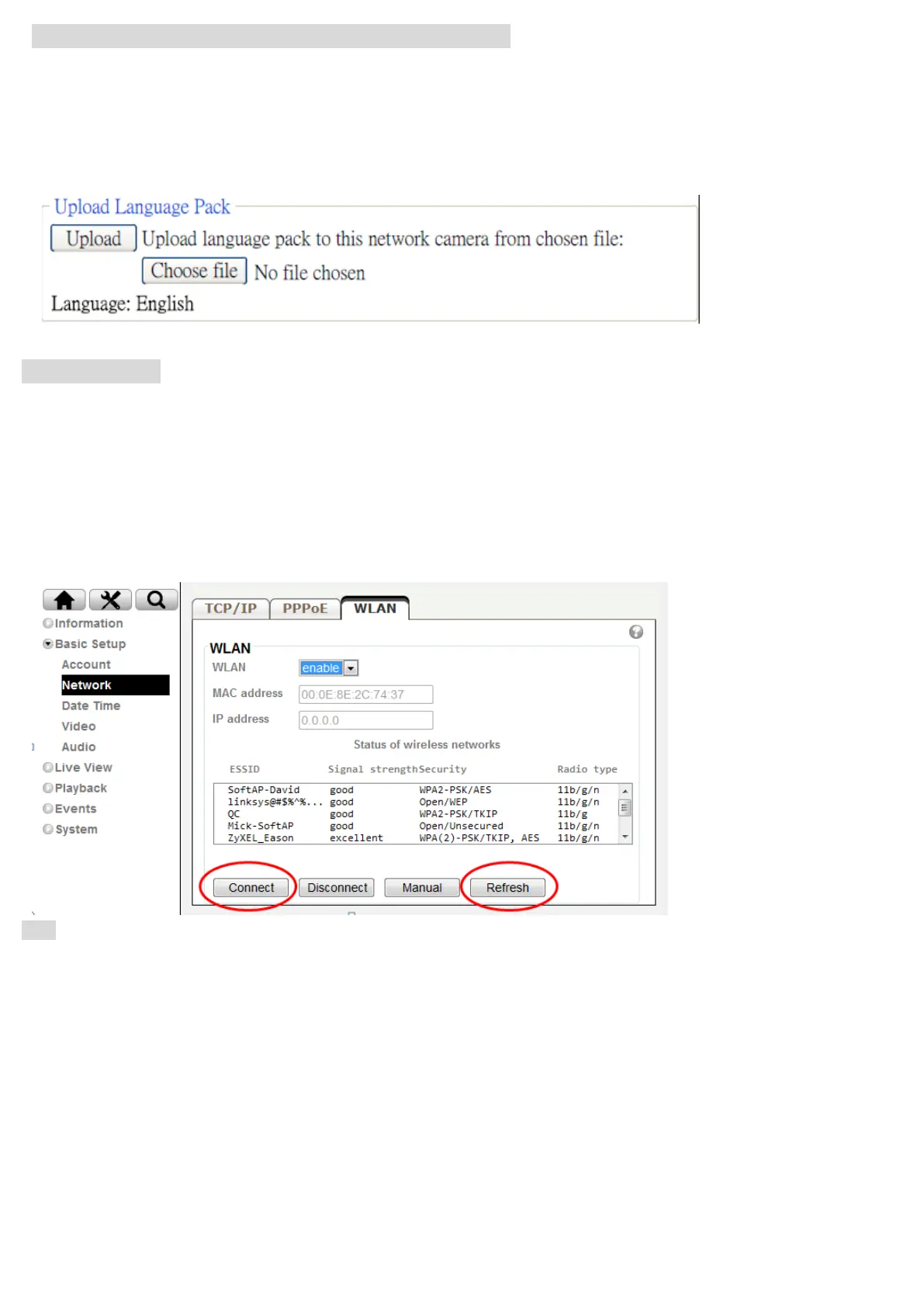
Use the settings screen to set the language of the Web Interface.
Go to “Setting > System > Maintenance ”.
1. Insert Software CD into your CD-ROM.
2. Browse and select the preferred language from language pack in the Software CD and then click OK.
3. The web interface will change into your preferred language.
Wireless Setting
Power the IP Camera and connect an Ethernet network cable to the IP Camera’s LAN port, then insert the USB
Wi-Fi dongle at the rear. Using Intelligent IP Installer and entering the camera’s setting page.
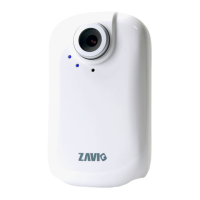
Please go to “Setting > Basic Setup > Network > WLAN”, set the wireless option to “Enable”
1. Click Refresh and choose the AP you wish to connect and click Connect.
2. Enter the password within the Active transmit key field if required.
3. Choose the option of Obtain an IP address automatically (DHCP) and Obtain DNS server address automatically.
4. Click “Save” to apply settings. The Wireless IP address appears in the IP address field.
Note: The wireless private IP address can be found in Intelligent IP Installer


 To Next Page