23
5.3 Calibrating Media Sensor by Diagnostic Tool
5.3.1 Auto Calibration
1. Make sure the media is already installed and media cover is closed. (Please refer to
section 3.4)
2. Turn on the printer power switch.
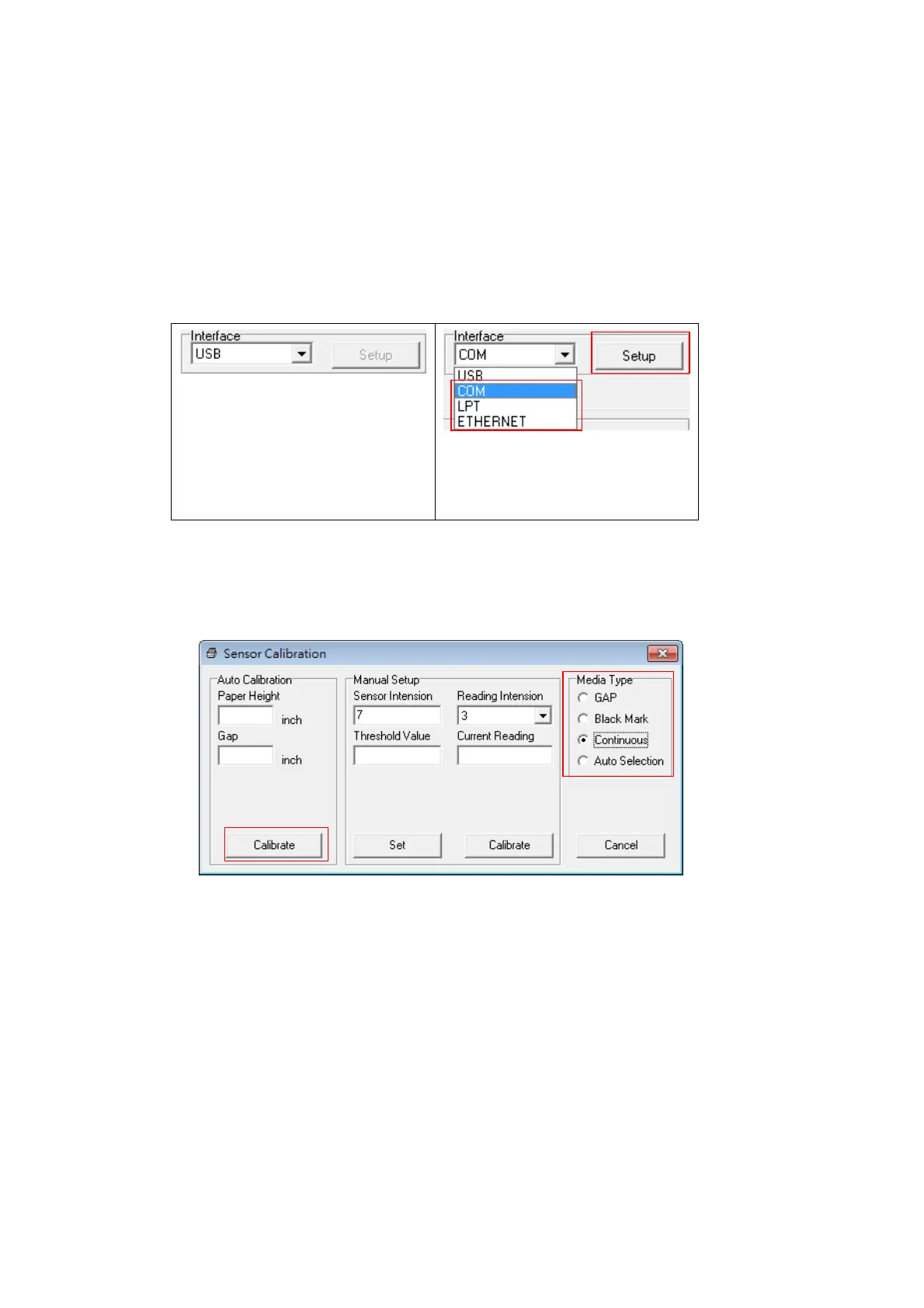
3. Open Diagnostic tool and set interface. (The default setting is USB)
The default interface setting is
USB interface. If USB interface
is connected with printer, no
other settings need to be
changed in the interface field.
4. Click the “Calibrate Sensor” button.
5. Select the media type and click the “Calibrate” button.
Note: The 4D520 can only support continuous, die-cut, receipt, and black mark media type.


 To Next Page