2) From the main menu, select “Pro Players.” Located at the bottom of the
Pro Players section, select Pro Compare. Here you can select to compare
either two swings captured in your players history by locating the player
under “users.” Alternatively you can compare any swing in you or your
players library to any of the professionals found in the app.
Share a Swing
Swings can be shared via email, Facebook, Twitter or text from the 3D view.
Find the swing that you would like to share and view the 3D view of the
swing. From here, open the control center located in the bottom right
corner and select “Share this Swing” followed by the channel that you would
like to share your swing through. This feature is for swings captured using a
Zepp sensor and will share a screenshot of the 3D view of your swing as well
as the dashboard highlighting the swing’s metrics.
Delete a Swing
There are a couple different ways in which you can delete a swing. In your
swing history, swipe right or left across the swing that you’d like to delete
and tap delete. Alternatively, select the day in which you would like to
delete swings and tap edit in the upper right corner of your swing history.
Select the swings that you would like to delete followed by “Delete Selected
Swings.” Lastly, you can delete a selected swing by selecting the swing so
that you are viewing it’s 3D view followed by selecting the three horizontal
dots in the bottom right corner of the app and tapping delete.
Screen Lock
To lock your screen while capturing swings, select “Screen Lock” located in
the Control Center.
Low Battery Indicator
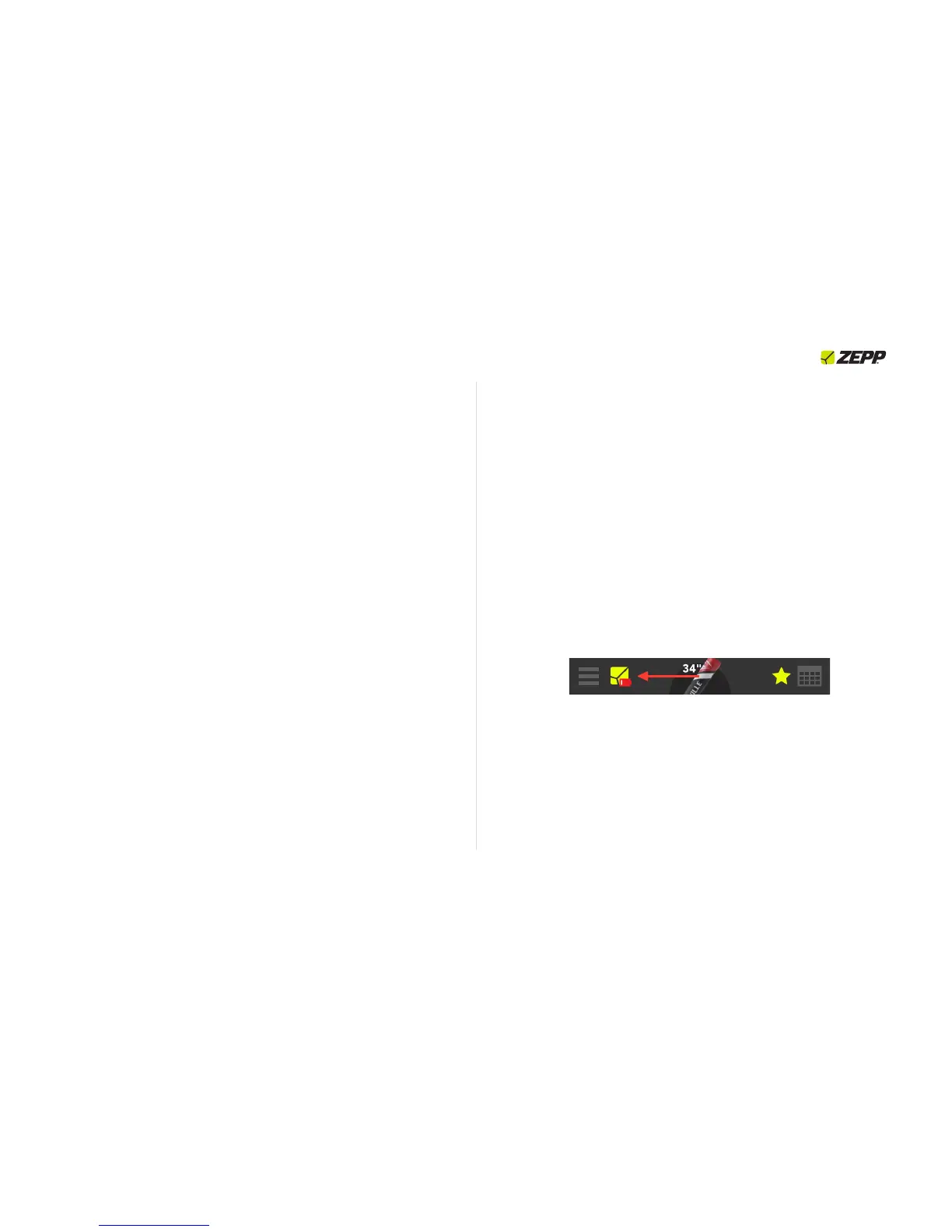
The Zepp Baseball app indicates when your sensor has low battery as shown
below.!



 To Next Page