1
Factory Default Mode
2
Verify and Unlock
3
Register First Fingerprint
4
Register More Fingerprints
1
Note: The maximum number of fingerprints the lock can register is 10, where the first two registered
fingerprints belong to the administrator group, and they have the right to register or delete other fingerprints.
Factory settings of all new locks allow any fingerprint to unlock them.
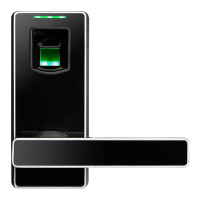
Unlock the lock with any
fingerprint and keep pressing
on the sensor until the green
LED blinks.
Now move the finger from the sensor
and the blue LED will blink, which
means the lock has entered in
registration mode.
Then press a desired finger on the
sensor, and move the finger when
the green LED lights up, then
press the same finger two more
times until the lock turns off
automatically, which means the
fingerprint is registered.
Press a registered finger on the sensor, the green LED lights up if the
verification is successful, and then the lock will unlock automatically.
If the red LED lights up, then please press your finger correctly.
Note: After seven failed verifications, the lock will turn off automatically.
After unlocking the lock, verify with
administrator fingerprint and keep
pressing on the sensor until the green
LED blinks.
Now
move the finger from the
sensor and the blue LED will blink,
which means the lock has entered
in registration mode.
Then press a new finger on the
sensor, and move the finger
when the green LED lights up,
then press the same finger two
more times until the lock turns
off automatically, which means
the fingerprint is registered.


 To Previous Page
 Loading...