

EasyManua.ls Logo

ZLT X100 PRO - User Manual

ZLT X100 PRO
11 pages
Print Icon
To Next Page IconTo Next Page
Loading...
ZLT X100 PRO User Manual
V1.0
Thank you for choosing our 5G wireless data terminal products.
In order to enable you to better use the data terminal, please read
this manual carefully, and keep it on standby for future use.
Our company reserves the right to modify the technical
parameters and specifications of this manual, and we will timely
improve the printing errors and discrepancies with the latest data of
this manual. All changes will not be notified in advance, and the
Company reserves the right of final interpretation.
ZLT X100 PRO is a high-performance 5G indoor data terminal,
which supports NR (SA&NSA) and LTE, converts cellular network
data into WiFi and wired network interface data, supports one
gigabit LAN interface, and one telephone interface, and 2.4G+5G
dual band WiFi hotspot (AP). It is applicable to domestic or
commercial scenarios where communication networks and WiFi
hotspots need to be rapidly deployed.
1. Main technical indicators of product
Wired network port:Support 1000Mbps RJ45 network port
Power:input : AC 100V~240V, 50Hz~60Hz
output : DC 12V/1.5A
Operating temperature: 0℃~ +45℃
Relative humidity: 5%~95%
Dimensions: L90 x W50 x H163 (mm)
Weight: about 415g
2. Installation instructions
1) Take out the wireless data terminal and install the SIM card
into the card slot according to the direction marked on the
data terminal.
2) Use a standard RJ45 network cable to connect the LAN port of
the data terminal to the computer.
3) Use the power adapter to connect the external power socket
Question and Answer IconNeed help?

Do you have a question about the ZLT X100 PRO and is the answer not in the manual?

Overview

The ZLT X100 PRO is a high-performance 5G indoor data terminal designed for rapid deployment of communication networks and WiFi hotspots in both domestic and commercial scenarios. It supports NR (SA&NSA) and LTE, converting cellular network data into WiFi and wired network interface data.

Function Description:

The primary function of the ZLT X100 PRO is to act as a central hub for internet connectivity. It receives 5G cellular network data and then distributes it via a Gigabit LAN interface and a dual-band 2.4G+5G WiFi hotspot (AP). Additionally, it includes a telephone interface for call functions. This device allows users to connect to the internet through either WiFi or a network port, supporting various operating systems such as Windows XP, Windows 7, Windows 8, MAC OS, Linux, and Android.
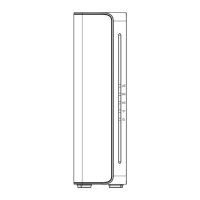
Important Technical Specifications:

  • Wired Network Port: Supports 1000Mbps RJ45 network port.
  • Power Input: AC 100V~240V, 50Hz~60Hz.
  • Power Output: DC 12V/1.5A.
  • Operating Temperature: 0℃~ +45℃.
  • Relative Humidity: 5%~95%.
  • Dimensions: L90 x W50 x H163 (mm).
  • Weight: Approximately 415g.
  • Network Support: Operates under 4G (LTE) / 5G (NR) networks.
  • WiFi: Dual-band 2.4G+5G WiFi hotspot (AP).
  • Interfaces: DC power connector, RST (Reset button), TYPE-C (Debug interface), LAN port, SIM card interface, TEL (Telephone interface).

Usage Features:

  • Installation:
    • Insert a SIM card into the card slot according to the marked direction. Ensure the device is powered off when installing the SIM card to prevent damage. Avoid touching the metal contact surface of the SIM card to prevent static electricity damage.
    • Connect the LAN port to a computer using a standard RJ45 network cable.
    • Connect the power adapter to an external power socket; the device will automatically power on and complete initialization within 1-2 minutes.
    • Place the data terminal on a flat surface.
    • The WiFi function is enabled by default. Mobile phones, tablets, and other wireless devices can connect to the data terminal. Default SSID and WiFi password information can be found on the nameplate at the bottom of the device.
  • Indicator Lights:
    • Signal: Green (Good signal quality), Blue (Medium signal quality), Red (Poor signal quality), Red light flashing (SIM card not detected), Light off (No signals).
    • 4G: Blue (4G registered network), Light off (4G unregistered network).
    • 5G: Blue (5G registered network), Light off (5G unregistered network).
    • WiFi: Blue (WiFi open), Light off (WiFi not open).
    • POWER: Blue (External power normal, data terminal on), Light off (External power abnormal, data terminal shut down).
  • Accessing the Internet:
    • Ensure the SIM card is valid and correctly inserted, the power light is on, the signal indicator shows green (or blue/red for weaker signals), and the 4G or 5G indicator is blue.
    • Connect the computer via RJ45 network cable or WiFi. For WiFi, use the SSID and password from the device's nameplate. Ensure the computer's IP address acquisition method is set to "obtain an IP address automatically."
  • Web Management Page:
    • After the computer obtains an IP address, log in to the web management page using the username and password found at the bottom of the device.
    • System Status: Check WAN wireless information (network parameters, signal strength, APN, neighborhood info), DHCP status and connected LAN devices, 2.4G/5G WiFi network and user information, and device running status (memory usage).
    • Internet Function: Set network mode, configure network (flight mode), data switch, and data roaming.
    • APN Settings: Set the access name for dialing according to operator requirements. Incorrect settings may cause the terminal to malfunction.
    • SIM Function: Set a PIN code.
    • Traffic Setting: Enable traffic restriction.
    • Network Acceleration: Enable network acceleration and edit special port exclusion list.
    • WiFi Settings: Turn on/off WiFi, view/change WiFi SSID, password, encryption method. For advanced settings (2.4G/5G), set WiFi TX power, channel, WiFi mode, bandwidth, and maximum number of connected users.
    • Device Settings: Manage IP address on the LAN side (DHCP), design static routing parameters, enable and configure VPN.
    • Firewall: Enable DMZ, set port forwarding, configure port/IP/MAC address filtering, set URL filters, set IP MAC binding, enable DDOS protection.
    • Management: Modify login password, set system time, restore factory settings, customize restart time (Intelligent Restart), view system debugging information (System Log).
    • System Upgrade: Upgrade the system.
    • Network Tools: Ping, trace function.
    • Reboot: Restart the terminal.

Maintenance Features:

  • Reset Button (RST): Press and hold for 6 seconds to restore the device to factory settings.
  • Debugging Interface (TYPE-C): Used for device debug log output. Note that this interface cannot be used for power supply; always use the factory-matching power adapter.
  • EU Compliance: The device meets EU requirements (2014/53/EU Article 3.1a) regarding exposure to electromagnetic fields. It complies with RF specifications when used at 20 cm from the body.
  • FCC Compliance: The device complies with Part 15 of the FCC Rules for Class B digital devices, designed to provide reasonable protection against harmful interference. Users are advised to reorient/relocate the receiving antenna, increase separation from other equipment, connect to a different circuit, or consult a technician if interference occurs.
  • FCC Radiation Exposure: The device complies with FCC radiation exposure limits for an uncontrolled environment. It must be installed and operated with a separation distance of at least 20 cm from all persons.
  • Caution: Any unauthorized changes or modifications could void the user's authority to operate the equipment.

ZLT X100 PRO Specifications

General IconGeneral
BrandZLT
ModelX100 PRO
CategoryIP Phone
LanguageEnglish