8
TO: THEN:
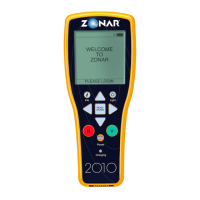
Add increments of 1 Press the UP arrow
Decrease increments of 1 Press the DOWN arrow
Add increments of 10 Press the RIGHT arrow
Decrease increments of 10 Press the DOWN arrow
Record the mileage in the report Press READ/ENTER
Note: Holding the arrow buttons accelerates adding or decreasing increments.
• Inspect all the components in a zone
- Go to a zone (following the order you’ve been given)
- Position the Zonar 2010’s spotlights within 2 inches of RFID tag
- Press READ/ENTER
- Inspect each component listed
- Determine if each component is OK—no defects
IF THE CONDITION OF: THEN:
All the components are OK • Press the green Y (yes) button
• Verify that there’s a G for a green condition
(OK) by the zone
• Inspect the next zone
One or more of the components aren’t OK Press the red N (no) button
- Identify the defective condition(s) for each component that isn’t OK
TO: THEN:
View a list of defective conditions for a Highlight the component with the defective
component condition (by scrolling with the UP and DOWN
arrows); press the RIGHT arrow
Select a defective condition from the list of Highlight the defective condition from the list
defective conditions for a component (by scrolling with the UP and DOWN arrows);
press the RIGHT arrow


 To Next Page