7
HOW TO USE THE ZONAR 2010 FOR SAFETY INSPECTIONS
Complete Pre/Post-trip Inspections
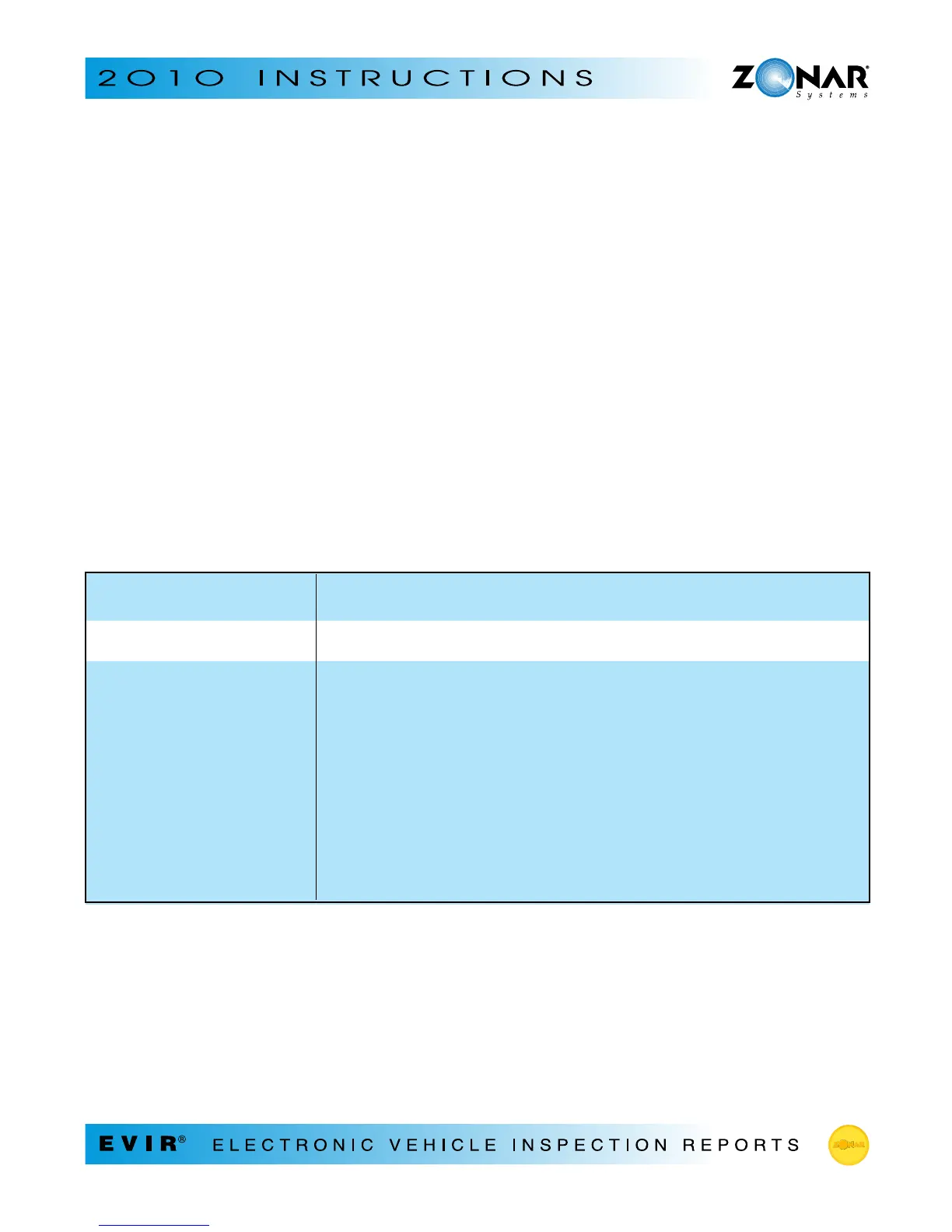
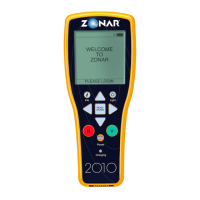
• Turn on the Zonar 2010
- Remove the Zonar 2010 from its vehicle mount
- Press Power button
• Log in
- Press READ/ENTER button
- Place your Zonar ID Card within 2 inches of the Zonar 2010’s spotlights
- Press any button after reviewing System Info screen
- Select inspection configuration using the Right button on the desired inspection. (Multi
configuration only)
- Wait for Report History screen to appear
• Review previous inspection report (located at top of the list on Report History screen)
• Read the Asset tag
- Position the Zonar 2010’s spotlights within 2 inches of Asset tag; press READ/ENTER button
- Verify that vehicle number appears on screen
- Enter vehicle’s mileage
IF THE PREVIOUS THEN:
REPORT IS:
OK Press Info to go to main menu
BAD
• Press RIGHT arrow to go to BAD report screen
• Press RIGHT arrow to go to ZONES screen to view which zones
have defective components
• Use the UP/DOWN arrows to go to a defective zone (R or Y)
Note: Green = OK; Yellow = defective condition but safe to operate;
Red = defective condition—not safe to operate
• Press RIGHT arrow to view display that lists defective components’
conditions
• Press Info to go to main menu


 To Next Page