4
Adjusting the recording level
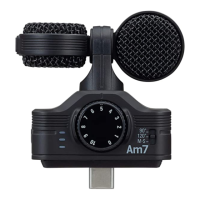
1. Turn the Am7 dial to adjust the recording level.
Check the level indicator, and adjust the recording level
so that the middle LED lights.
HINT
• If the input level is too high and causes distortion (−0.25 dB or higher), the red LED
will light. If this occurs, use the MIC GAIN knob to reduce the recording level.
• For recording and playback procedures, see the instructions for the app that you are
using.
NOTE
• No sound is output from the connected device speakers when the Am7 is connected.
If you want to listen to audio using the speakers, disconnect the Am7 from the device
when you are done recording.
• Connect the Am7 and the Android device completely. Incomplete connection could
cause malfunction or damage.
• When you are not using the Am7, disconnect it from the Android device and put it
away. If you use the Android device while the Am7 is still connected, damage could
occur if excessive force is applied to the connector.
If the connected device sends or receives data wirelessly while recording with
the Am7, noise could occur in the recording. Using the phone function of the
Android device will also cause recording to stop. When using the Am7, put the
connected device into Airplane Mode.
Specifications
Microphone Type Mid-side (M-S) stereo mic (90°/120°/M-S)
Maximum input sound pressure 120 dBspl
Input gain +3 - +43 dB
Audio quality 44.1 kHz/16-bit, 48 kHz/16-bit
Power Powered by the connected device
Connector USB Type-C connector
Stereo mini jack (combined headphone/line level output)
Dimensions 54.5 (W) x 57.2 (D) x 26.5 (H) mm
Weight 31.8 g
HighLow
ZOOM CORPORATION
4-4-3 Kanda-surugadai, Chiyoda-ku, Tokyo 101-0062 Japan
www.zoom.co.jp


 To Next Page