0
MS
stereo
mic
(Side)
..........,
~
.......................
'l
Level
indicator
~
Cas
e
adjuster
I
Stereo
min
i jack
MIC GAIN
knob
Lightn
ing connec
tor
M-S
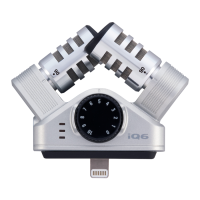
stereo mic: This is a mid-side stereo
microphone.
Turn
to change its orientation.
(See
"Changing
the mic orientation.")
Stereo
mini
jack:
Connect
headphones to
monitor recording
and
playback.
This
can
also
be
used
as
a
line
output jack.
Stereo
width
switch:
Set
the
left-right
spread
of the stereo mic.
(See
"Adjusting
the stereo
width.")
MIC GAIN
knob
: Use to adjust the recording
level manually.
(See
"Adjusting
the recording
level.")
Level
indicator:
The red
LED
lights dimly
when
connection
wi
th the device
is
norma
l.
T
he
LE
Os
also light
according to the
level
of the input
signal.
-
-
-)
:::
(-
Hi
gher
th
an
- 42
dB
-
-'
c::::J
/-
-:
c::::J
:-
Higher than
- 12
dB
-'
c::::J
-:_
(Red)
=;
~
~
Higher
th
an
- 0
.25
dB
Lightning
connector:
Connect
to the Lightning
connector
of
t
he
iOS
device.
Case
adjuster:
Remove this if the case of the
device prevents the Lightning connector from
connecting
completely.
( Connecting with the Device )
1.
Connect
the
iQ7
to
the device
with
the
lighting
connector.
When the connected device is providing power to the
iQ'7
,
the
red
LED
lights dimly.
T
he
iQ'7
becomes
ready
for
use
when
Handy
Recorder
or another
app
that
can
use it
is
started.
•
Remove
the
cas
e adjuster if
the
c
ase
of
the
de
vice
prevents
th
e Lightning
conne
ctor from
con
nec
ti
ng
comp
le
te
ly
.
•
So
me
cas
es might prevent
connection even when the
c
ase
adjuste
r is r
emoved.
•
The
li
ghtn
i
ng
connector
does
not
have
a front
or
ba
ck,
but
if
you
connect
the
iQ'7
to
the
dev
i
ce
upside
down
c
omp
a
red
to
the
illustration
above
,
the
left
and
righ
t
st
ereo
channels
will
be
reversed
.
* The
left
and ri
ght
stereo settings can be reversed in
Handy
Recorder
app.This setting
is stored in
the
iQ'7
itself
.
If
an
authenticat
i
on
error
or
other
problem
occurs, the red
LED
will
blink
dimly.
2.
Connect
headphones
,
for
example
,
to
the stereo
mini
jack
on
the
iQ7.
Use the
Handy
Recorder
app to adjust the
volume
of the headphones or other device
connected to the
iQ'7
stereo mini
jack.
The
volume level
se
t using the
Handy
Recorder
app
is
saved
in
the
iQ'7
and
will
be
applied
wh
en
using the
iQ'7
with other
applications.
(
Us
i
ng
the Microphone )
Changing the mic orientation
1.
Turn
the
M-S
stereo
mic
to
change its
orientation.
Rotate the arrow
on
the top of the mid mic toward the subject
of
recording.
Audio
position:
Use this position when pointing the connected device
toward the sound
sou
r
ce.
Video
position:
Use this position when recording video
with
the
built-in
camera.
Audio
posit
i
on
Video
position
~
•
Hold
the
iQ'7
to
the
c
onnected
devi
ce
tightly
to
prevent
disconnection
when
using
its
switches
or
changing
its m
ic
orientation
.
Us
e
of
e
xc
essive
force
c
ould
cause
disconnec
t
ion
and
even
damage
the
connector
.
Adjusting the stereo width
1.
Move
the
stereo
width
switch.
so
·
8
120
·-
0
M-S-
90":
Record with a stereo width of
90
°.
120":
Record with a stereo width of
120°.
M-S: Record without setting the stereo width using the
iQ'7
.
Adjust the stereo
width after recording using the
Handy
Recorder
app. When used with apps
other than
Handy
Recorder
,
th
is
se
tting
wi
ll
function
as
though set to 120°.
Adjusting the recording
level
1.
Turn the
iQ7
dial
to
adjust
the
recording
level.
Check
the
level
indicator,
and
adj
ust the
recording
level
so
that the middle
L
ED
lights.
HINT
•
If
the
input
level
is
too
high and causes di
stortion
(-0
.25
dB
or
higher).
the
red
LED
will
light.
If
this
occurs, use
the
MIC GAIN
knob
to
reduce
the
recording
level.
• For
recording
and
playback procedures,
see
the
instructions
for
the app
that
you
are using.
•
No sound
is
output from the connected devi
ce
speakers
when the
iQ'7
is
connected.
If
you want to
listen
to audio using the
speakers
, disconnect the
iQ'7
from the device when you
are
done recording.
• Connect
the
iQ'7
and
the
iOS
device
completely.
Incomplete
connection
could
cause
malfunction
or
damage.
•
When
you
are
not
using the
iQ'7,
disconnect it
from
the
iOS
device and
put
it
away.
If
you
use
the
iOS
device
while
the
iQ'7
is
still connected,
damage
could
occur
if
excessive force
is applied
to
the
connector
.
If
the
connected device sends
or
receives data
wirelessly
while
recording
with
the
iQ7
,
noise
could
occur
in
the
recording. Using the
phone
function
of
the
iPhone
will
also cause
recording
to
stop.
When
using
the
iQ'7,
put
the
connected
device
into
Airplane
Mode.
ZOOM
CORPORATION
4-4-3
Surugadai,
Kanda,
Chi
yoda-ku,
Tokyo
101-
0062
Ja
p
an
http://www.zoom.co.jp



 To Next Page
 Loading...