23
ZOOM UIB-01
UIB-01 Applications
3.
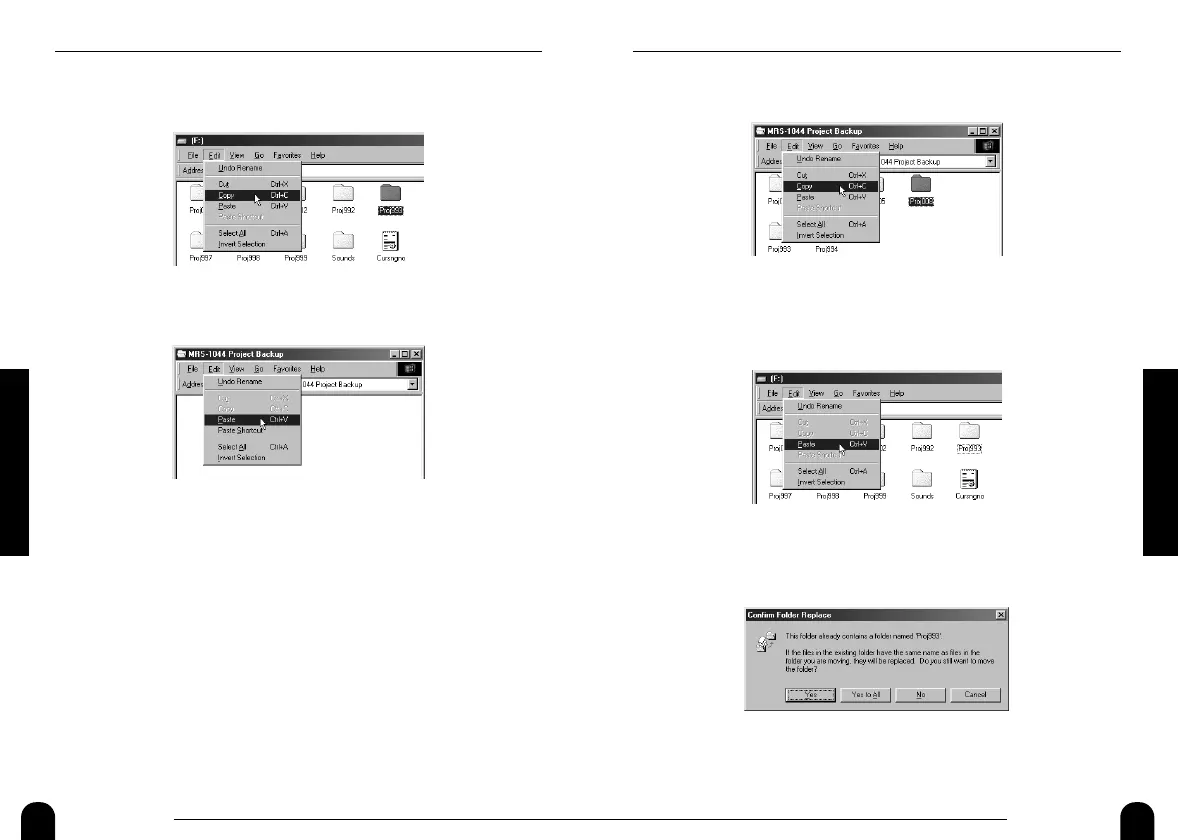
Select the folder for the project you want to restore, and
select [Copy] from the [Edit] menu on the menu bar.
4.
Open "My Computer" and double-click on the local disk
representing the MRS-1044.
5.
Select [Paste] from the [Edit] menu on the menu bar.
The project is restored to the hard disk on the MRS-1044. If
necessary, restore other projects in the same way. If a folder with the
same name as the folder selected for restore already exists on the
hard disk of the MRS-1044, the following indication appears.
If you click on the [Yes to All] button, existing data on the hard disk
of the MRS-1044 will be overwritten by the restored project data.
(V-take files for which no restore data are present will remain
unchanged.)
22
ZOOM UIB-01
UIB-01 Applications
3.
Select the folder of the project you want to back up, and
select [Copy] from the [Edit] menu on the menu bar.
4.
Open the destination drive/folder and select [Paste] from
the [Edit] menu on the menu bar.
Backup of the project data is now complete. If necessary, back up
other projects in the same way.
Restoring a project
You can restore projects backed up on the hard disk of the computer to
the internal hard disk of the MRS-1044.
1.
Start up the MRS-1044 in USB mode and connect it to the
computer with a USB cable.
Verify that the online state is established.
2.
Open the drive/folder where the project backup data are
stored.


 To Next Page