Appendix C: Windows 95, Macintosh, and Linux Users 47
Click the
Configuration
tab. You will see a list of installed
network components. If you see a line that includes
TCP/IP
,
skip to Step 5. If you don’t see the line, continue with Step 2.
2
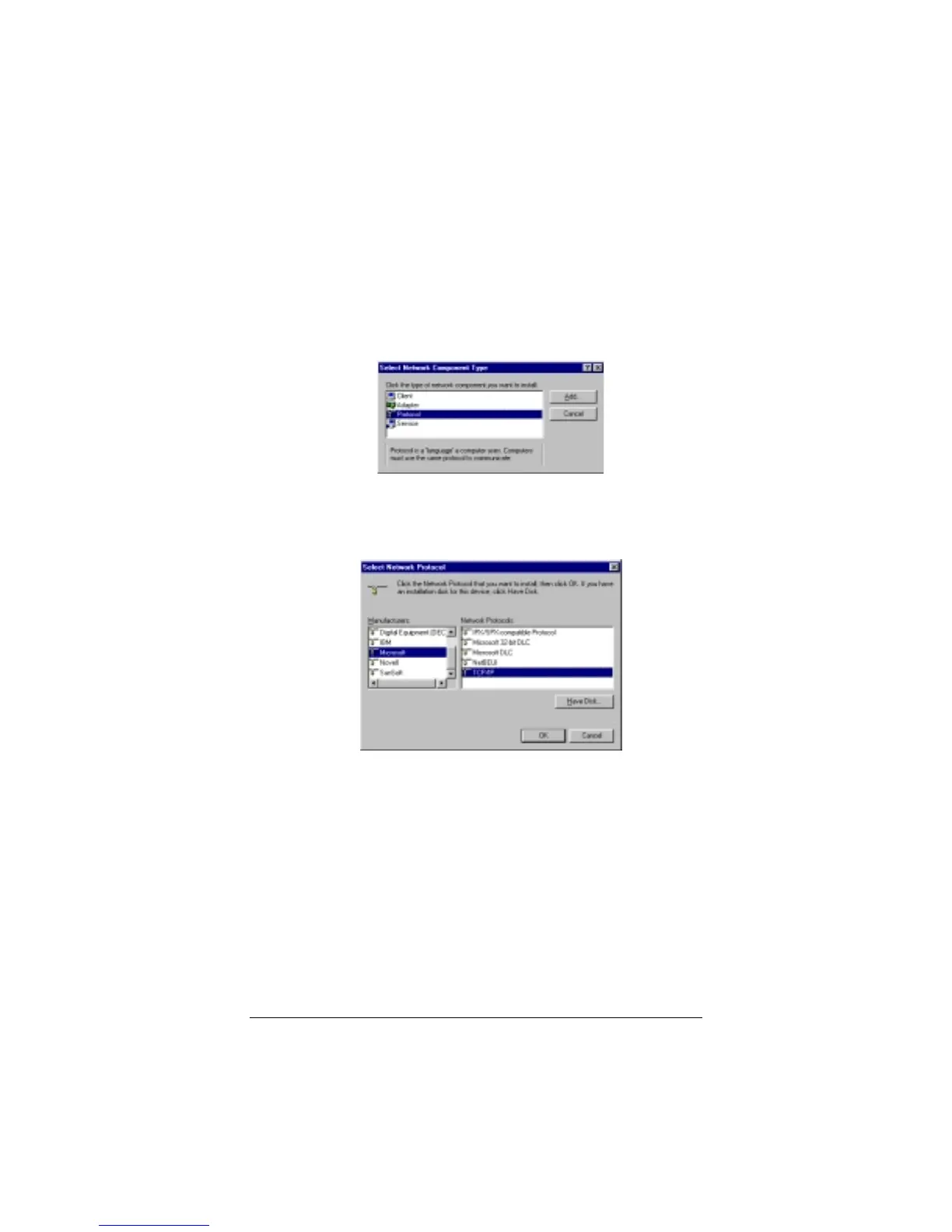
If you don’t see TCP/IP listed, click the
Add
button to display
the
Select Network Component Type
dialog box.
3
Click to highlight
Protocol
and click
Add
.
The
Select Network
Protocol
dialog box displays.
4
Click to highlight
Microsoft
and then click to highlight
TCP/IP
in the Network Protocols list. Then click
OK
.
The
Network
dialog box from Step 1 displays. There should
now be an entry for
TCP/IP
. Click
No
if you are asked to
restart your computer. Note: Don’t click
OK
yet.
5
Click to highlight
TCP/IP
and click
Properties
. The
TCP/IP Properties
box displays. Make sure the
IP Address
tab is foremost, and that
Obtain an IP address
automatically
is selected.
Note:
If you want to use a static IP address—for example,
when setting up a virtual server (page 23) or DMZ (page 26),
click
Specify an IP address
and type the static IP address and
subnet mask.



 To Next Page