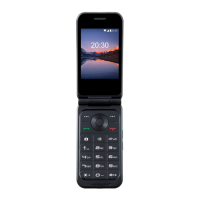
Getting to Know the
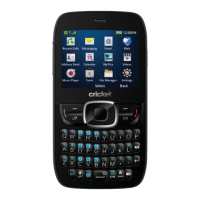
Home Screen
Call Features
Options available during a call.
Press the Center Key to turn the
speakerphone on/off.
Press the Right Soft Key to mute or
unmute the microphone.
Select Options > Add call to make
another call separately from the first
call, which is put on hold.
Select Options > Merge calls to
merge the separate calls into a single
conference call.
Select Options > Swap to put the
caller you are speaking to on hold,
and switch to the other call that has
been put on hold.
Contacts
To see your contacts, from the home
screen, select Contacts.
Checking Contact Details
1. From the home screen, select Contacts
(Left Soft Key) to access your contacts list.
2. Scroll through the list to view all your
contacts.
3. Select a contact and then press the Center
Key to view its details.
Adding a New Contact
1. From the home screen, select Contacts
(Left soft Key) > Select Options (Left Soft
Key).
2. Select New contact to add a new contact.
NOTE: If you have no contacts added yet,
select CREATE A NEW CONTACT.
3. Enter the contact's name, phone numbers,
email addresses and other information. (To
adjust input mode, hold down the # key)
4. To enter more information, select ADD
ANOTHER FIELD at the bottom of the display
and press the Center Key.
5. Select Options > Done to save the contact.
Transferring Contacts
Using Bluetooth or Messaging
You can also quickly share your contacts using
Bluetooth or Messaging.
Sharing Contacts
1. From the home screen, select Contacts.
2. Select Options > Import/Export > Share visible
contacts.
3. Choose to share via Messaging or Bluetooth.
Phone will export your contacts into a vCard file.
4. Follow the prompts on the display to send the
vCard file.
Setting Up Voicemail
Using *86
1. Press *86 and the Send key. Your phone will
dial the voicemail number and you will hear voice
prompt to guide you through the steps.
• Press 1 for English, 2 for Spanish
• Press # to confirm your language choice.
2. Enter a password & press #. You will need to
enter this password every time you listen to your
massages.
3. To select a greeting:
• Press 1 for the standard greeting listing your phone
number.
• Press 2 for the standard greeting listing your name.
• Press 3 to record a personal greeting.
4. Once you have selected your greeting, you will
be given final reminders. Then Press 2. The
voicemail system will ask you to choose:
• Send a Message.
• Check Receipt (to assure the message was
received).
• Personal Options.
• Disconnect.
NOTE: Using this method to set up your voicemail
uses minutes from your plan.
Messages
Opening the Messaging Screen
From the home screen, select Messages (Right
Soft Key). The Messaging screen opens, where
you can create a new message or open an
ongoing message thread.
• Select Options (Left Soft Key) > New
message to write a new text or multimedia
message.
• Select an Existing message thread to open
the conversation.
Sending a Message
1. On the Messaging screen, select
Messages (Right Soft Key) > Options
(Left Soft Key)> New message.
2. Add recipients in one of the following
ways:
• Select the To field and manually enter
the recipient’s number or the contact name.
If the phone presents a few suggestions,
select the one you want to add.
• Select the To field and press the Center
Key to select recipients from contacts, call
history, or contact groups. NOTE: To
remove a recipient, press the Clear Key.
3. Use the 4-Way Navigation Key to arrow
down to the input text box at the bottom
and type the content of your text message.
4. If you want to send a multimedia
message, select Options (Left Soft Key) >
Insert attach to attach a photo or video to
the message.
5. Press the Center Key to select SEND for
your message to be sent.
NOTE: Do not add an attachment if you want to
send a text message. Otherwise, you may be
charged for a multimedia message.
Replying to a Message
1. On the Messaging screen, select the
thread that has the message you want to
reply to.
2. Type your reply in the text box at the
bottom. You can select Options (Left Soft
Key) > Insert attach if you want to reply with
an MMS. 3. Press the Center Key to send.
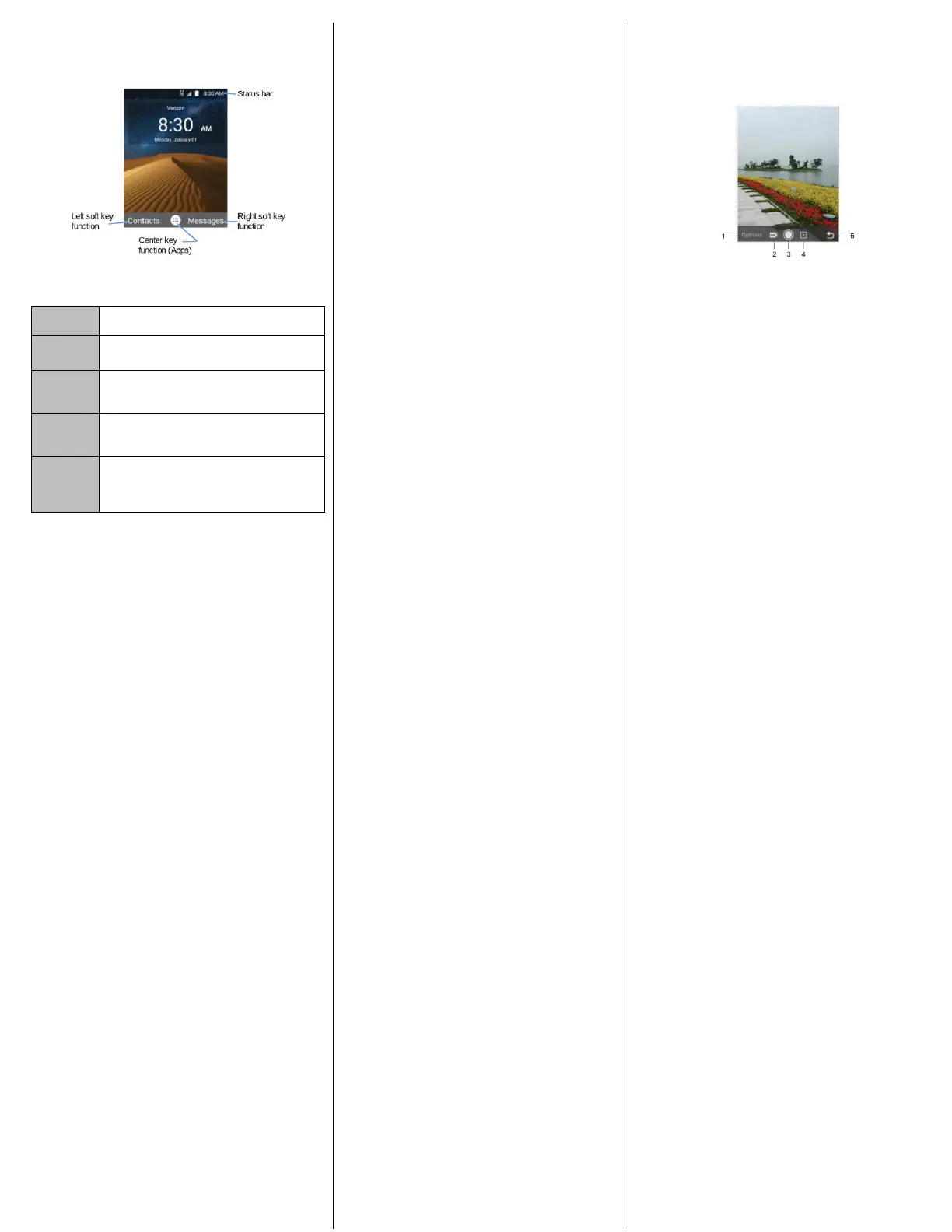
Capturing a Photo
1. From the home screen, select Center
Key > Camera.
NOTE: You can also press the Camera Key from the home or
apps screen to launch the Camera app.
2. Aim the camera at the subject and make
any necessary adjustments.
• To use a filter effect, select Options (Left Soft
Key) > Filter > arrow down to choose an option.
• To access White Balance, Brightness, and ISO,
select Options (Left Soft Key) > White
balance/Brightness/ISO. Press the Center Key, and
then choose an option.
• To adjust camera settings such as picture size and
video quality, select Options (Left Soft Key) >
Settings then arrow down to choose an option.
3. Press the Center Key or the Camera Key
to take a picture.
Recording a Video
1. From the home screen, select Center Key
> arrow to Camera.
NOTE: You can also press the Camera Key from the home or
apps screen to launch the Camera app.
2. Press left on the 4-Way Navigation Key,
to switch to the camcorder. The shutter button
will turn red.
3. Aim the camera at the subject and make
any necessary adjustments.
NOTE: You can press the Volume Key to zoom in or zoom
out before and during recording.
4. Press the Center Key or the Camera Key
to start recording. You can also press the Left
Soft Key to pause and resume recording.
5. Press the Center Key or the Camera Key
again to stop recording.
Speed Dial
Setting Speed Dials
You can press and hold the 1-9 Keys in the home
screen to call the corresponding speed dial number.
The number 1 Key is reserved to speed dial your
Voicemail.
To assign a speed dial key:
1. From the home screen, select Center Key >
Settings > Call settings > Speed dial.
2. Select a speed dial entry and then press the Center
Key.
3. Select a contact number from the contact list, and
then press the Center Key.
Memory
Internal Memory: 4GB
Supports microSD memory card up to 32GB
.


 To Previous Page
 Loading...