EasyManua.ls Logo

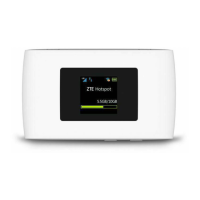
Zte MF90 - User Manual

Zte MF90
24 pages
Print Icon
To Next Page IconTo Next Page
Loading...
1
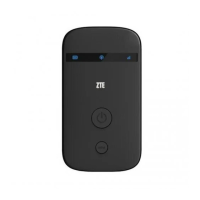
ZTE MF90
Let’s go
Getting started with your device.

Other manuals for Zte MF90

Questions and Answers

  • W
    williamssarahAug 1, 2025
    What to do if the client connected to Zte Cell Phone cannot access the Internet?
    • K
      Kimberly RodriguezAug 2, 2025
      If your client, connected to the Zte Cell Phone, can't access the internet, ensure your (U)SIM card is available and that you are in a location with good signal. Also, check the WAN Connection mode setting and confirm your APN settings with your service provider.
  • T
    Tracey GoodwinAug 9, 2025
    Why can't I visit the 4G Mobile Hotspot page on my Zte Cell Phone?
    • M
      Michael WilliamsAug 9, 2025
      If you cannot visit the 4G Mobile Hotspot page on your Zte Cell Phone, ensure you are entering the correct address (the default is http://192.168.0.1 or http://m.home). Also, make sure you only use one network adapter in your PC and that you are not using any proxy server.
  • B
    brittanydeckerAug 16, 2025
    What is the default password for Zte Cell Phone?
    • S
      smithryanAug 16, 2025
      For the Wi-Fi connection password on your Zte Cell Phone, check the label on the device. The default password for the 4G Mobile Hotspot page is 'admin.' If you've changed the password and forgotten it, you'll need to restore the device to its factory default settings.
  • A
    Andrew RitterAug 25, 2025
    What to do if the client cannot access the Internet in AP Station mode on Zte Cell Phone?
    • E
      Emily GuzmanAug 25, 2025
      If the client can't access the internet when you use AP Station mode on your Zte Cell Phone, ensure that the other WLAN device has already connected to the internet and that the subnet of your device and the other WLAN device is different.

Summary

Getting Started with Your Device

Legal Information

Getting to Know Your Device

Device Appearance

Details the physical appearance and labeled parts of the device for user identification.

Device Indicators

Connection Scenarios

Installing Your Device

Connecting to Your Device

Connecting Via Wi-Fi

Instructions for connecting to the device wirelessly using Wi-Fi networks.

Connecting Via USB Cable

Steps for establishing a connection to the device using a USB cable.

Using WPS (Optional)

Accessing the Internet

4 G Mode Internet Access

Guide to accessing the internet using the 4G mobile network.

Internet Wi-Fi Mode Access

Instructions for accessing the internet via Wi-Fi connection to another WLAN device.

Configuring Your PC for Wi-Fi Connection

Warnings and Notices

Advice for Device Owners

Important advice and precautions for the owner regarding device usage and safety.

Using Your Device

Using and Caring for the Battery

Limited Warranty Information

Limitation of Liability

Troubleshooting Common Issues

Zte MF90 Specifications

General IconGeneral
Download SpeedUp to 150 Mbps
Upload SpeedUp to 50 Mbps
Wi-Fi802.11 b/g/n
Wi-Fi Frequency2.4 GHz
Max. Wi-Fi ConnectionsUp to 10 devices
BatteryLi-ion 2300 mAh
Operating TimeUp to 6 hours
Standby TimeUp to 300 hours
External PortsMicro USB
SIM Card SlotStandard SIM
Weight120 g
Device Type4G LTE Mobile WiFi Hotspot
LTE CategoryLTE Category 4
Supported NetworksLTE, UMTS, GSM

Related product manuals